Saved Blocks & Layouts
Saving a block or an entire layout makes it easy to reuse your best work without rebuilding it every time. It helps you move faster by turning a finished section into a reusable snapshot you can drop into other pages in seconds, while keeping designs consistent across the site. It is also a practical way to build your own library of reusable sections for different use cases, from hero areas to pricing sections, and it provides a simple backup of a version you like before experimenting with changes.
When exported as a file, saved blocks and layouts become portable assets that can be shared across projects, making it easier to scale repeatable design patterns and maintain a clean, predictable workflow.
How to save Blocks & Layouts
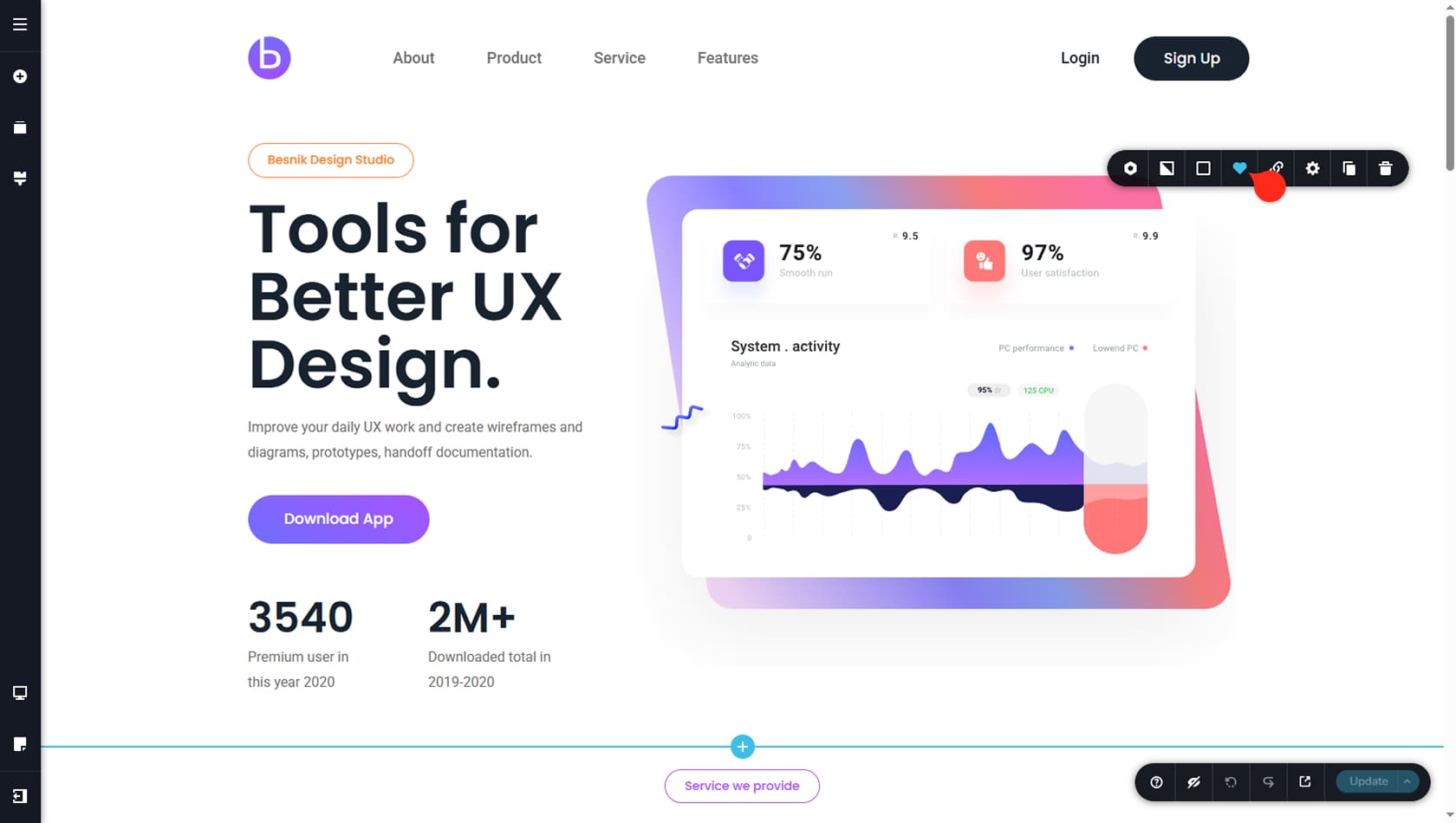
To save a block, click the heart icon in the block toolbar to capture a snapshot of its current state. Any edits you make afterward will not update the saved version.
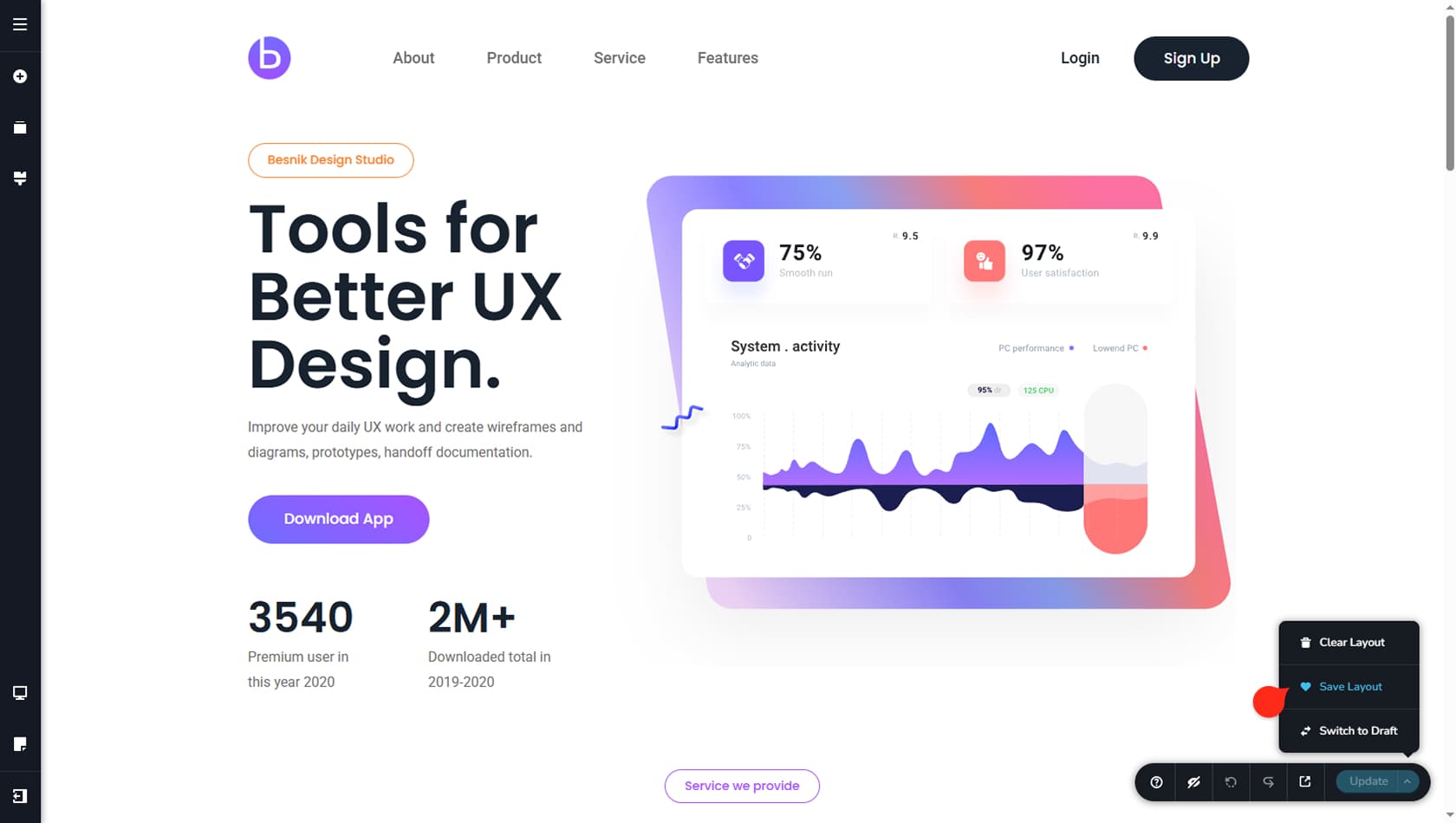
To save a layout, open the page toolbar in the bottom-right corner and select Save Layout from the menu. Click the small arrow next to the Update button to open that menu.
The Saved Panel
The List of Saved Blocks & Layouts
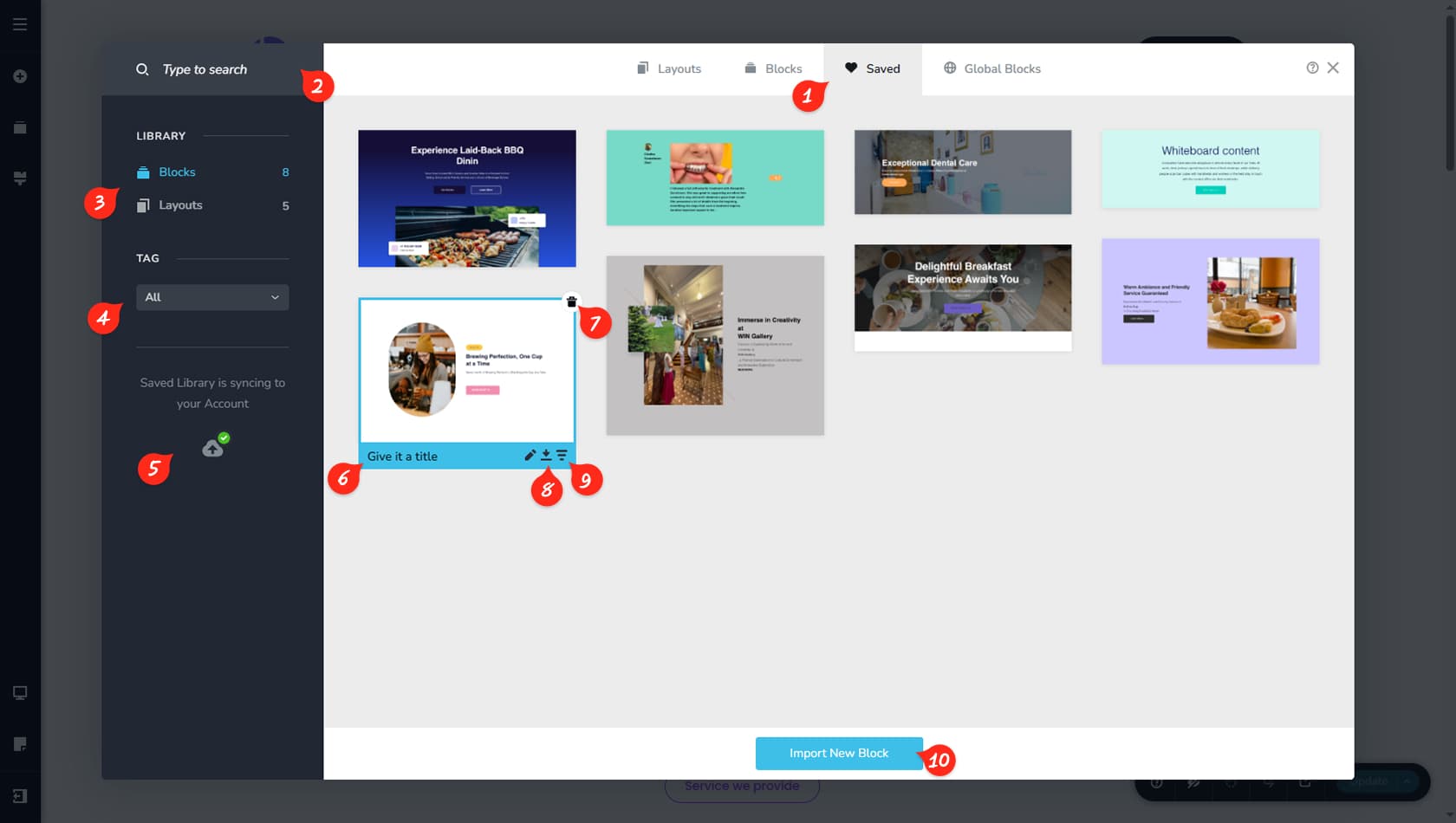
Here you can view all your saved blocks and layouts and manage them from one place. Selecting an item will insert it automatically at the spot you selected in the page.
If you import a layout that includes a global header, footer, or other global blocks, they will be inserted as regular, non-global blocks.
Search
If your saved items have names, you can use the search field to quickly find what you need.
Blocks or Layouts
You can switch between the Blocks and Layouts views. The remaining controls work the same in both views.
Tag Filters
You can filter saved items by tag. By default, saved blocks and layouts are uncategorized until you assign a tag.
Sync Your account
You can sync your account so your saved blocks and layouts are available across all your projects
Rename your Block or Layout
You can give a saved block or layout a name to make it easier to recognize later.
Delete your Block or Layout
You can delete a saved block or layout using the delete icon in the top-right corner.
Download/Export your Block or Layout
You can download a file version of a saved block or layout, which you can import into another project.
Assign a Tag
You can assign a tag to a saved block or layout using the tag icon, then use the tag filter to narrow down the list later.
Import a Block or Layout
You can import a block or layout from a previously downloaded file, which is useful for bringing in saved items from other projects.