Alert
The Alert widget is designed to highlight important information in a clear and visually distinct way, helping users quickly notice updates, warnings, or key messages. By combining a structured layout with strong background contrast, it draws attention without interrupting the overall flow of the page. Its simple composition of title, description, and optional close button makes it an effective tool for announcements, notices, or time-sensitive content.
Alert Options
Alert Options
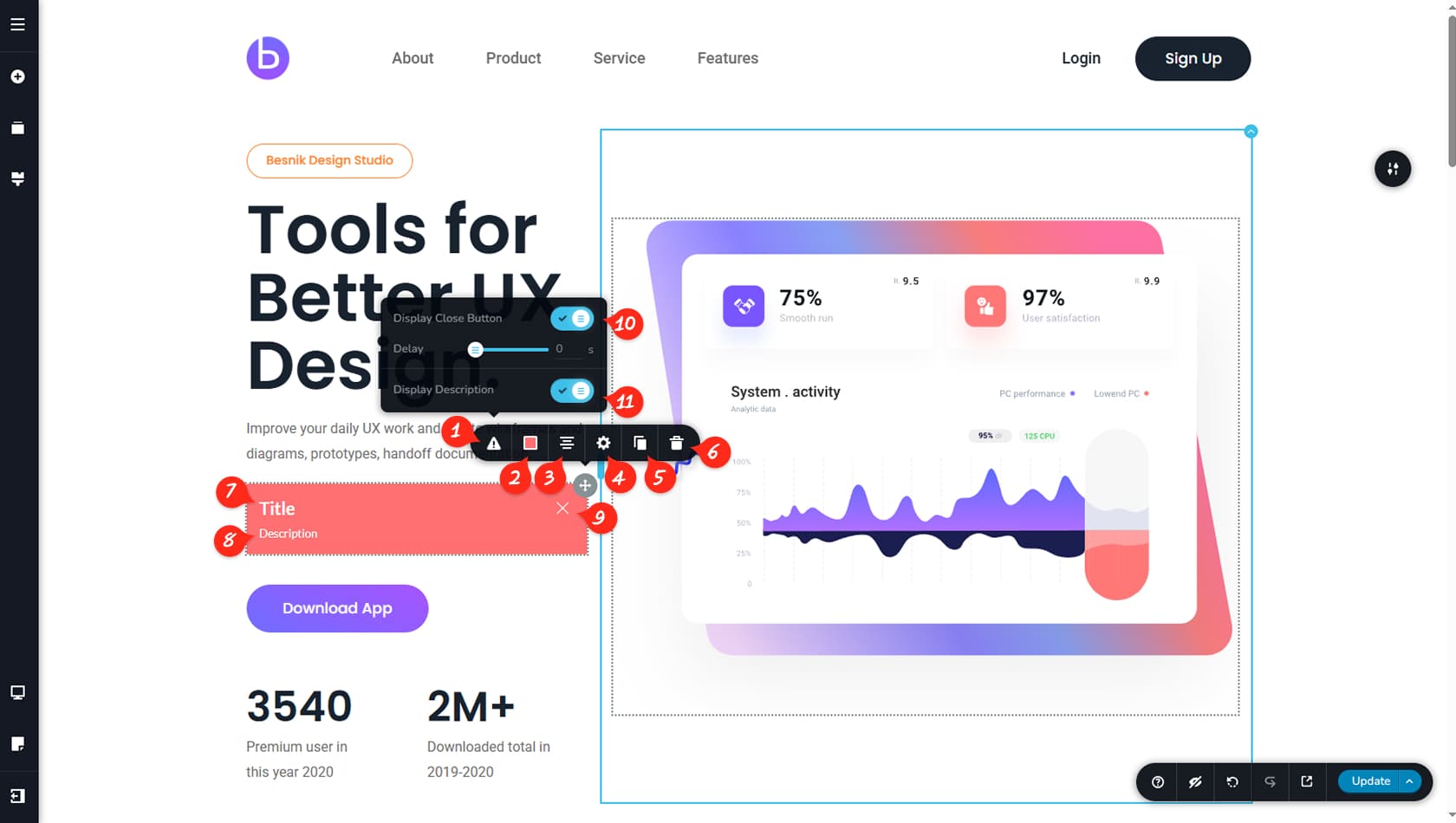
After dragging and dropping the Alert widget, you can customize its settings using the icon in the top-right corner. Select the left-most icon in the toolbar to open the main options panel.
Alert Colors
Here you can adjust the colors of the background, border, and shadow, including hover color settings.
Alert Alignment
This option controls the alignment of the widget.
Widget Settings
Here you can define the widget’s width and access the Styling and Effects panels, where you can modify padding, margins, animations, and more.
When referring to the Styling Panel of the widget, please see the Widgets Styling article for more details and an in-depth guide. Note that most widgets share similar styling options, with slight variations depending on the specific widget.
Duplicate Alert
This control duplicates the Alert widget.
Delete Alert
This control deletes the Alert widget.
Title Options
Clicking the alert title allows you to edit the text directly, as well as adjust its typography, color, and alignment within the widget.
Description Options
Here you can edit the alert description. Just like the title, you can modify its typography, color, and alignment, and also define the spacing between the title and description.
Close Icon
This section allows you to customize the close icon, including its position, size, background, and color.
Toggle Icon
Here you can toggle the close button on or off and set a delay timer so visitors have time to read the alert.
Toggle Description
This option lets you show or hide the description.