Map
A map widget helps visitors quickly understand and locate a physical address, making it especially valuable for contact pages, business listings, or event locations. By visually presenting directions and geographic context, it reduces confusion and improves user confidence when planning a visit. Integrating an interactive map directly into your layout enhances accessibility, provides clear location guidance, and creates a more informative and user-friendly contact experience.
Map Options
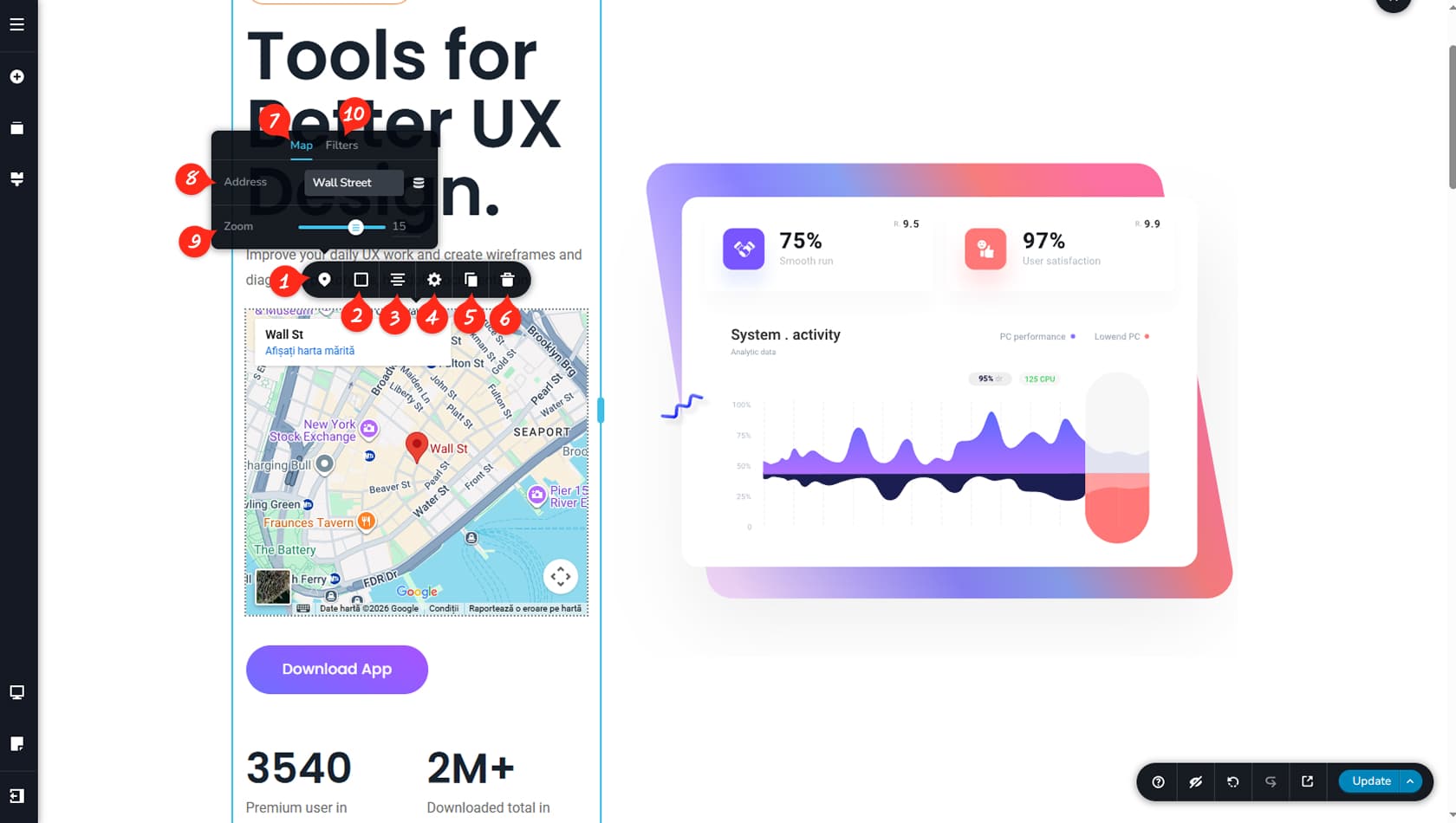
Map Options
After dragging and dropping the Map widget, click it to open the toolbar. The first icon on the left opens the Map Options.
Map Colors
Here you can customize the widget’s colors, including background, border, shadow, and hover colors.
Map Alignment
This setting controls the map’s alignment, allowing you to position it left, center, or right.
Settings Panel
This opens the Settings Panel, where you can adjust the map’s height and width, as well as access the Styling and Effects panels on the right for options such as padding and animations. More details about styling can be found in the “Styling” article.
When referring to the Styling Panel of the widget, please see the Widgets Styling article for more details and an in-depth guide. Note that most widgets share similar styling options, with slight variations depending on the specific widget.
Duplicate Map
This control duplicates the map.
Delete Map
This control deletes the map.
Map Tab
With the widget panel open, navigate to the Map tab for additional settings.
Address
Here you can enter the address you want the map to display and direct visitors to.
The Map widget uses Google Maps, allowing addresses to be identified with high accuracy. If you do not have the exact address, you can search for it on Google and paste it directly into this field.
Map Zoom
Here you can adjust the map’s zoom level to view more detailed locations.
Map Filters
This setting allows you to apply color filters to the map, such as brightness, contrast, or hue, helping you better match the map’s appearance to your design.