Create a menu with anchors
If you are building a landing page and want custom links in the menu that point to different blocks on that same page, here is how to add them.
An anchor is a link that jumps to a spot further down the same page. A visitor clicks Features at the top, and the page scrolls down to your features section without leaving.
Normally a menu item points at a page. For anchors you add a custom link instead, which points at a block.
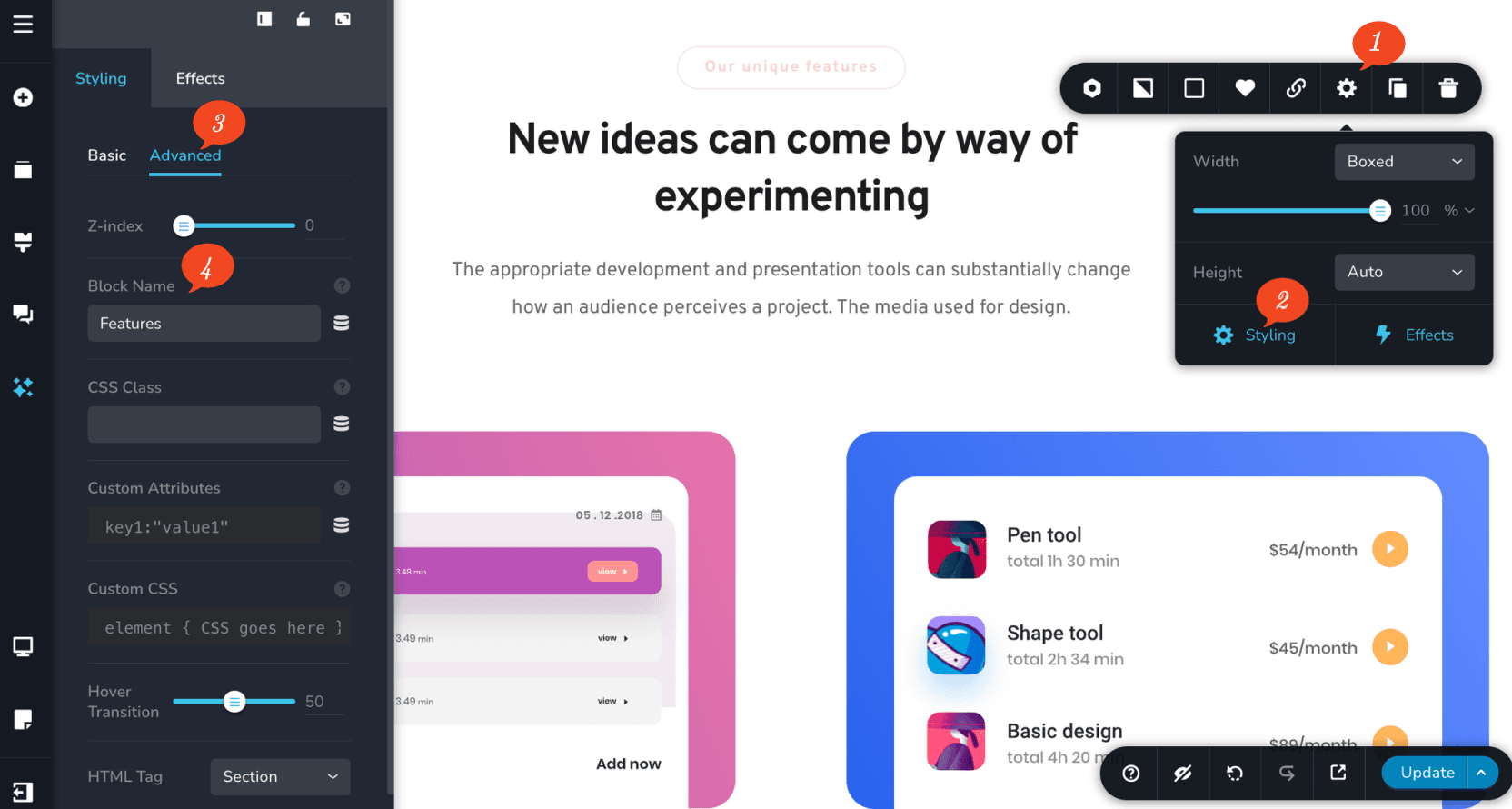
Name your block
An anchor finds its block by name, and blocks have no name until you give them one.
The block name is the name you give the block from the block advanced settings. Name a
block Features and its anchor link becomes #Features.
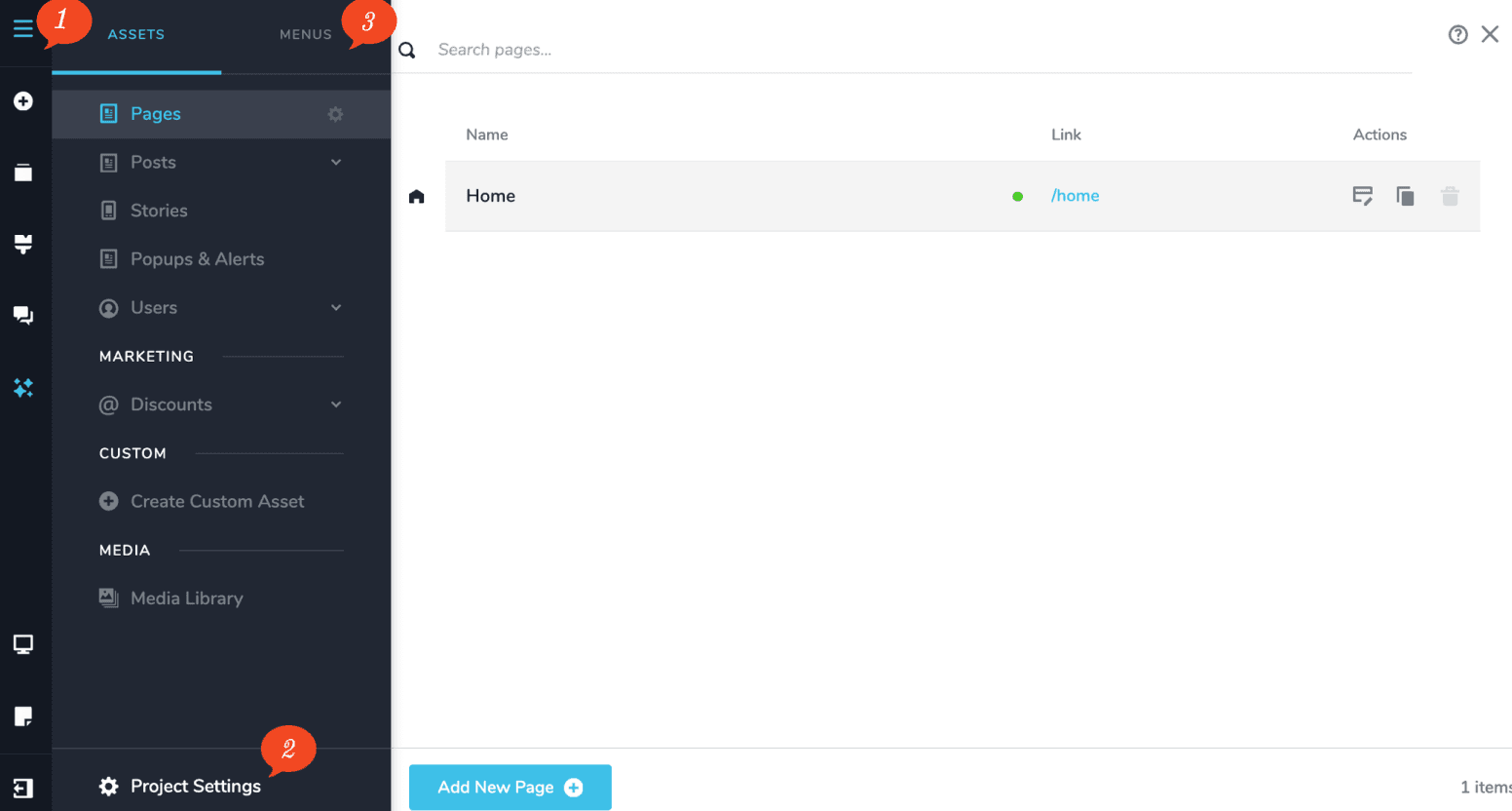
Open the menu settings
Go to CMS (the hamburger icon) › Project Settings › Menu tab.
Select your menu
Choose the menu you want to add the custom links to, from the dropdown.
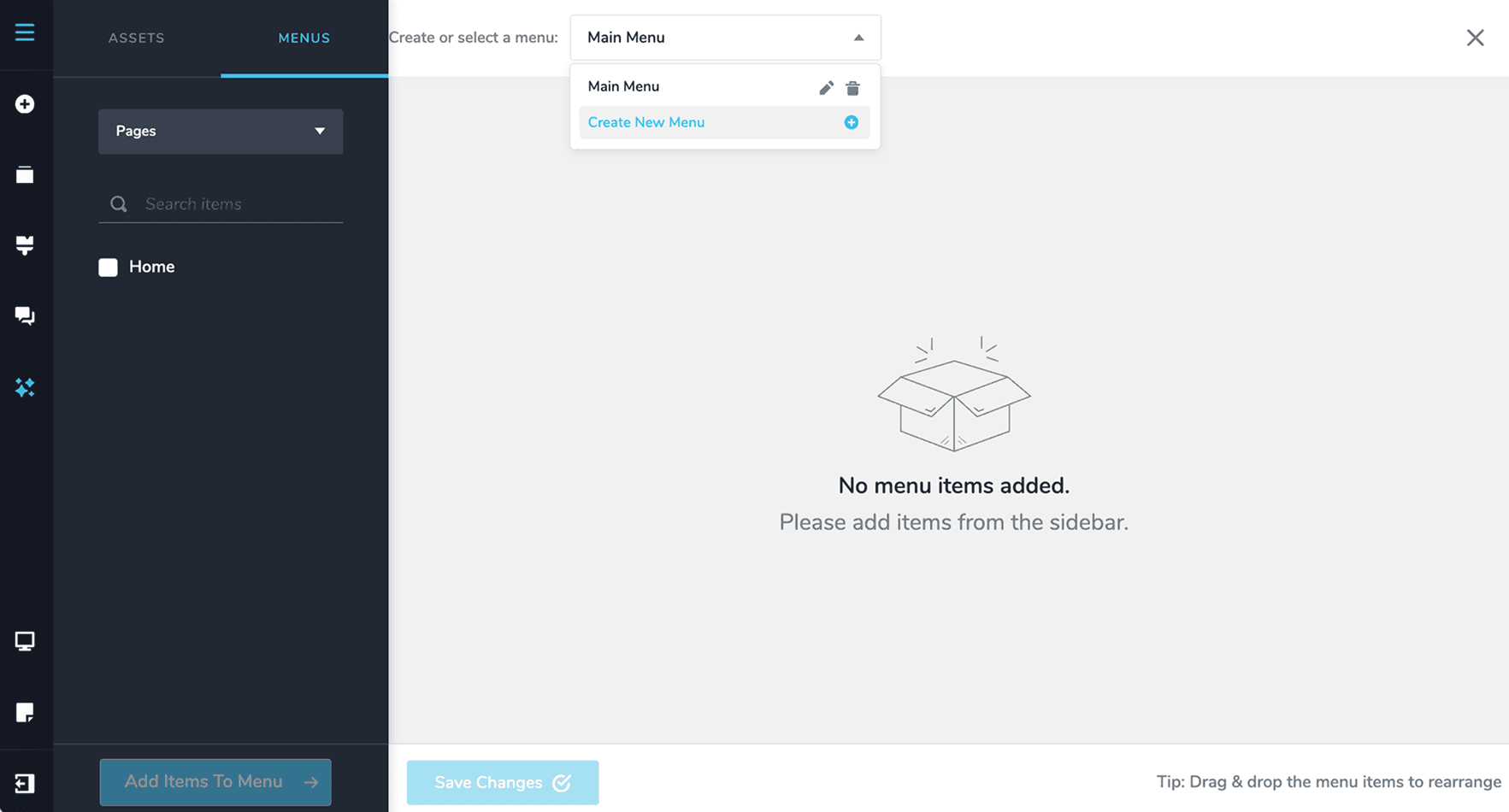
If you have not created one yet, see Menus & navigation.
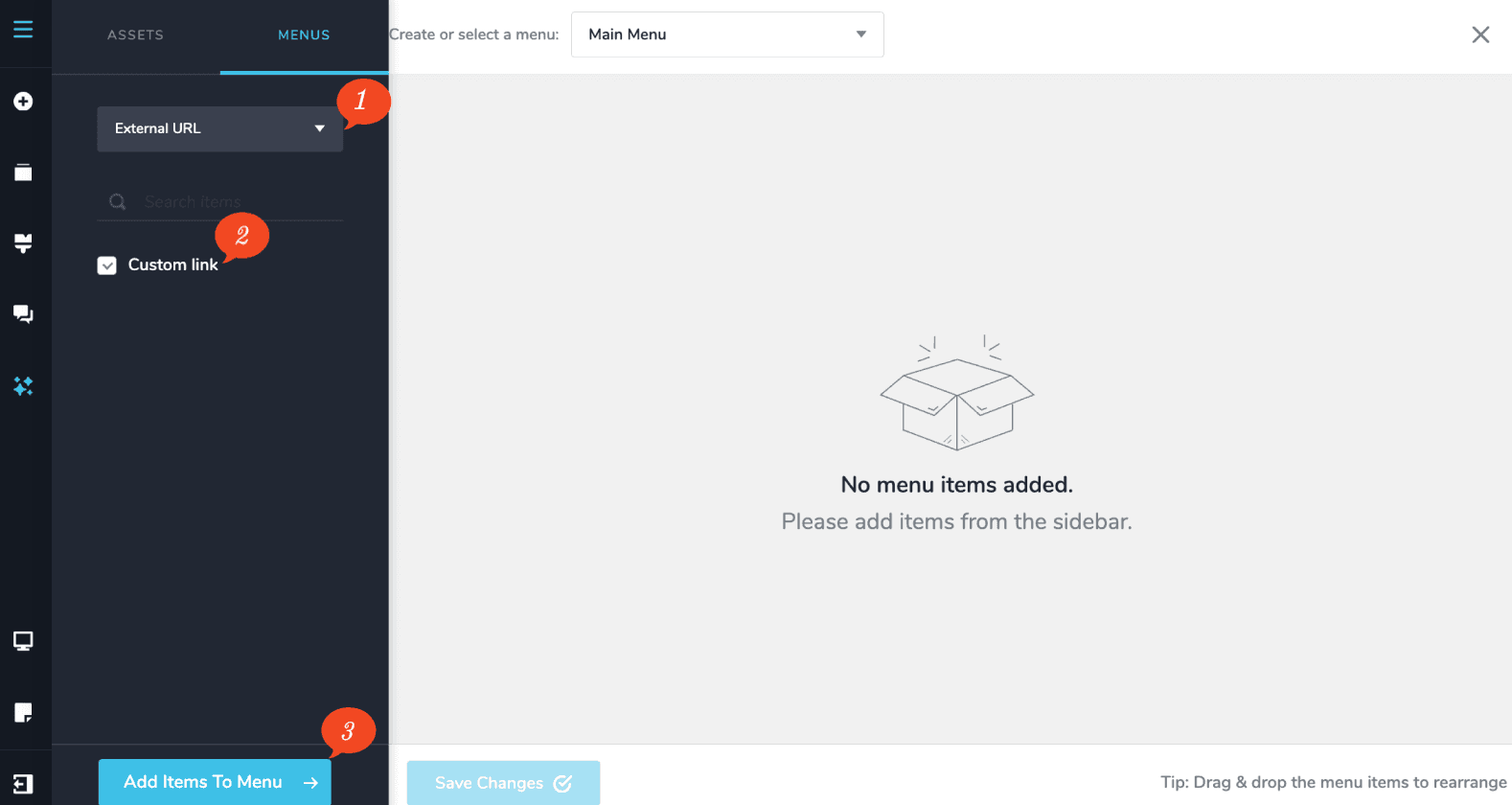
Add custom links
Add Custom links from the sidebar.
Fill in the anchor and the label
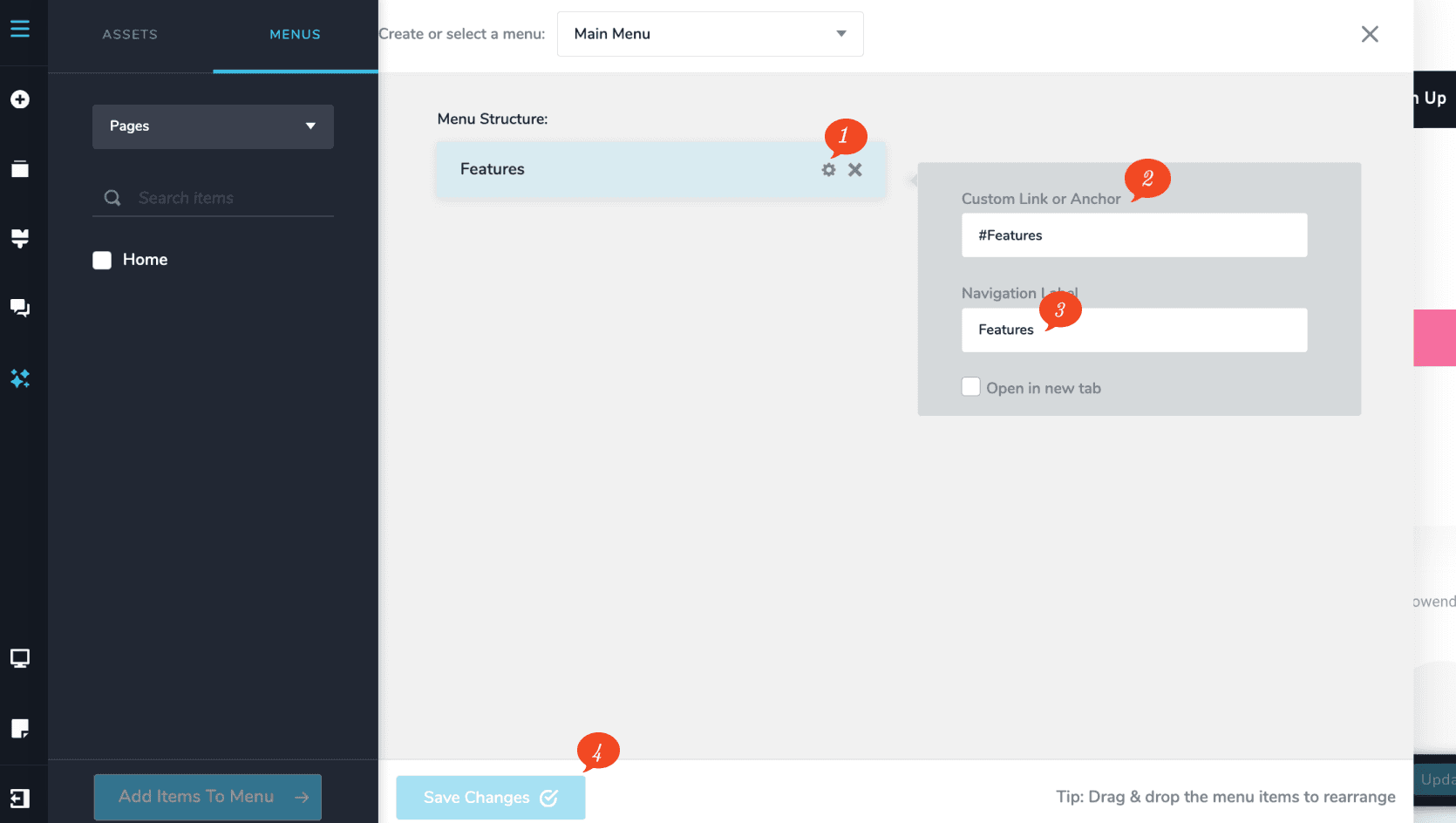
Click the Settings icon and add the anchor link in the Custom Link or Anchor field. If you named your
Features block Features, your anchor link is #Features.
In the Navigation Label field, give a name for your anchor link. Your website visitors will click on this name to go to that specific block.
Click Save Changes at the bottom to save your menu.
The Navigation Label field is the wording shown on the menu item itself, so write it
normally, with spaces and capitals — Our features rather than #Features.