Lottie
The Lottie widget allows you to enhance your website with lightweight, high-quality animations that bring movement and personality to your design without affecting performance. By supporting animated files that scale smoothly across devices, it’s ideal for adding interactive visuals, loading animations, feature highlights, or decorative motion elements that help capture attention while keeping layouts clean and modern.
To use the Lottie widget, you need access to animation files or embed links from platforms that provide Lottie animations. This typically requires creating an account on websites that host downloadable or embeddable animations, such as lottiefiles.com, where you can browse, customize, and obtain the animation files needed for your project.
Lottie Options
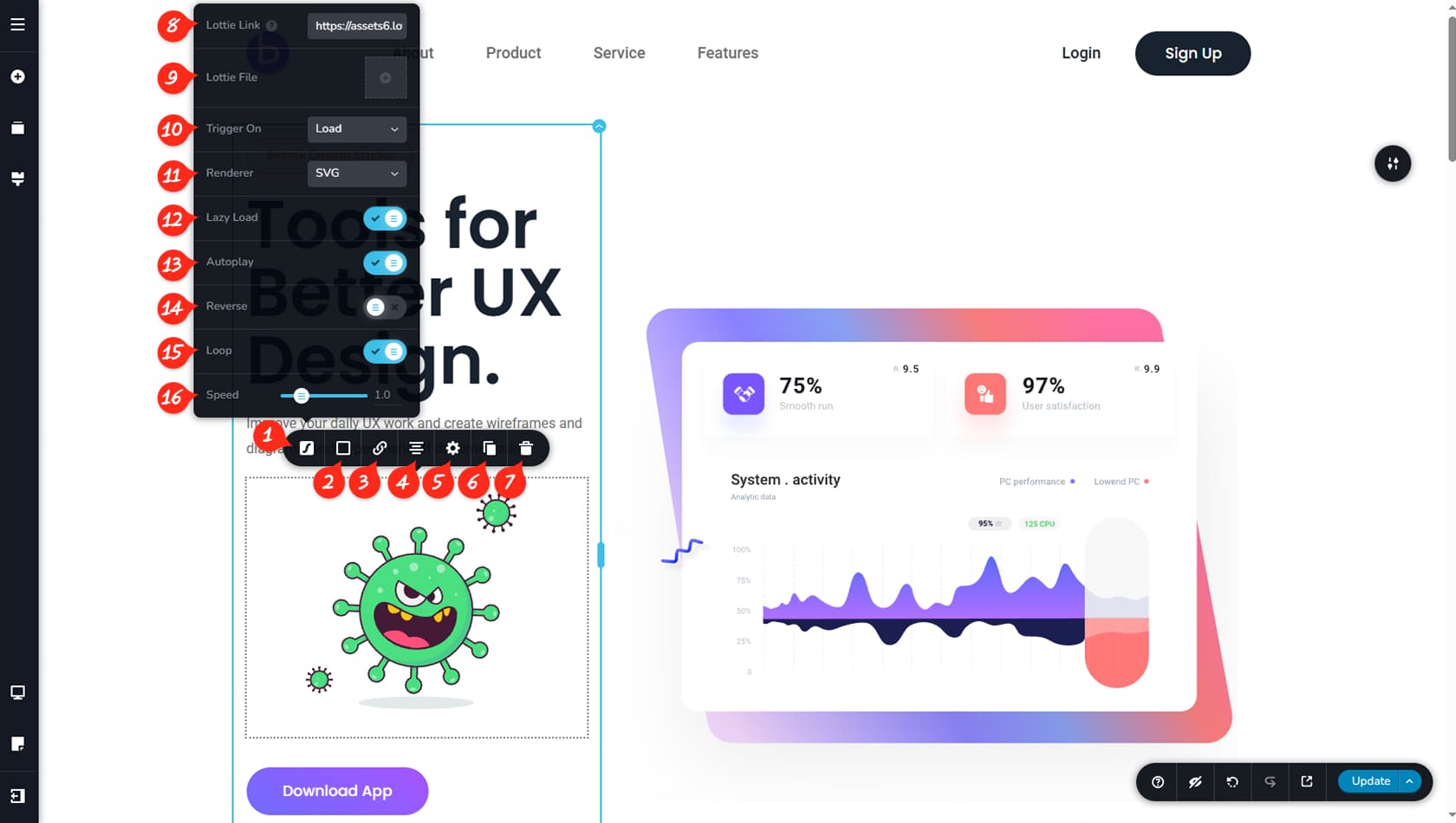
Lottie Options
After dragging and dropping the Lottie widget, a default animation will appear. To replace it, click the widget and select the left-most icon in the toolbar to open the Lottie options.
Lottie Colors
Here you can customize the background, border, and shadow colors of the animation container.
Lottie Link
This option allows you to assign a link to the Lottie animation.
Alignment
Here you can set the alignment of the widget.
Lottie Settings
This section lets you adjust the width and access the Styling and Effects panels for margins, paddings, animations, and other settings.
When referring to the Styling Panel of the widget, please see the Widgets Styling article for more details and an in-depth guide. Note that most widgets share similar styling options, with slight variations depending on the specific widget.
Duplicate Widget
This control duplicates the widget.
Delete Widget
This control deletes the widget.
Embed Lottie Link
Inside the Lottie panel, you can choose between two primary options. First, you can paste an embed link from an external Lottie animation provider.
There are many websites that offer lottie animations for free as both embed or download solutions. Once you have the link, simply paste it here.
Upload a Lottie File
You can also upload your own Lottie file to display.
Trigger
This option determines when the animation plays: on Load, Hover, Click, or Scroll. Load is the default setting and plays the animation continuously.
SVG / Canvas
Here you can choose between SVG and Canvas rendering. SVG typically offers higher visual quality, though not all sources support it.
Lazy Load
This toggle enables Lazy Load, meaning the animation will play only when it enters the viewport, improving page performance.
Autoplay
Here you can disable Autoplay to prevent the animation from running automatically.
Reverse
This option allows the animation to play in reverse.
Loop
Here you can control the loop behavior. By default, looping is enabled, but you can choose to run the animation only once.
Animation Speed
This setting adjusts the animation speed.