Global Popups & Triggers
Automatic popups help you capture attention at the perfect moment by displaying targeted messages based on user behavior, such as page load, time delay, or scroll position. They’re widely used for marketing goals like growing email lists, promoting offers, or highlighting important announcements, all without requiring manual clicks. When used thoughtfully, automatic popups can significantly boost engagement and conversions while keeping your messaging timely and relevant.
For more details as to how to build a popup, see the Popup Builder article.
Popups in the CMS
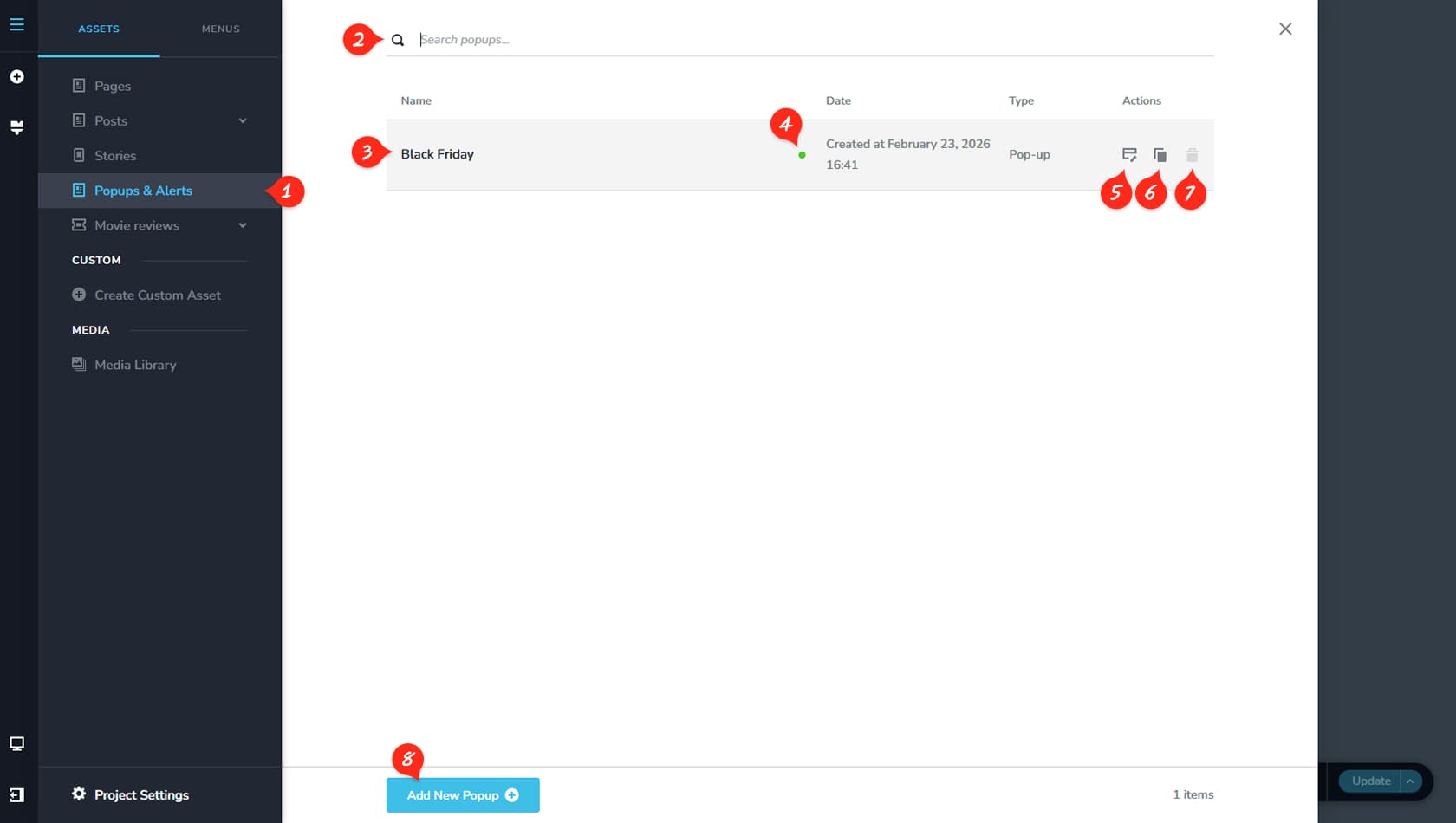
Popup & Alerts
In the CMS, click the icon in the top-left of your UI to open the assets side panel. From there, navigate to Popup & Alerts, where you’ll find a dedicated section for popups. On the right side of the UI, you’ll see a list of all your popups, similar to the Pages view.
Search Popup
Use the search field to quickly locate a specific popup.
Popup Details
Click a popup title to rename it or change its status to Draft, Published, or Password Protected.
Publish Icon
The icon color reflects the popup status: green indicates published, yellow indicates draft, and blue indicates password protected.
Edit Popup
From here, you can edit the popup.
Duplicate Popup
You can also duplicate the popup.
Delete Popup
And from here, you can delete the popup.
Automatic Popup Triggers
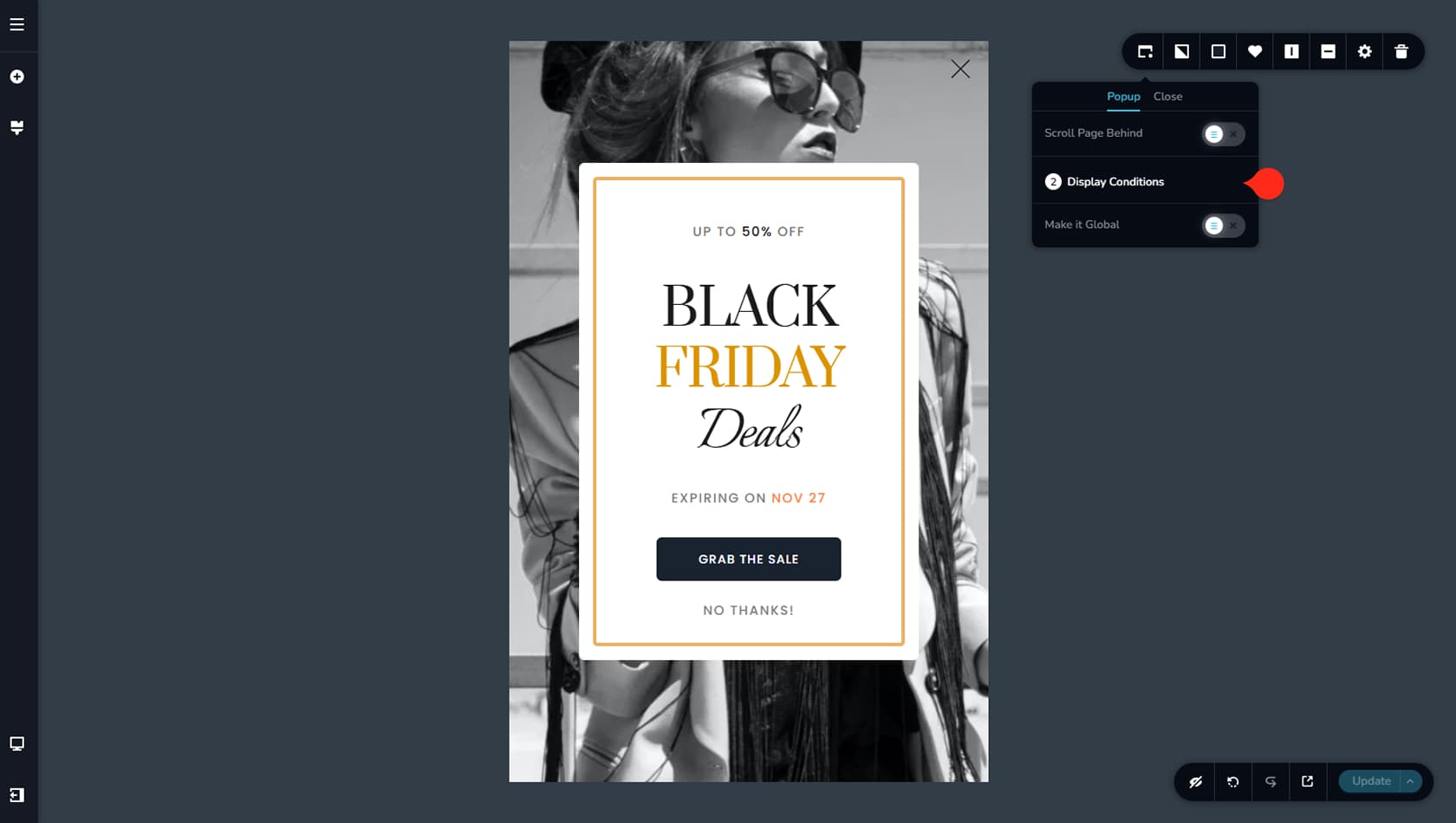
To configure a popup trigger, click the icon in the top-right of your UI while in the popup editor to open the toolbar. From there, select the left-most icon to access the Display Conditions. Click it to open the triggers and conditions panels.
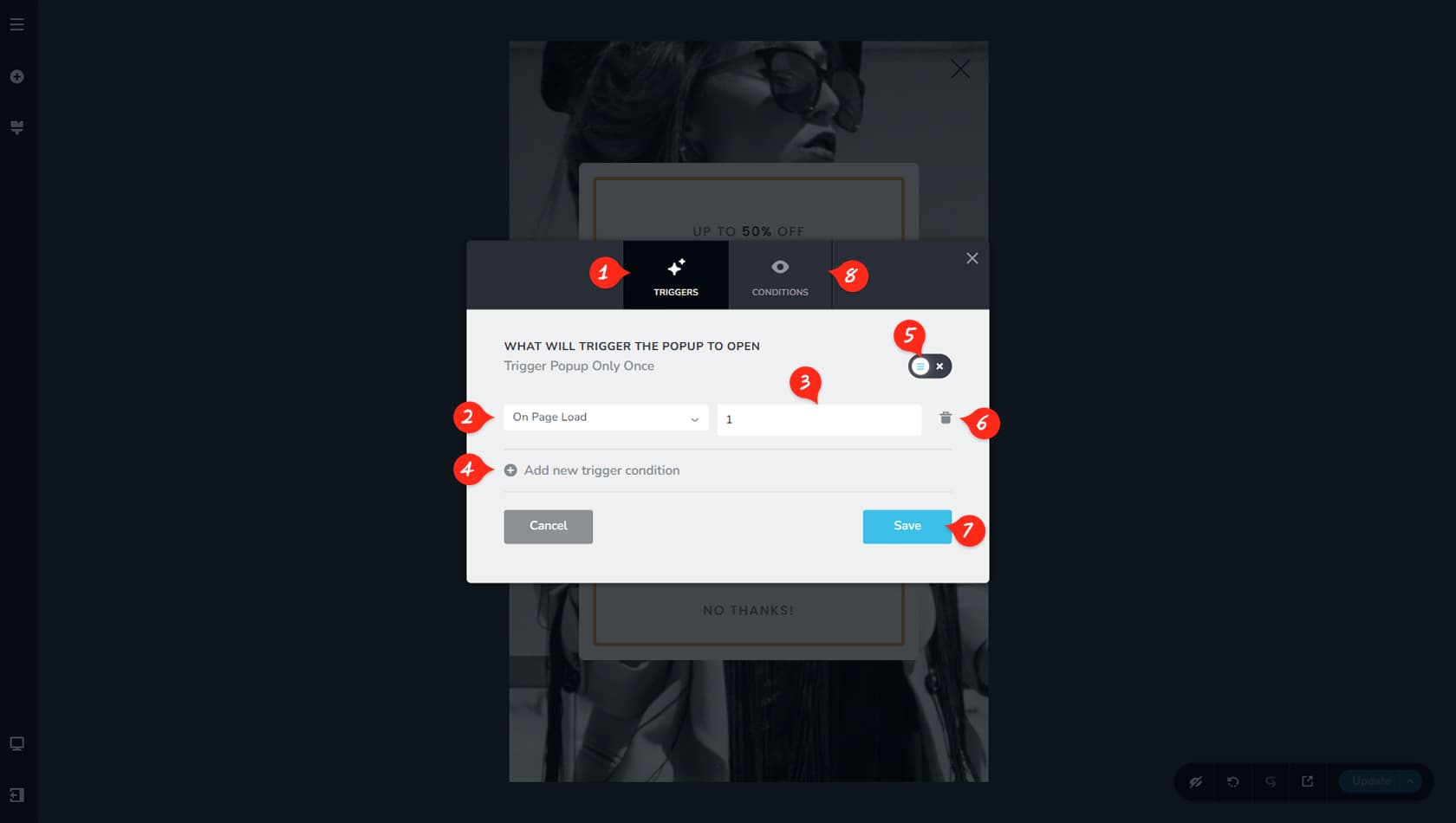
Triggers
Once you open the Triggers & Conditions screen, you’ll see several options available for configuration.
Select Trigger
Here you can select a trigger for your popup. Available triggers include: On Click, After Inactivity, On Page Exit Intent, No Other Popup, Number Of, Show on Devices, On Scroll, Arriving, Current Page URL, Current Date, Last Visit Date, Time From, or On Page Load.
Trigger Value
Below, you can define specific values based on the chosen trigger. For example, using Seconds with Page Load will display the popup a set number of seconds after the page loads.
Add New Trigger
You can add additional triggers from here.
Trigger Once
You can also choose to have the triggers fire only once.
Remove Trigger
This option lets you remove the trigger.
Save Triggers
Use this option to save your triggers.
Conditions
From here, you can switch to the Conditions tab.
Global Popups
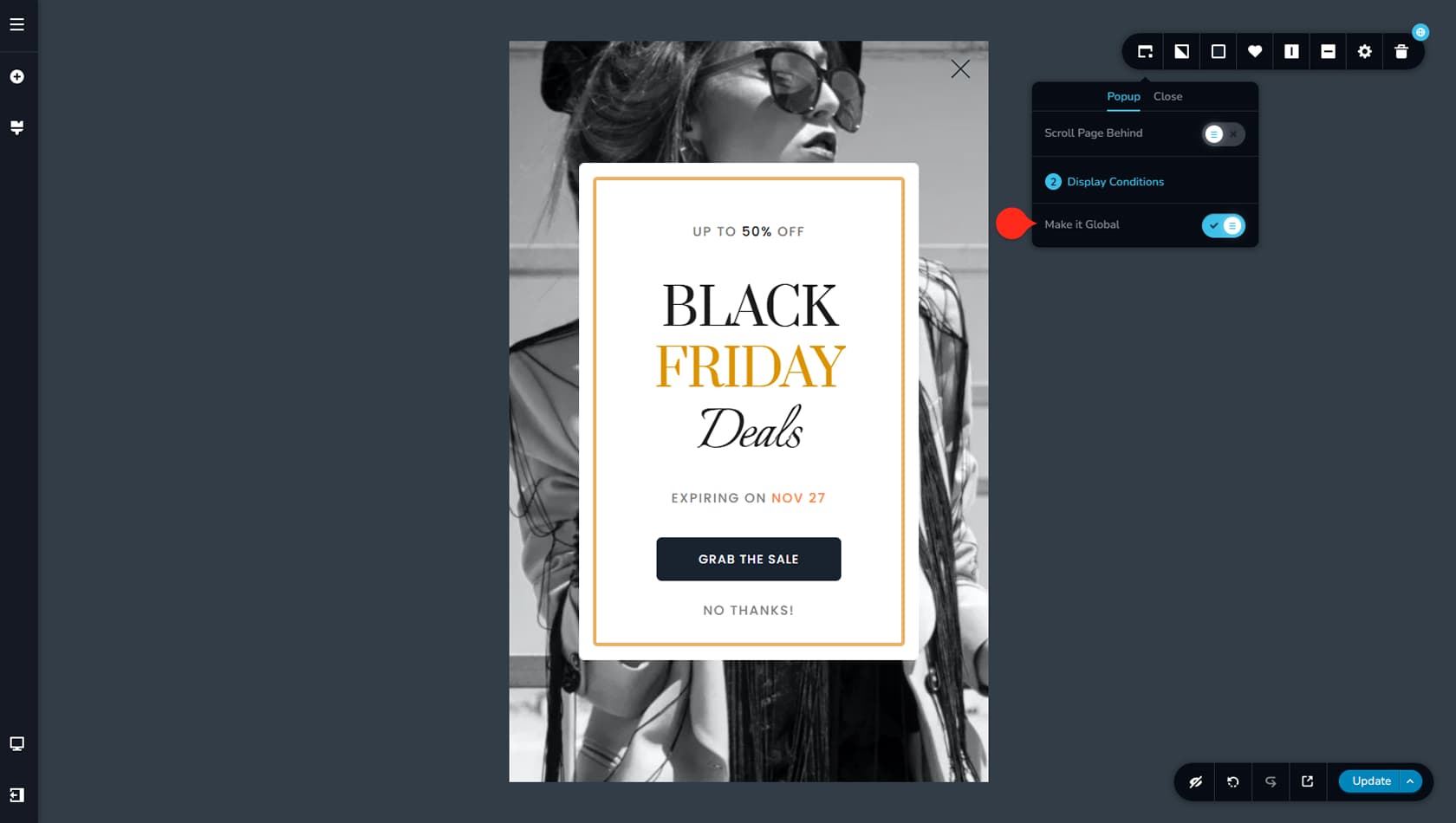
By clicking the leftmost icon in the popup toolbar, you’ll also find the “Make it global” toggle. Enabling it will immediately take you to the Triggers and Conditions panel, where you can control where and how the popup appears. We covered this earlier.
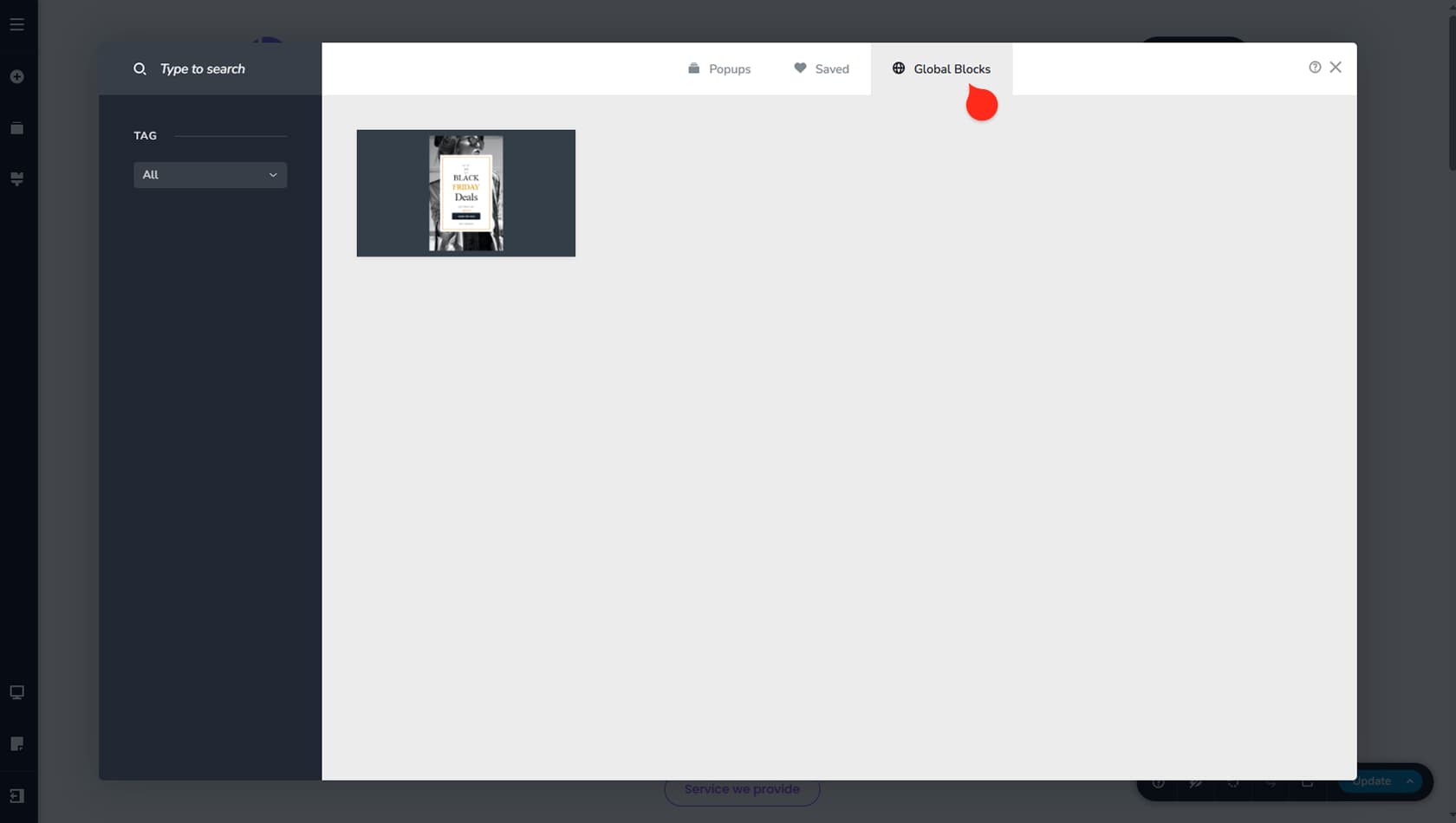
When adding a new popup to a link, you can find the Global Popups in the upper tabs list, just like the Global Blocks.