Menus & Navigation
Menus and navigation play a critical role in shaping how users experience a project. They define how content is structured, discovered, and accessed, directly influencing usability and overall clarity. Well-designed navigation helps users move through an interface intuitively, reduces friction, and ensures that key information is always within reach.
In a visual builder environment, effective menus and navigation are essential for creating coherent layouts, maintaining consistency across pages, and delivering a seamless, user-friendly experience.
Setting Up The Menu
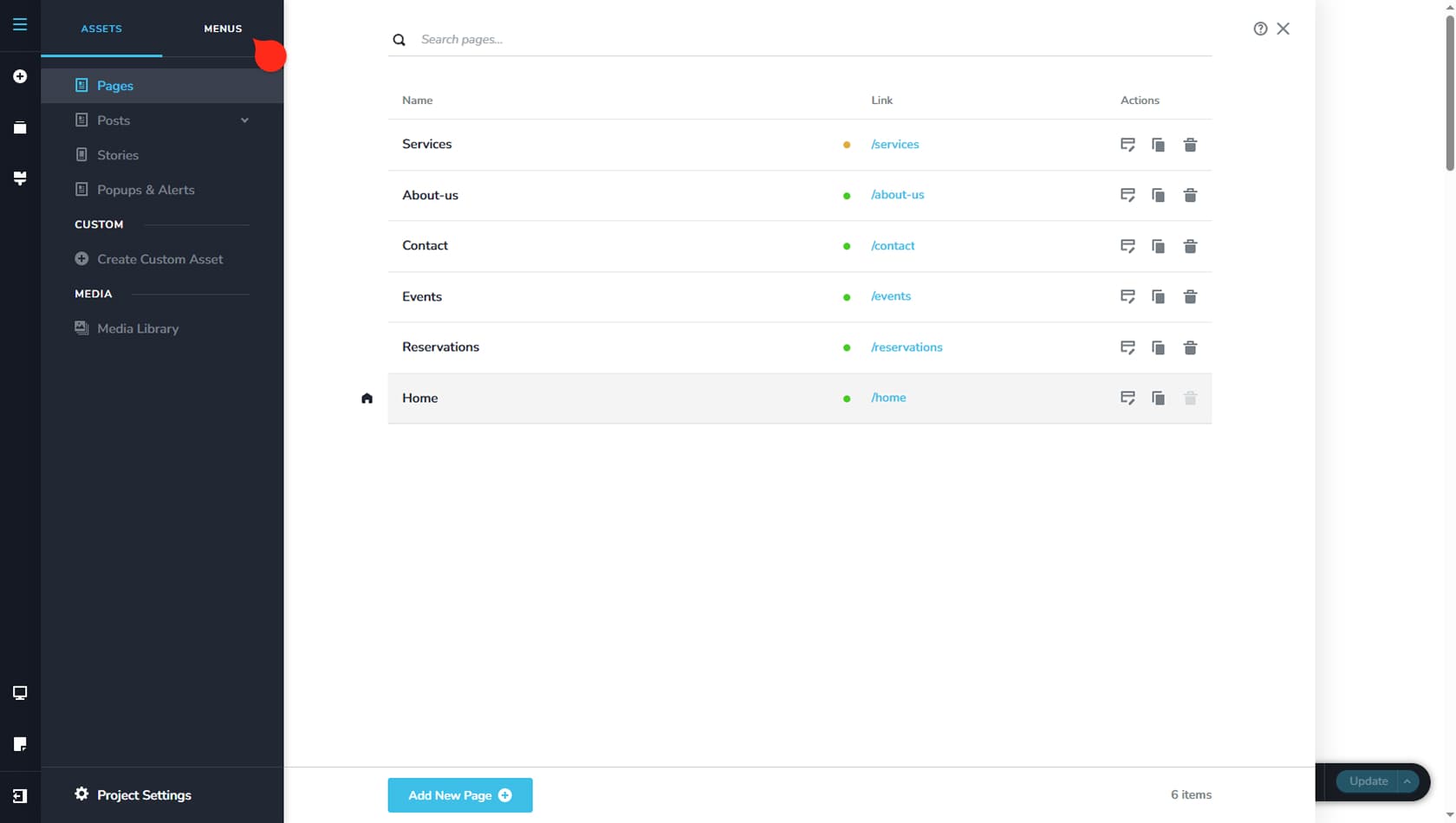
To begin setting up a menu, click the icon in the top-left corner and select the Menus tab.
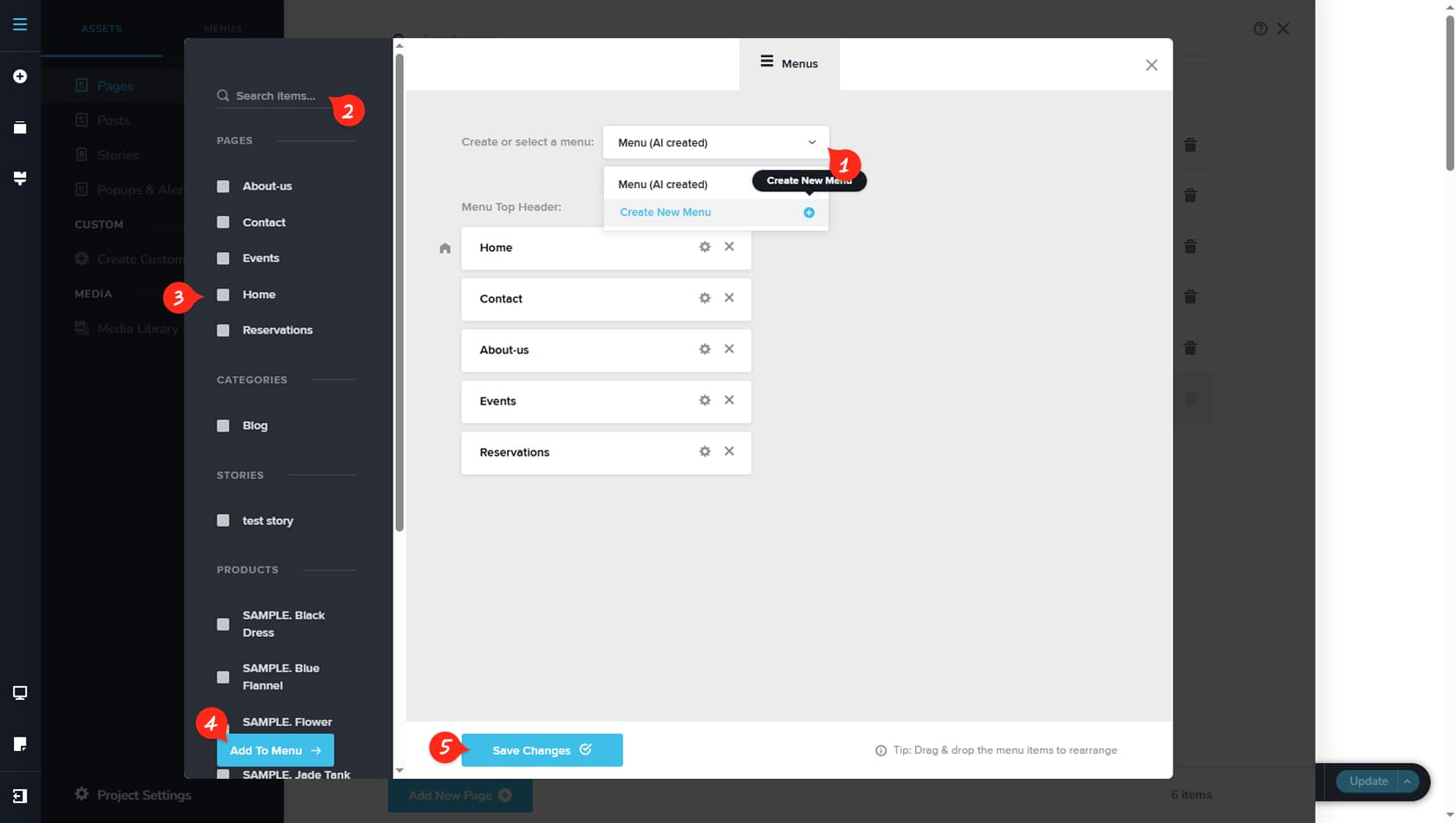
Create A New Menu
From this panel, you can view a dropdown listing all existing menus, along with an option to create a new one. Select Create a New Menu, enter a name, and confirm by clicking the Plus icon on the right.
Search For A Page
You can then search through the project’s assets and filter the results to find the pages you want to include as menu items.
Select Your Page
To add a page, check the checkbox to the left of the asset.
Add To Menu
After selecting all desired pages, click Add To Menu to confirm your selection.
Save Changes
Once the menu is complete, click Save Changes to store it in your project.
Edit The Menu
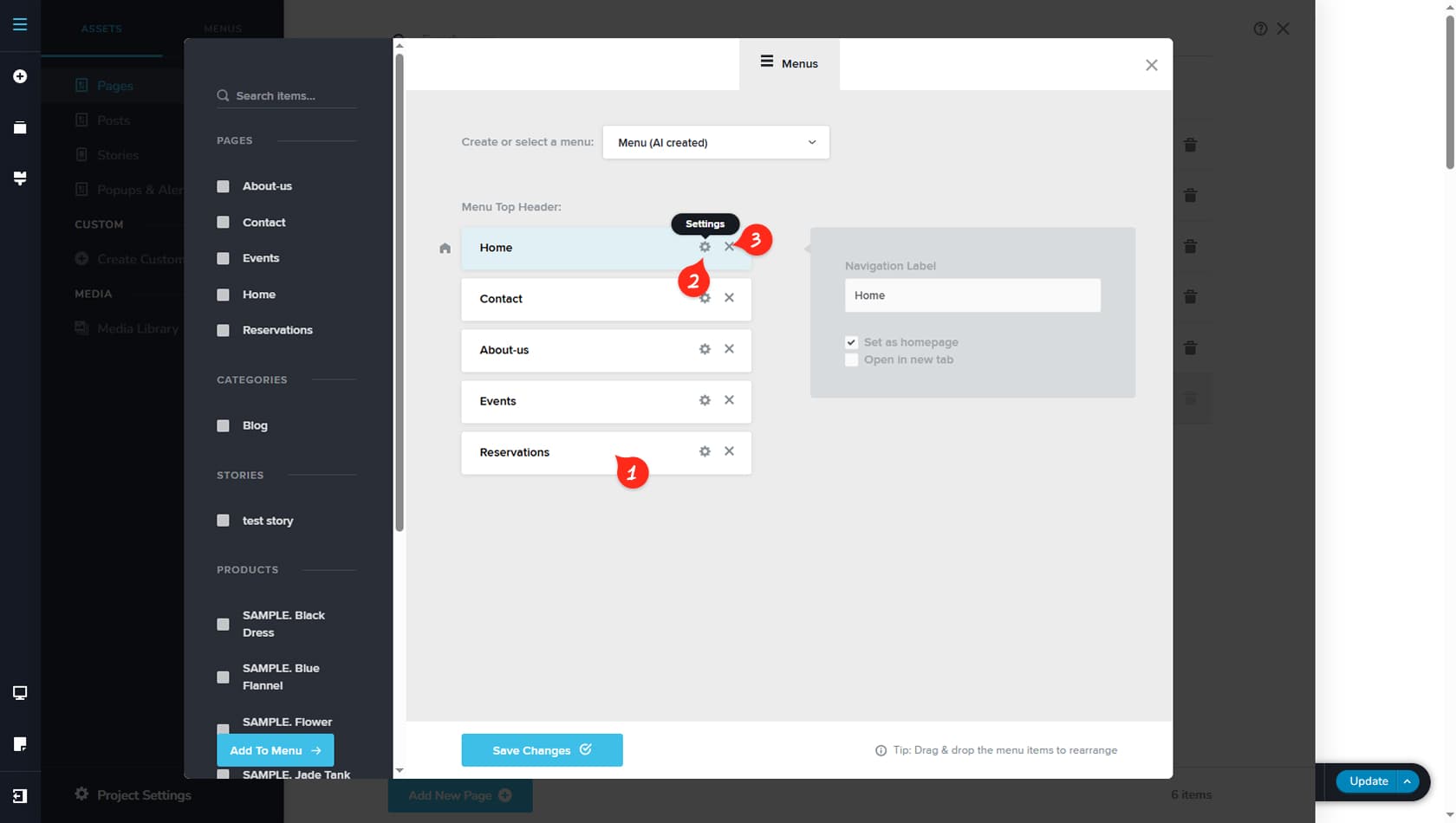
You can also edit menu items after adding the desired pages.
Reorder
Menu items can be reordered using drag and drop.
Settings Options
You can open the Settings panel on the right to set a page as the homepage, rename its link label, or configure it to open in a new tab.
When renaming a menu item, only the link label within the menu is changed; the original page name remains unchanged.
Remove Item
Finally, you can remove items from the menu by clicking the X icon.
Menu Ranking
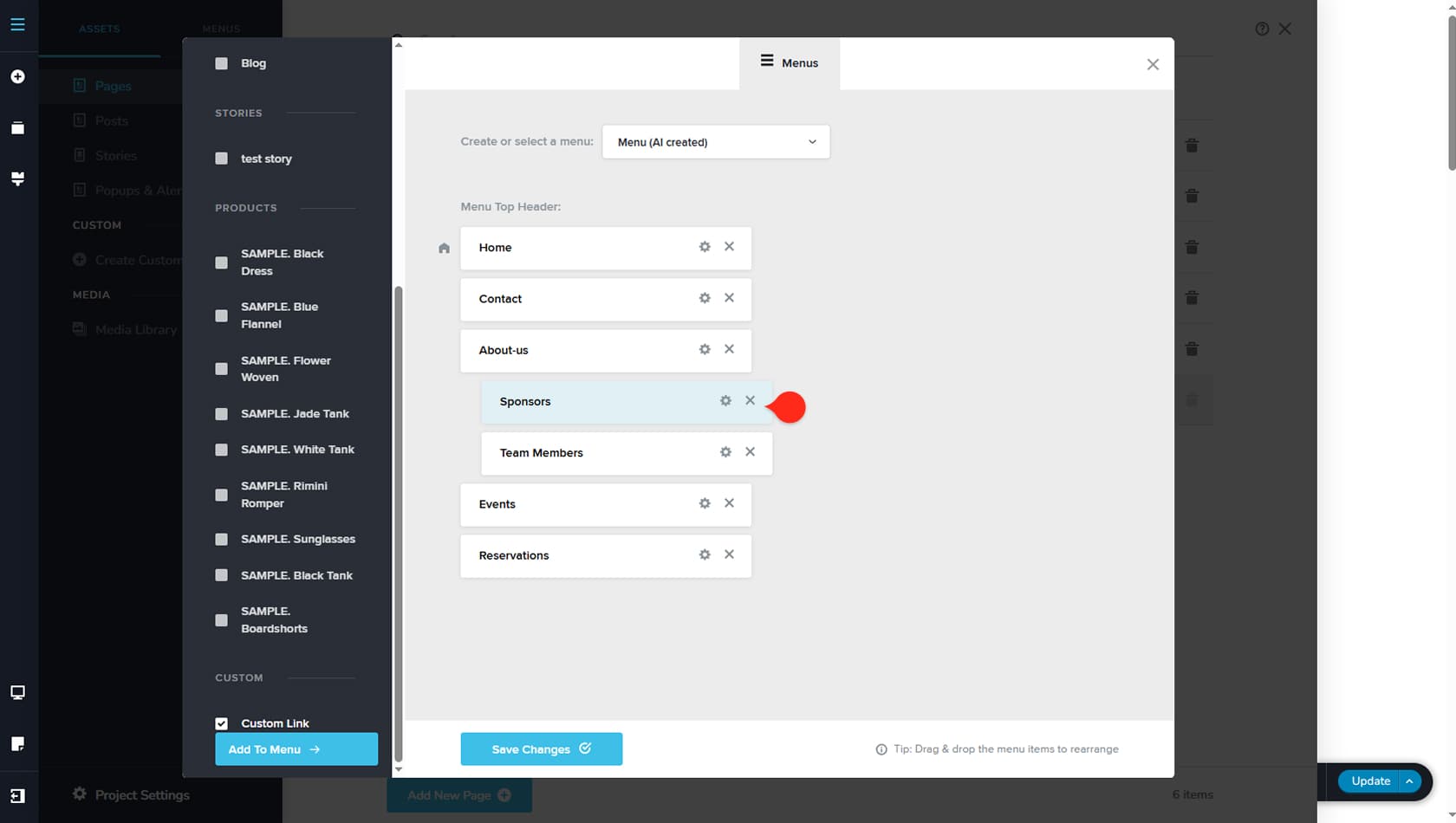
By dragging and placing menu items beneath others, you create a hierarchical structure within your navigation. These rankings appear as dropdown menus on the front end, helping organize content more clearly while improving usability by guiding visitors through structured, easy-to-follow navigation paths.
The Menu Widget
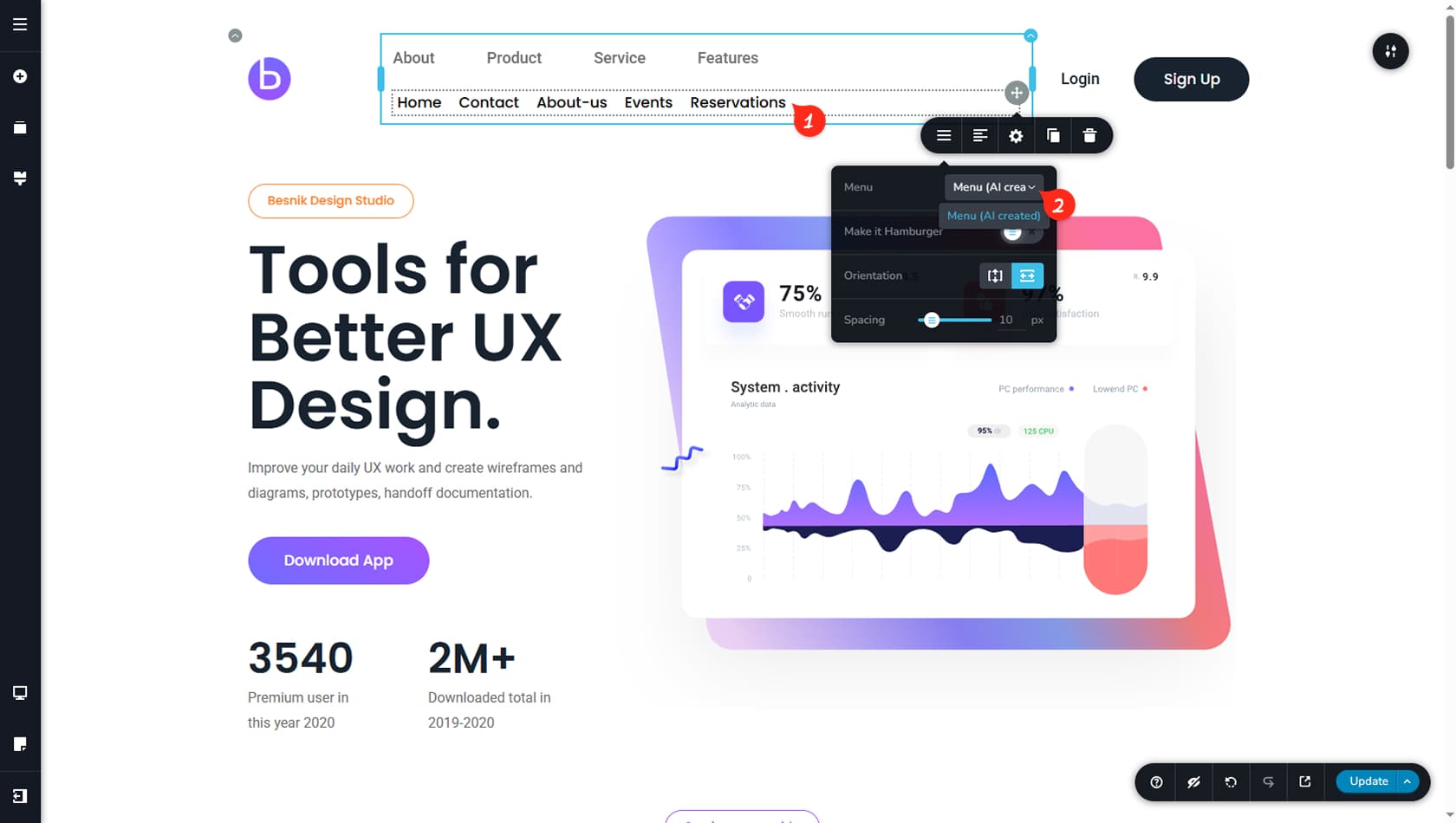
You can display any existing menu on the front end using the Menu widget. For more information on adding and customizing the Menu widget, refer to the Menu article.