Publish, Preview & Update Pages
The toolbar is a core part of working in the editor. From the controls in the bottom-right corner, you can quickly save your latest changes and open a preview to view the page exactly as your visitors will see it as well as other very important options.
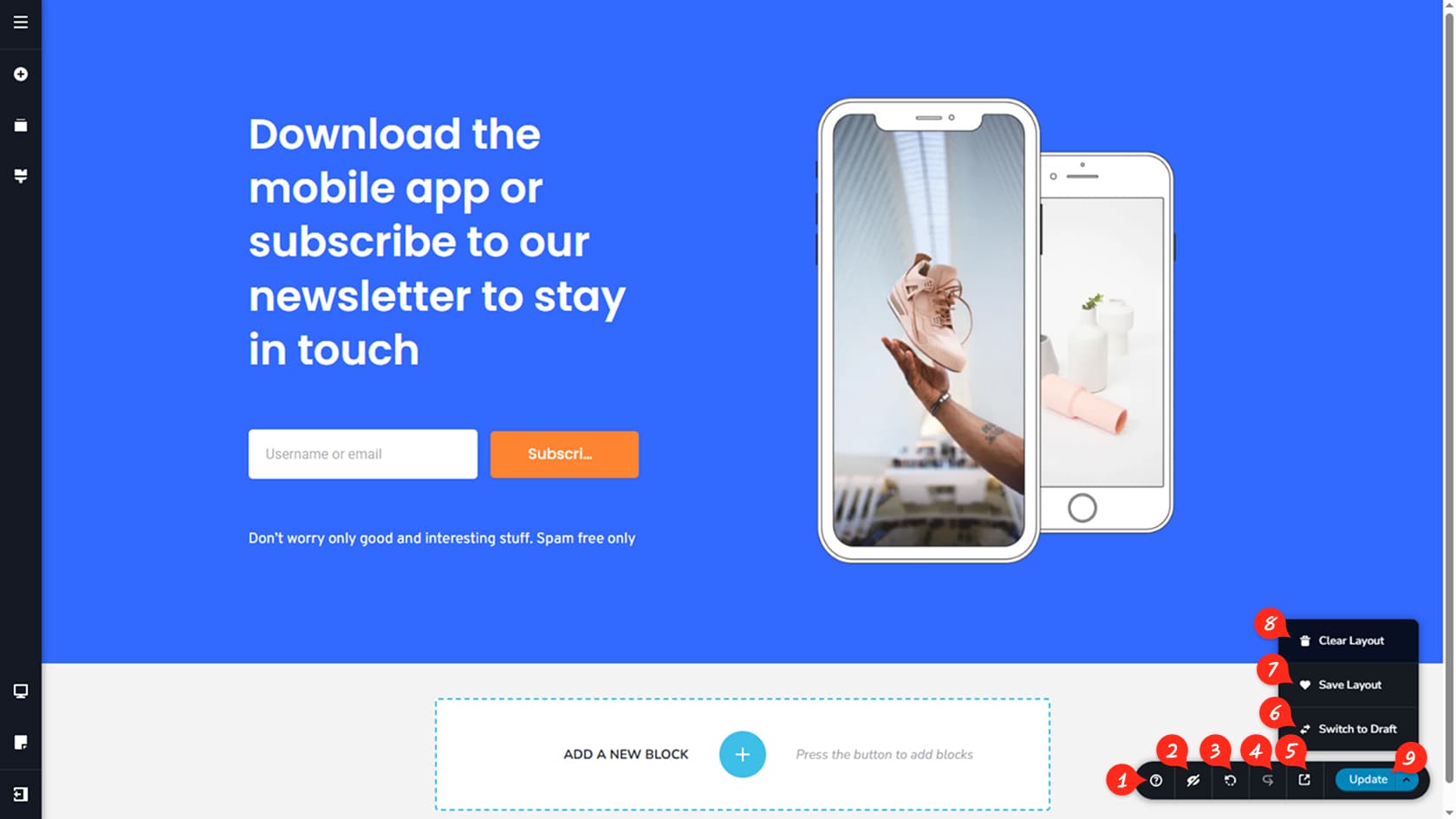
Documentation
You have probably already noticed the question mark icon in the toolbar by reading this. Use it as a quick way to jump into the help content whenever you need guidance on the editor or the CMS.
Hide
Each widget includes a visibility toggle that lets you hide it on desktop, tablet, or mobile, depending on the view you are editing. The Hide button in the toolbar temporarily reveals any items you have hidden, so you can select and edit them again. These hidden items are only shown inside the editor and remain hidden on the live page. For more details, see the link with title article.
Undo
Undo rolls back your most recent change in the editor. If something does not look right, use Undo to step back quickly. Keep in mind there is a limit to how far you can go back. Also, once you update the page, you can no longer undo previous actions, so update only when you are confident.
Forward
Forward restores the last change you removed with Undo. You can use it repeatedly to move back toward the latest version of your page.
Preview
Preview opens the current page in a new tab, showing it the way a visitor would see it based on your current work. Use it often to check layout, spacing, and responsiveness. The preview link is temporary and is not the final public URL of your page.
Switch to Draft / Publish Page
This option toggles the page between Draft and Published. Draft pages are not visible to visitors and are not indexed by search engines, which makes them safe to work on privately. When you are ready for the page to go live, switch to Published so it can be viewed publicly and indexed.
Save Layout
Save Layout captures the current page layout and stores it in the Saved panel. You can reuse it on other pages, or export it as a file to use in another project. Learn more in “Saved Blocks & Layouts”.
Clear Layout
Clear Layout removes all content from the page and returns you to a blank start. If you clear the page by mistake, use Undo to restore it. Until you update the page, the change is not committed.
Update
Update saves and confirms your changes. After updating, Undo is no longer available for earlier actions, so use it thoughtfully. If you are working on a draft, this button appears as Save Draft, but the behavior is the same. The icon next to it opens quick actions such as Clear Layout, Save Layout, and Draft/Publish controls.