Export & Import
Export and Import let you save your reusable blocks and layouts as files on your computer and bring them back into any project when needed. This makes it easy to back up your work, move designs between projects, or share layouts with teammates without rebuilding them from scratch.
How to Export and Import Blocks & Layouts
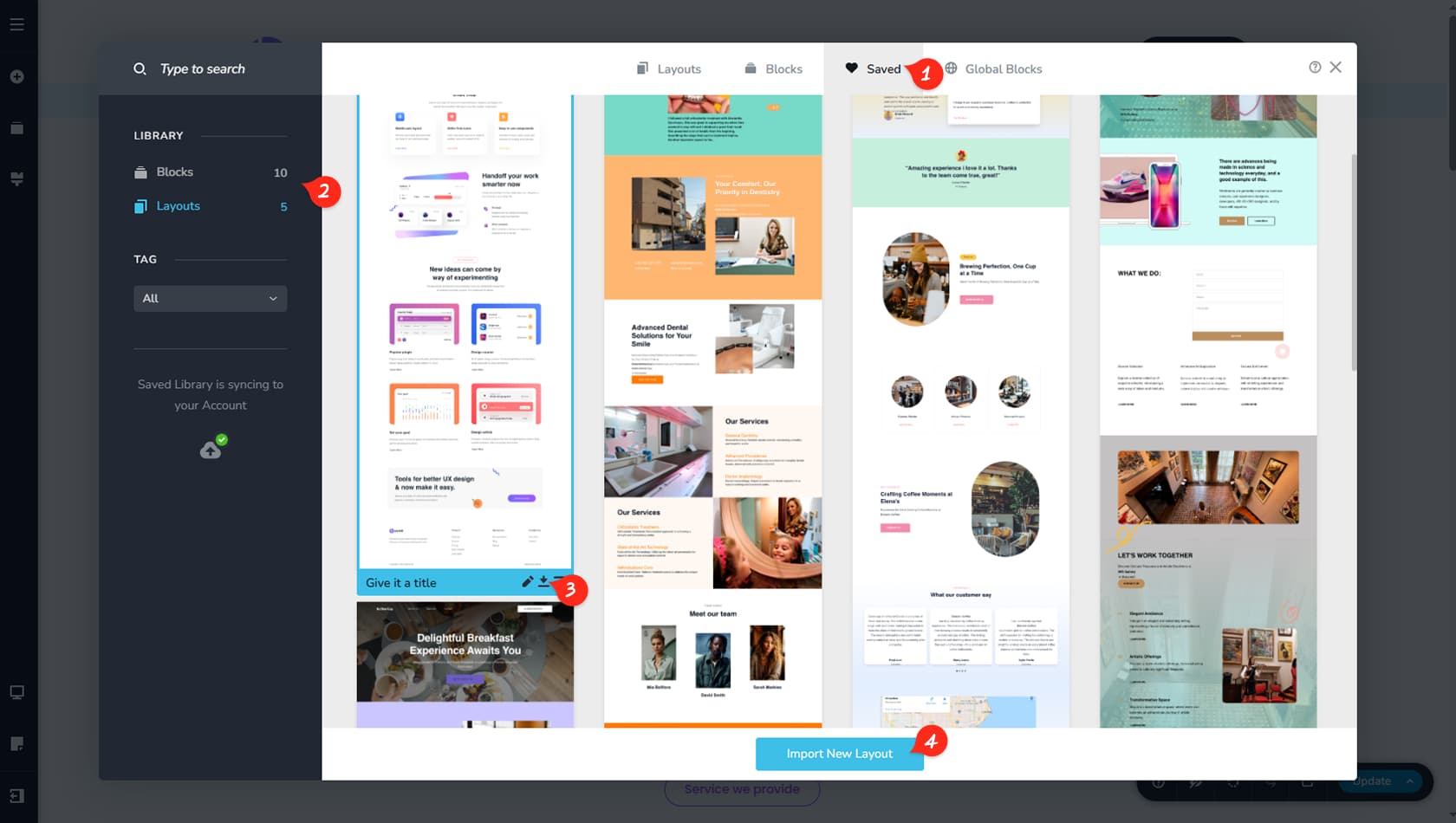
Saved Panel
First, open the Saved panel. For more information about the Saved panel and its features, see the Saved Blocks & Layouts article.
Blocks or Layouts
On the left side, choose either Saved Blocks or Saved Layouts, depending on what you want to export.
Export File
In either panel, you will see a small Download icon at the bottom of each block or layout. Clicking it will download the file to your hard drive.
Import File
Using the Import option, in this project or any other, you can upload that file. The block or layout will then appear in the Saved panel of the selected project.
Import Global Settings
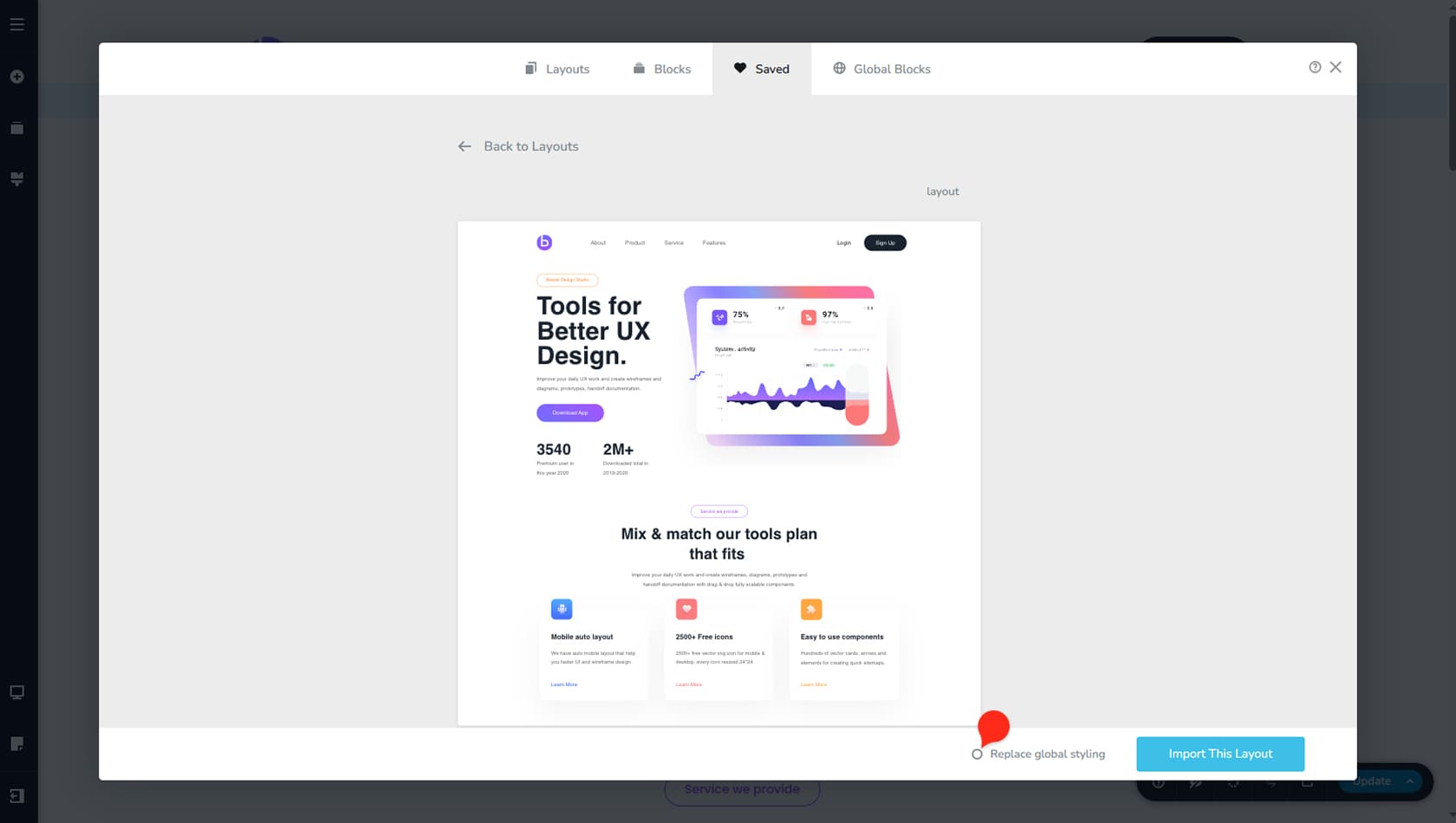
First, note that this feature is available only for Layout exports and imports, not for Blocks. When you export a Layout, its global styling settings are included automatically. For more details, see the Global Styling article.
You can then follow the standard process to export the Layout as a file and import it into another project. When selecting the Layout to import in the builder, a preview panel will appear, showing the full layout on hover.
In this panel, you will also see an option called “Replace global styling.” If enabled before importing, the project’s existing global styling will be replaced with the styling from the imported layout.