Social Sharing
Social Sharing settings allow you to control how your website or individual pages appear when shared on social media platforms. By defining custom titles, descriptions, and thumbnails, you ensure that shared links look professional and visually engaging, which increases click-through rates and brand recognition.
Project Sharing
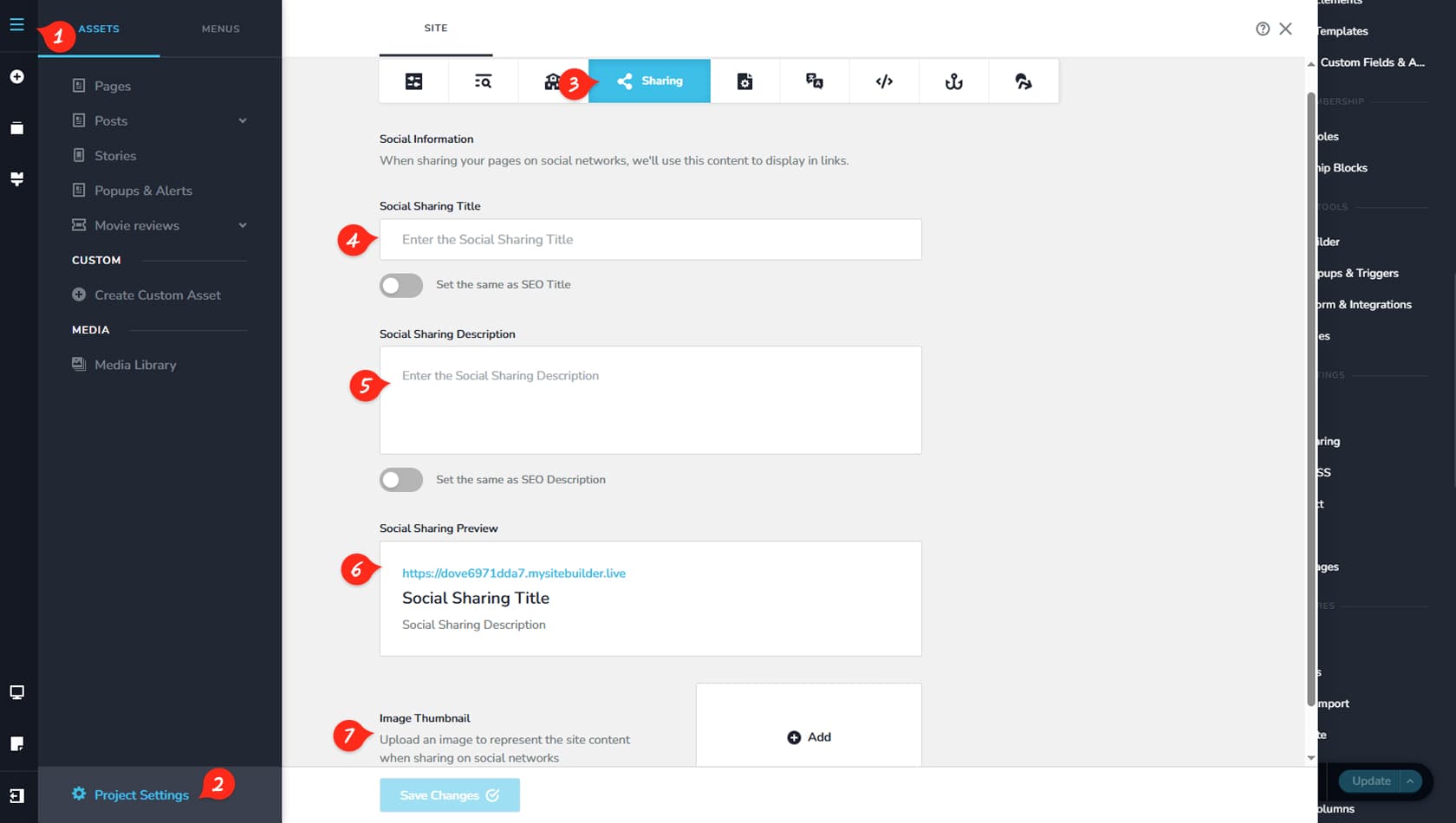
CMS
Start by clicking the CMS icon in the top-left corner of the interface.
Project Settings
Next, select Project Settings to open the website configuration panel.
Sharing
Then choose the Sharing tab at the top.
Sharing Title
Here you can define the title that appears when your project is shared, and optionally use it as the SEO title as well.
Sharing Description
This field allows you to add a description that will display when the project is shared, with the option to use it as the SEO description.
Preview
Here you can preview how your project will appear when shared.
Sharing Thumbnail
This option lets you upload a thumbnail image that will be displayed when the project is shared on social media platforms.
Page Sharing
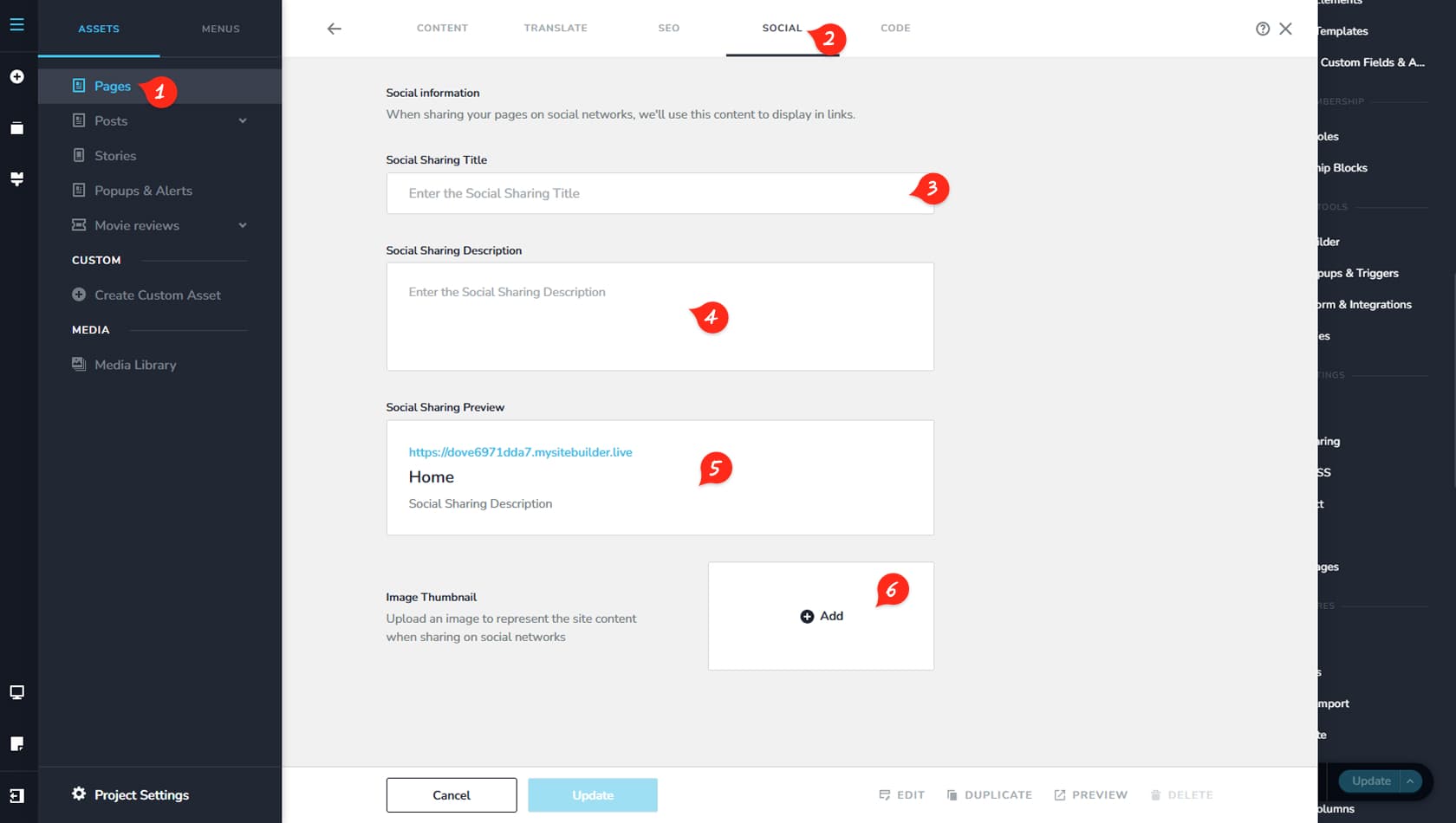
Pages
Go to the Pages section within your Assets.
Social
Select the page you want to configure, then open the Social tab at the top.
Page Sharing Title
Here you can set a custom sharing title for the page.
Page Sharing Description
This field allows you to add a description that will appear when the page is shared.
Shared Page Preview
Here you can preview how the page will look on social media platforms.
Shared Page Thumbnail
This option lets you upload a thumbnail image that will be displayed when the page is shared.