How to use Google Search element
The Google Search element adds a search box to your website, so visitors can search your own pages. The searching itself is done by Google.
Half of this setup happens on Google’s website rather than in the builder, so some of the screens will not look familiar. That is expected.
This works only on websites Google has already indexed. If your website is new and Google has not found it yet, the search box will return nothing. Wait until your website appears in Google results before adding it.
Adding the search box
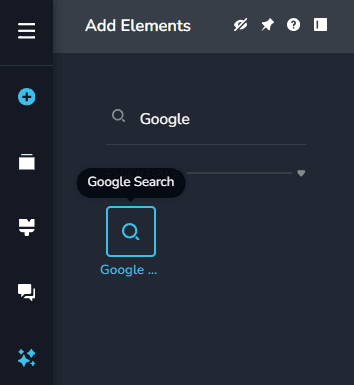
Add the element
Drag the Google Search element onto your page.
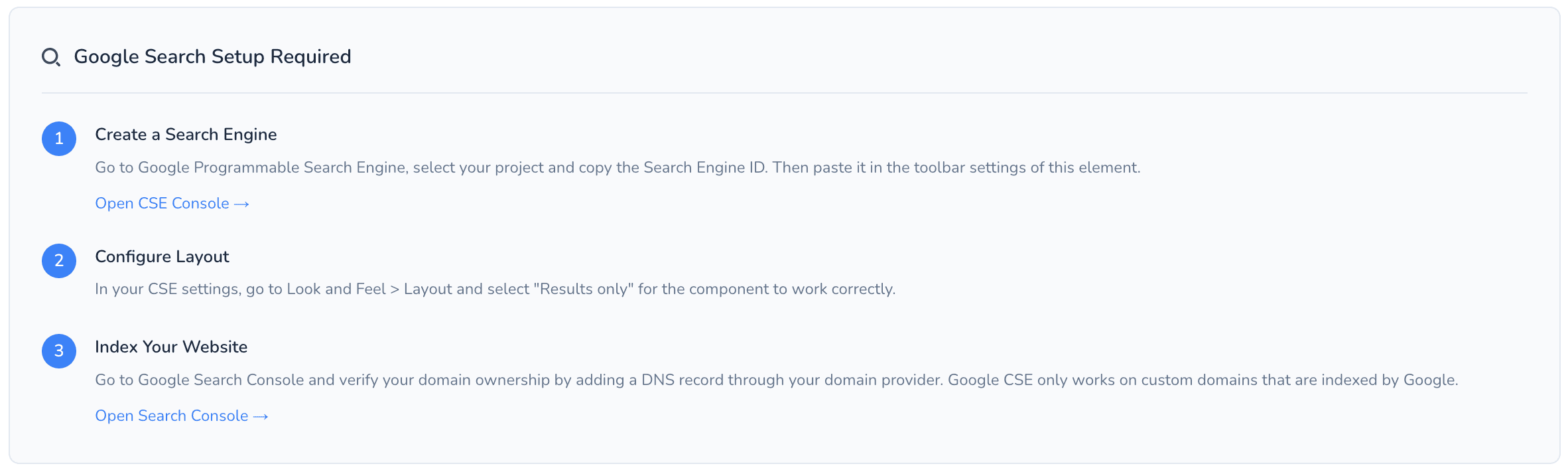
You will see a notice saying Google Search Setup Required. Under Create a Search Engine, click Open CSE Console.
Create the search engine
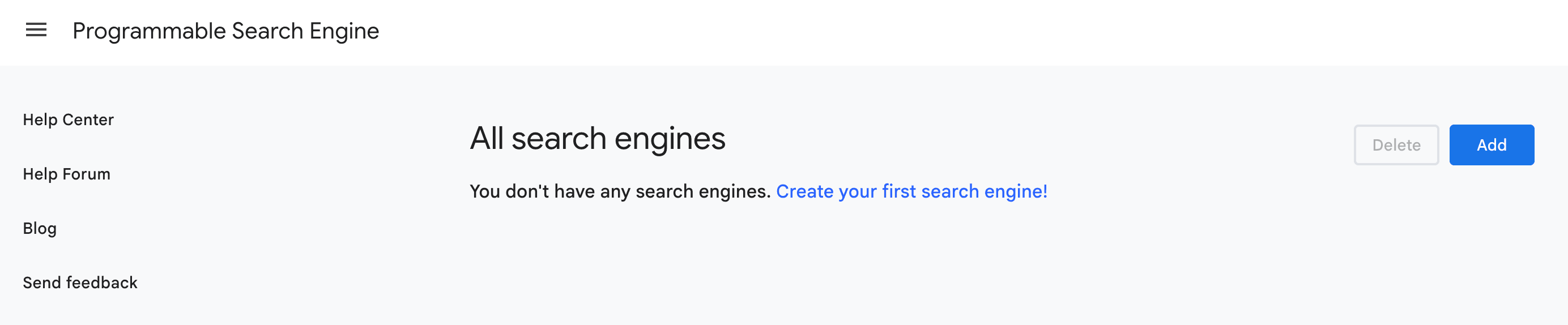
Google’s Programmable Search Engine console opens. Click the Add button towards the top right corner.
Name it and choose what to search
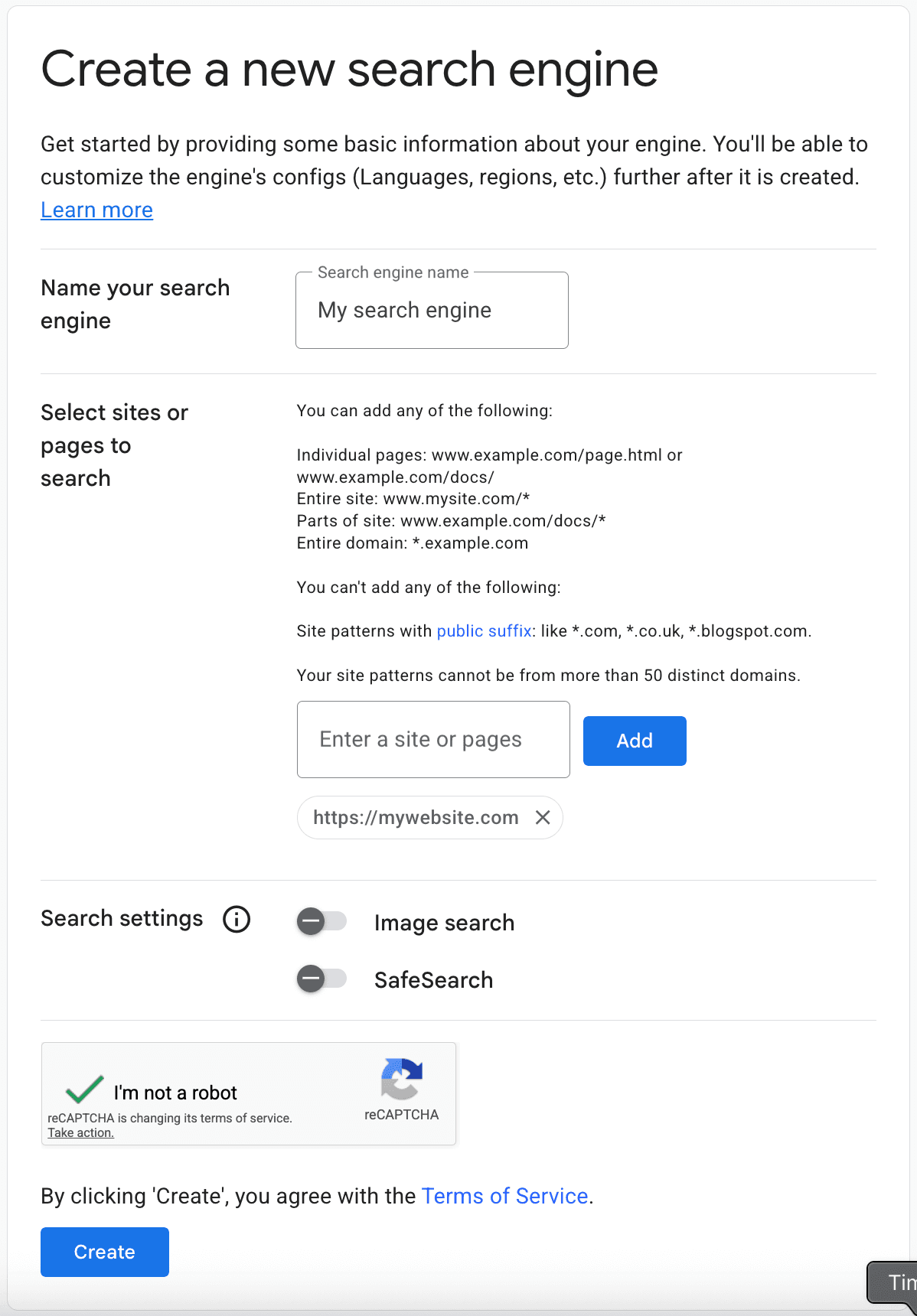
On the Create a new search engine screen, give your search engine a name and choose the sites to include.
To search every page of your website, paste your web address with a * at the end, then click
Add. If your address is https://www.example.com/ you type:
https://www.example.com/*The * means “and everything under it”.
Create it
Tick I’m not a robot, then click Create.
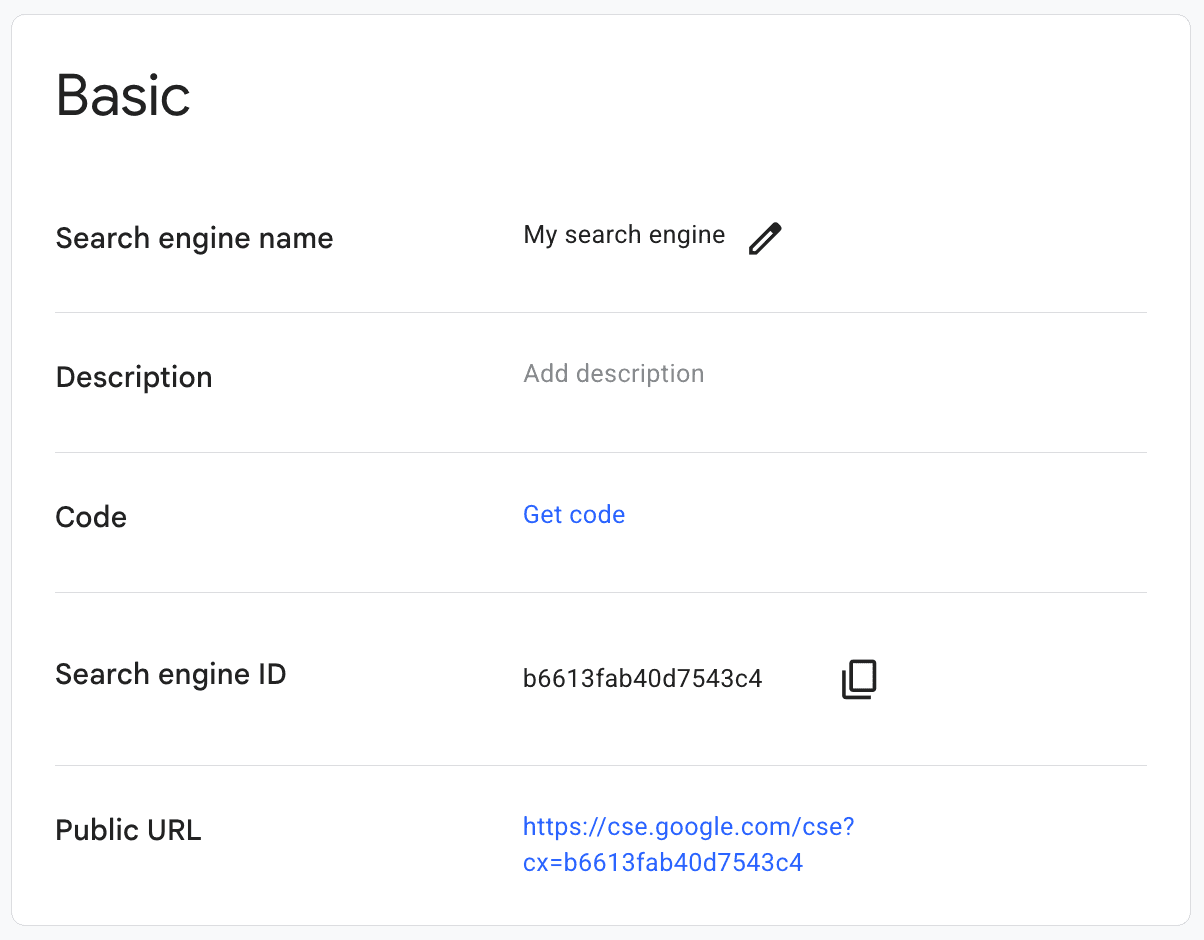
Copy the Search Engine ID
You will see Your new search engine has been created. Click Customize, then copy the Search Engine ID using the copy icon.
Paste it back into the builder
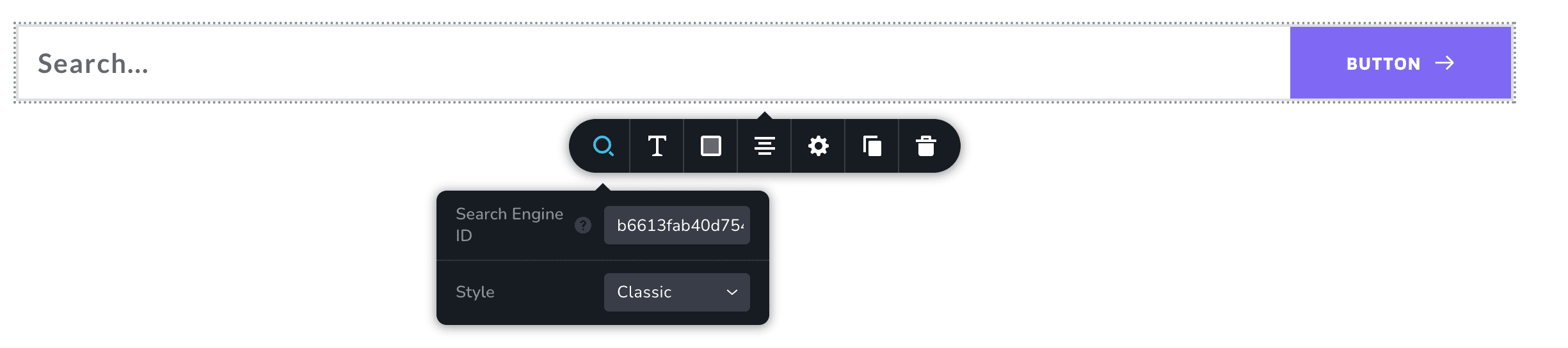
Switch back to the editor tab, paste the Search Engine ID into the Google Search element, and click Update to save.
Check the website preview and run a search to confirm results come back.
Choosing how results appear
Results are configured on Google’s side, not in the builder.
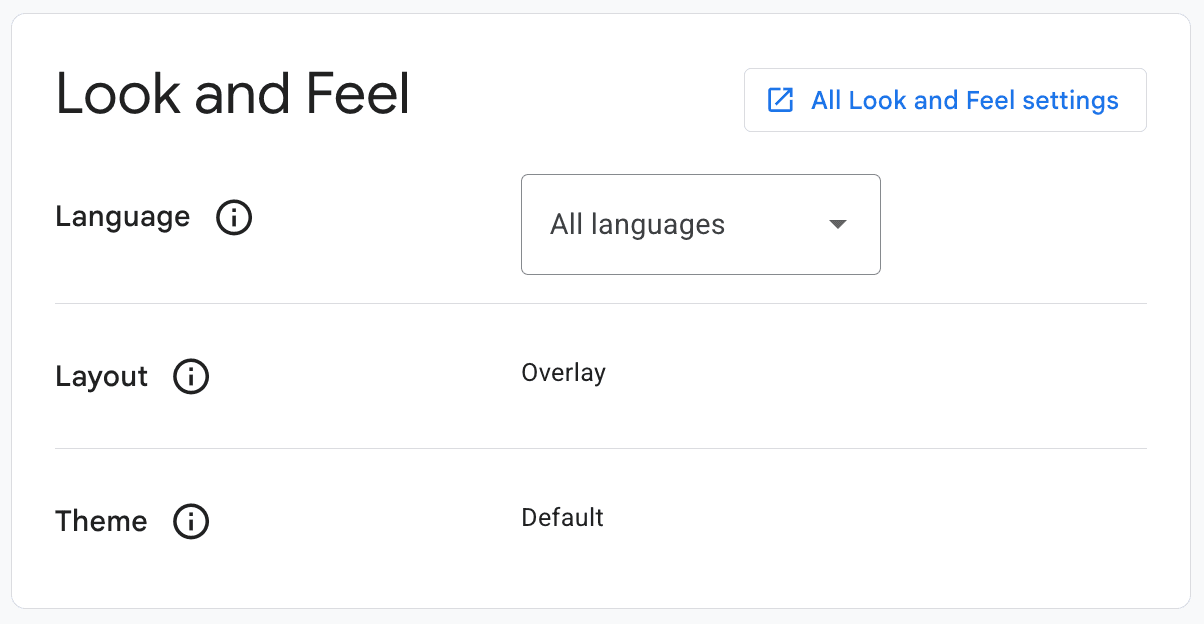
Go back to the Programmable Search Engine console tab, select your search engine, scroll down to Look and Feel, and click All Look and Feel settings.
You will see a list of layout options.
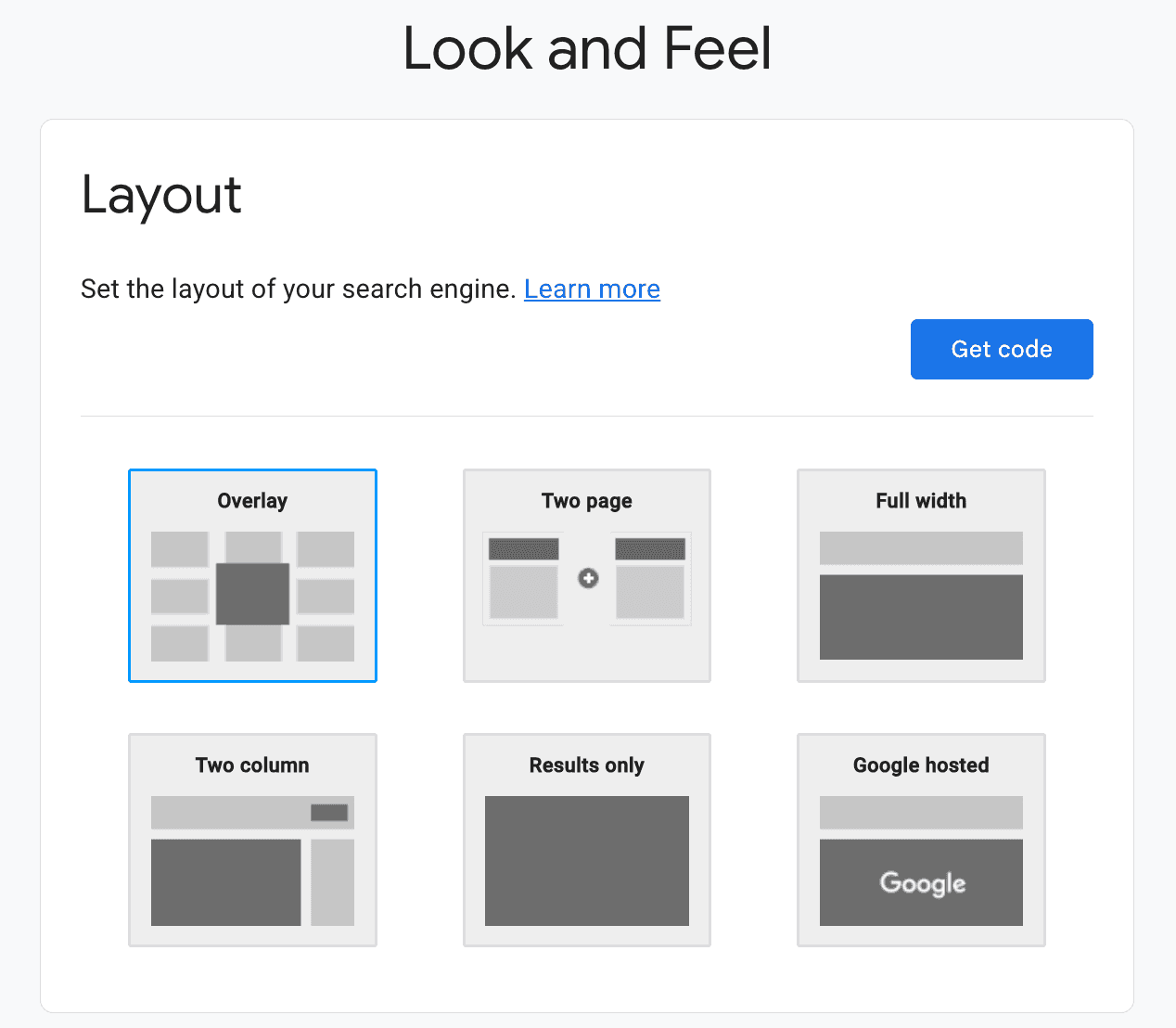
Which one to pick depends on where you put the search box:
| Where your search box is | Layout to choose | What happens |
|---|---|---|
| In the header | Overlay | Results appear in a popup over the page |
| On its own search page | Results Only | Results appear inside the page itself |
Centring the results
By default results sit towards the left of the page.
To centre them, put the Google Search element inside a Row element and reduce the row width to roughly 70% on desktop.
See Rows & Columns.