Animations
Animations can make a page feel more refined and easier to navigate by guiding attention, improving clarity, and creating a smoother visual flow. Gentle motion can spotlight key content, show how sections connect, and provide subtle feedback when something changes, helping interactions feel more natural. When used with intention, animations add depth and character without pulling focus away from the message, making the experience more engaging and memorable.
Animations can be applied to any part of the editor, from an entire block down to a single widget.
How to Apply Animations
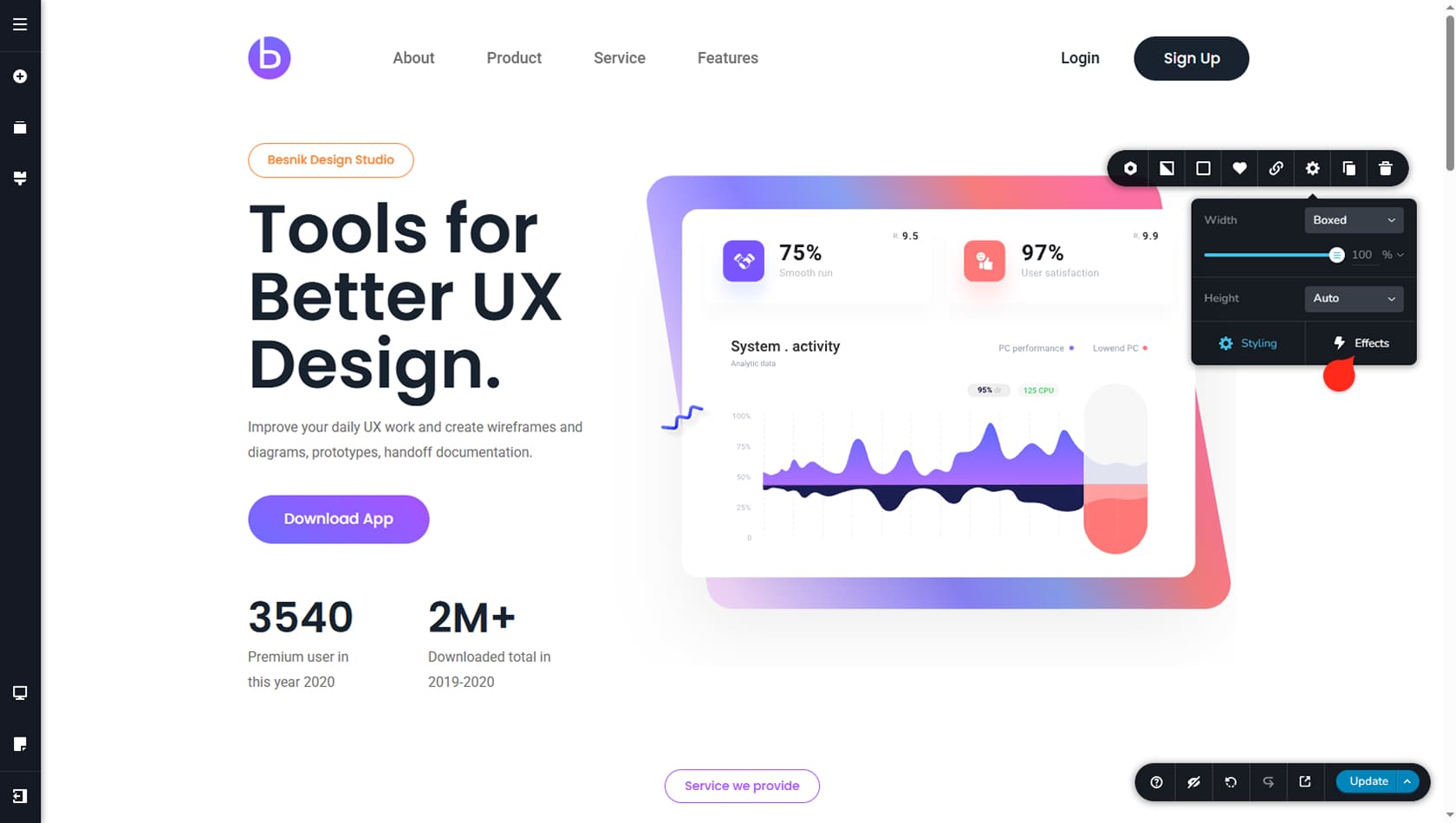
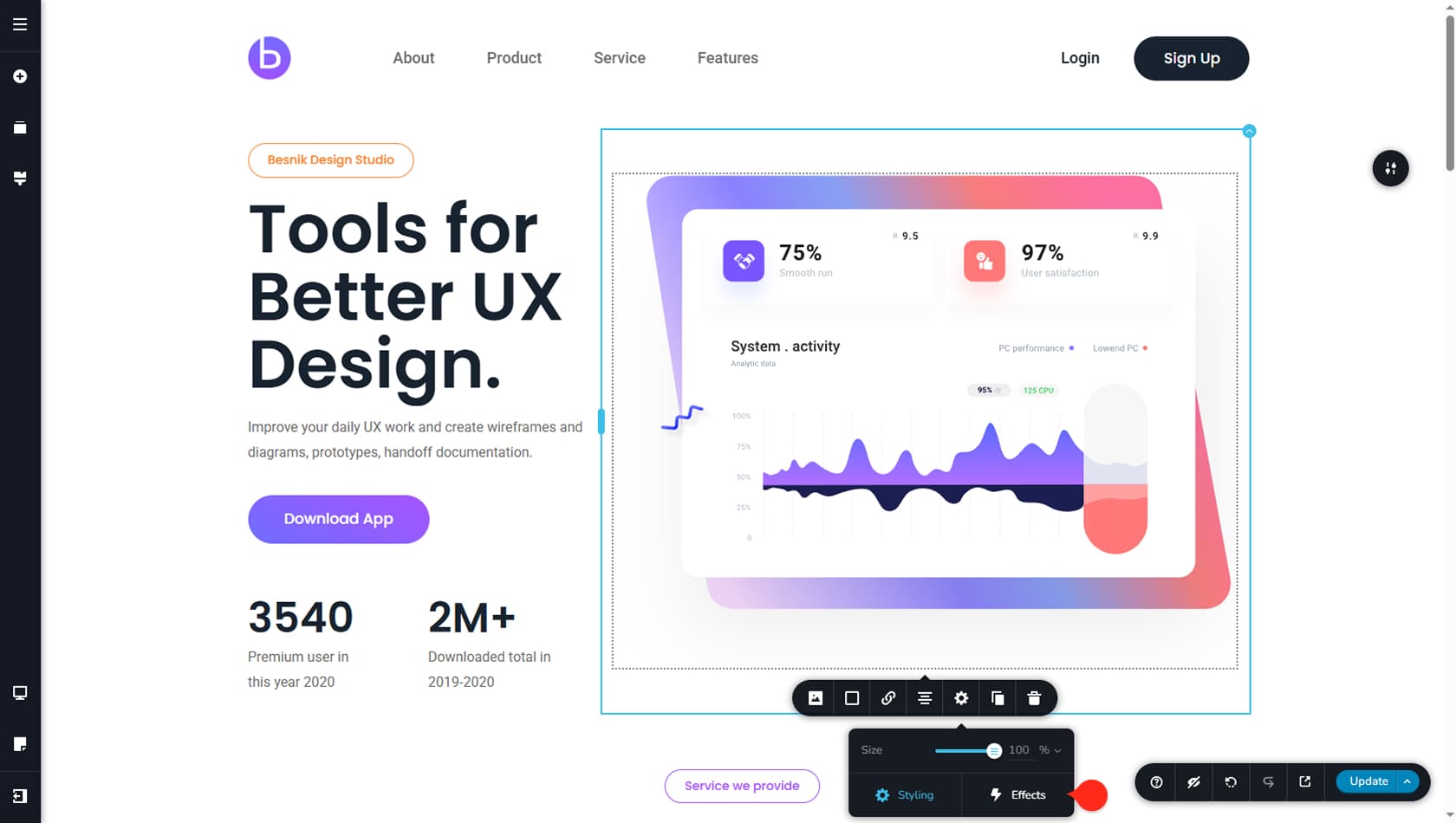
To access the animations panel, also called Effects, click the toolbar in the top-right corner of a block, or select a widget. Then open the settings icon and, in the panel that appears below, choose Effects to manage animations.
Widget Animations
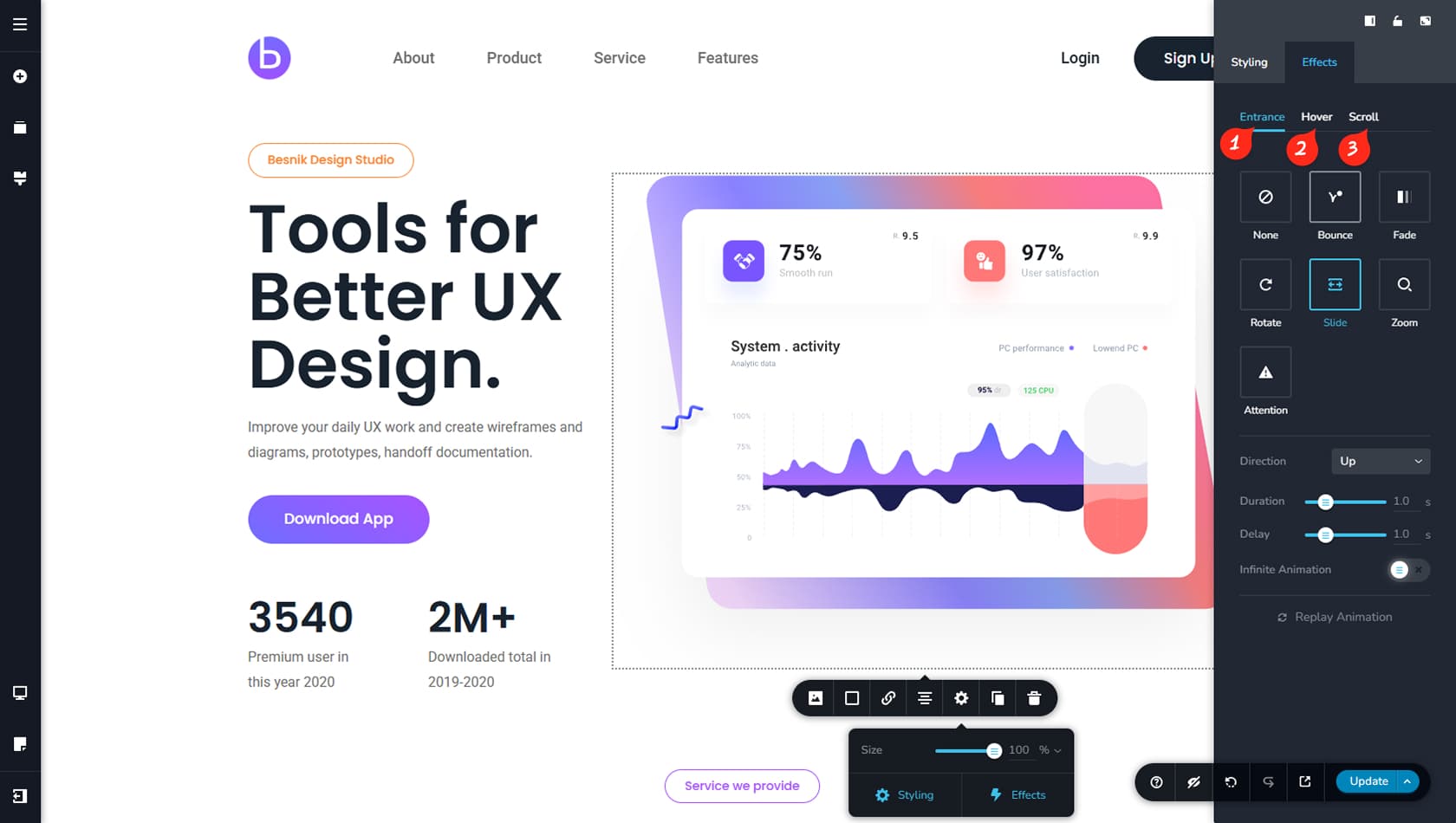
Widget animations come in three main types, each with its own set of settings you can fine-tune. In most cases, you can apply a single animation to a widget, with the exception of scroll animations, which can be combined in specific ways.
Entrance
Entrance animations play when the widget enters the visitor’s viewport. You can adjust the direction, duration, and delay, and you can also set the animation to loop indefinitely or replay.
Hover
Hover animations trigger when a visitor hovers over the widget. You can choose the hover style, such as a directional movement, and control how long the effect lasts.
Scroll
Scroll animations run as the visitor scrolls through the page. You can enable more than one, although some effects may override others. Depending on the chosen animation, you can typically adjust direction, speed, and start point, with certain effects offering additional controls like X and Y axis movement.
Block Animations
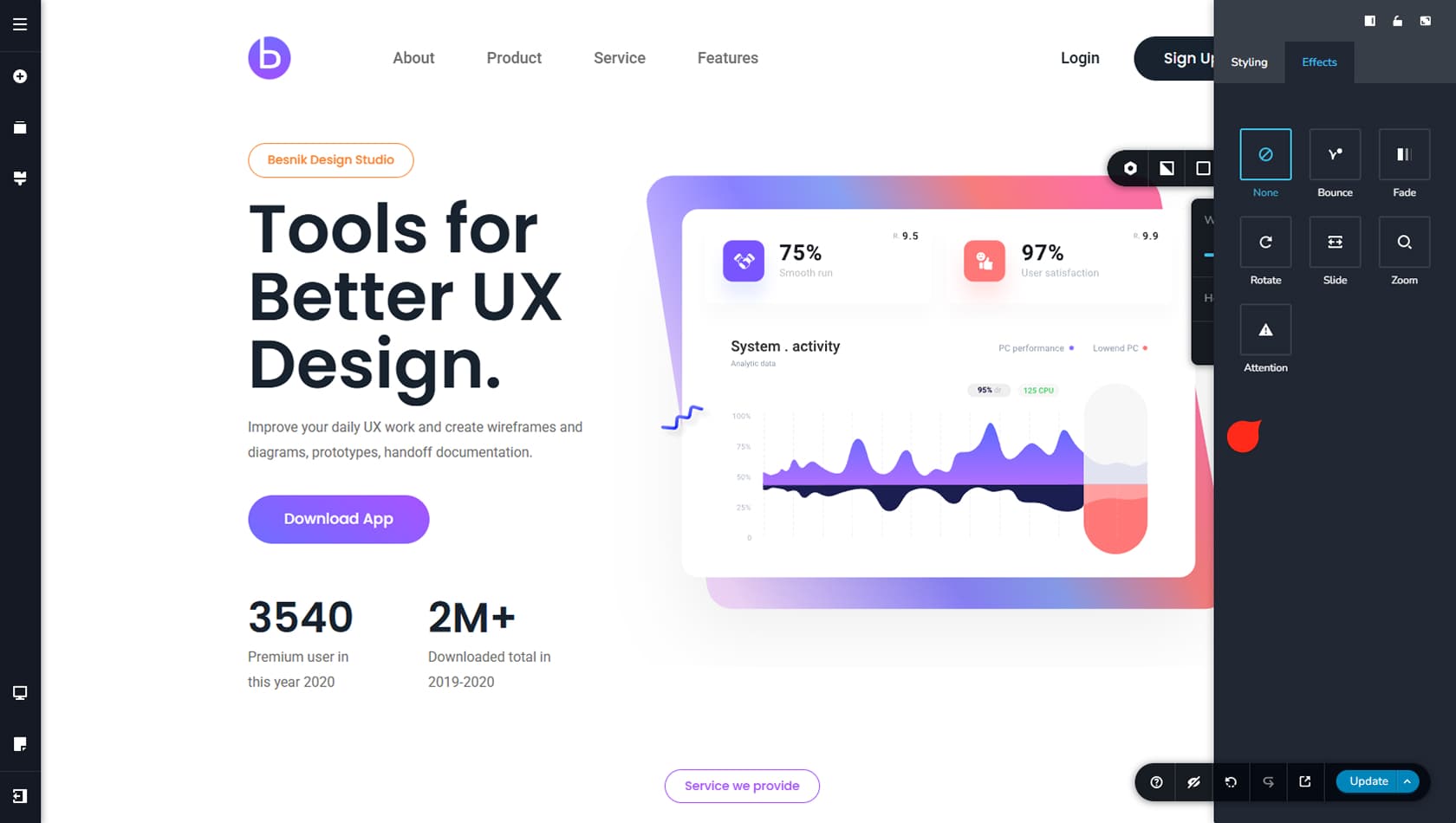
Block animations support Entrance effects only, with controls for direction, duration, delay, looping, and replay behavior.