Reorder Blocks
Efficiency matters when you are shaping a design, and the ability to reorder blocks quickly is a big part of that. As a page evolves, you often realize that a section would work better higher up, needs to sit closer to related content, or should appear before a key call to action. If reordering required saving a block and adding it again, even small layout adjustments would become slow and frustrating. With an easy reorder option, you can experiment freely, refine the flow of the page, and keep improving the visitor experience without losing time.
The Reorder Panel
Reorder Blocks icon
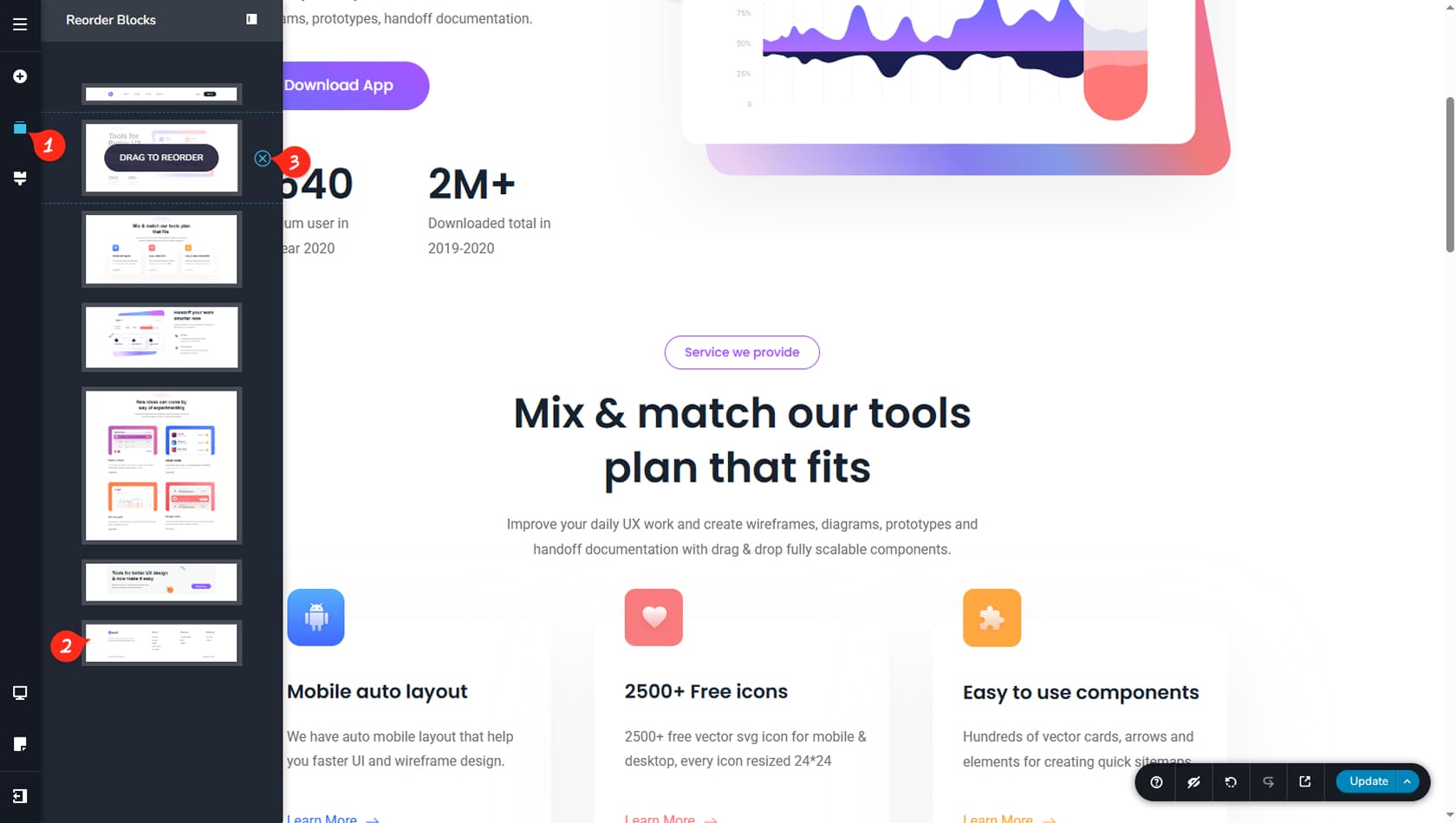
Reorder Blocks Icon: To open the block reordering panel, click the icon on the left side of the editor that looks like two stacked blocks.
Reorder Process
A thumbnail list of all blocks on the page will appear. Drag and drop any thumbnail into a new position between other blocks to change the order.
Delete Blocks
You can also remove a block directly from this panel by clicking the X icon next to its thumbnail.