Links
Links are what turns a static page into a navigable experience by connecting sections, guiding visitors to the next step, and helping them find information quickly. Used well, links improve usability by reducing friction, encouraging deeper exploration, and creating clear pathways to key actions like reading more, contacting you, or completing a purchase. Having the ability to add links to many different parts of a layout, such as columns, buttons, or text, gives you full control over how visitors move through your site and lets you design intentional journeys that feel natural and effortless.
How to Set Up a Link
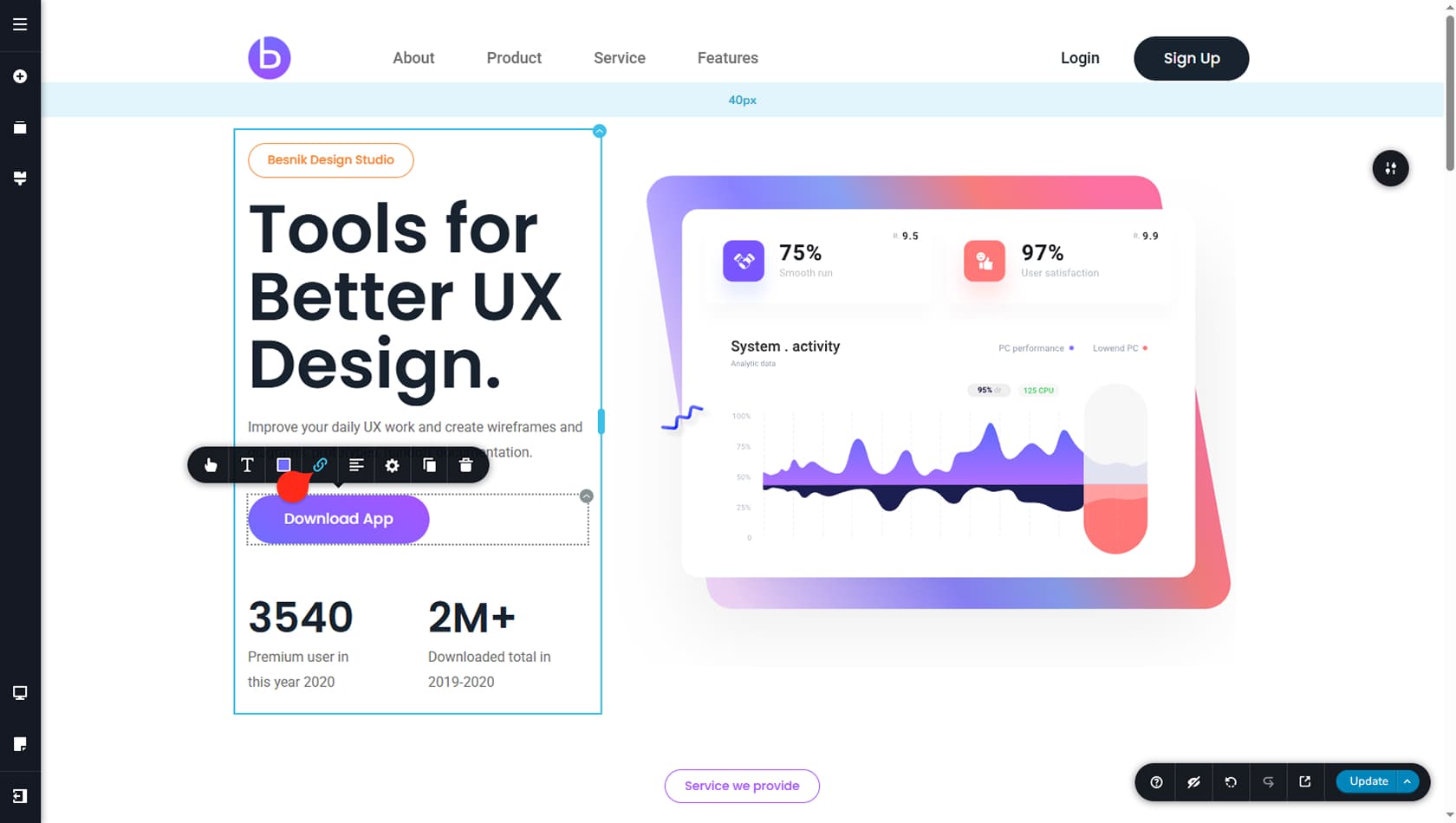
Start by selecting any widget that can be turned into a link. Many elements support linking, including full columns, buttons, text widgets, or even specific words and phrases inside a text widget.
Link An Internal Page
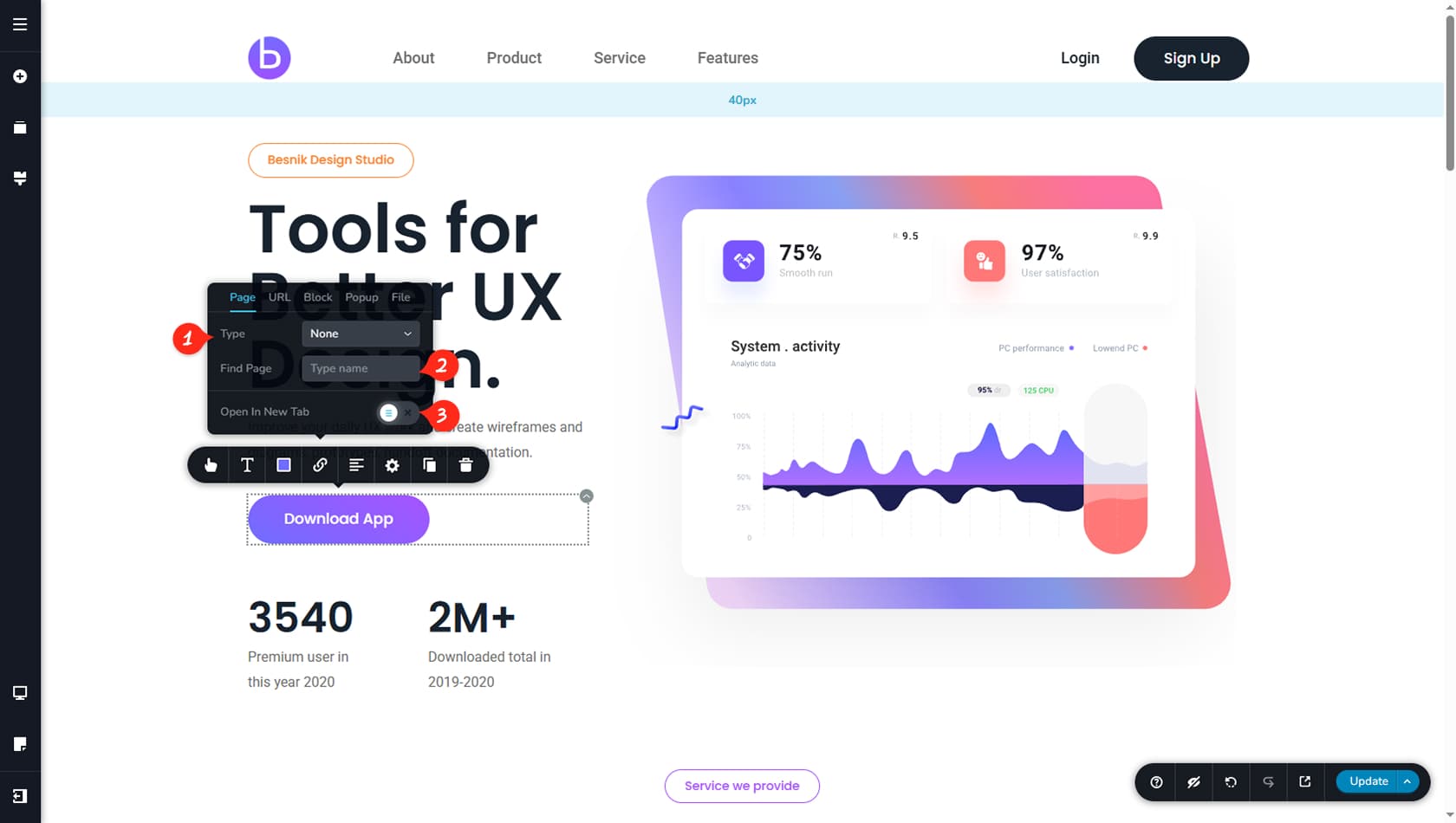
The first link option lets you connect to a page or another asset within your project.
Asset Type
From there, you can choose what type of asset to link to, such as pages, posts, stories, categories, and more.
Search
Next, you can search for the exact asset you want by name.
New Tab
Finally, you can enable an option to open the link in a new tab.
Link A URL
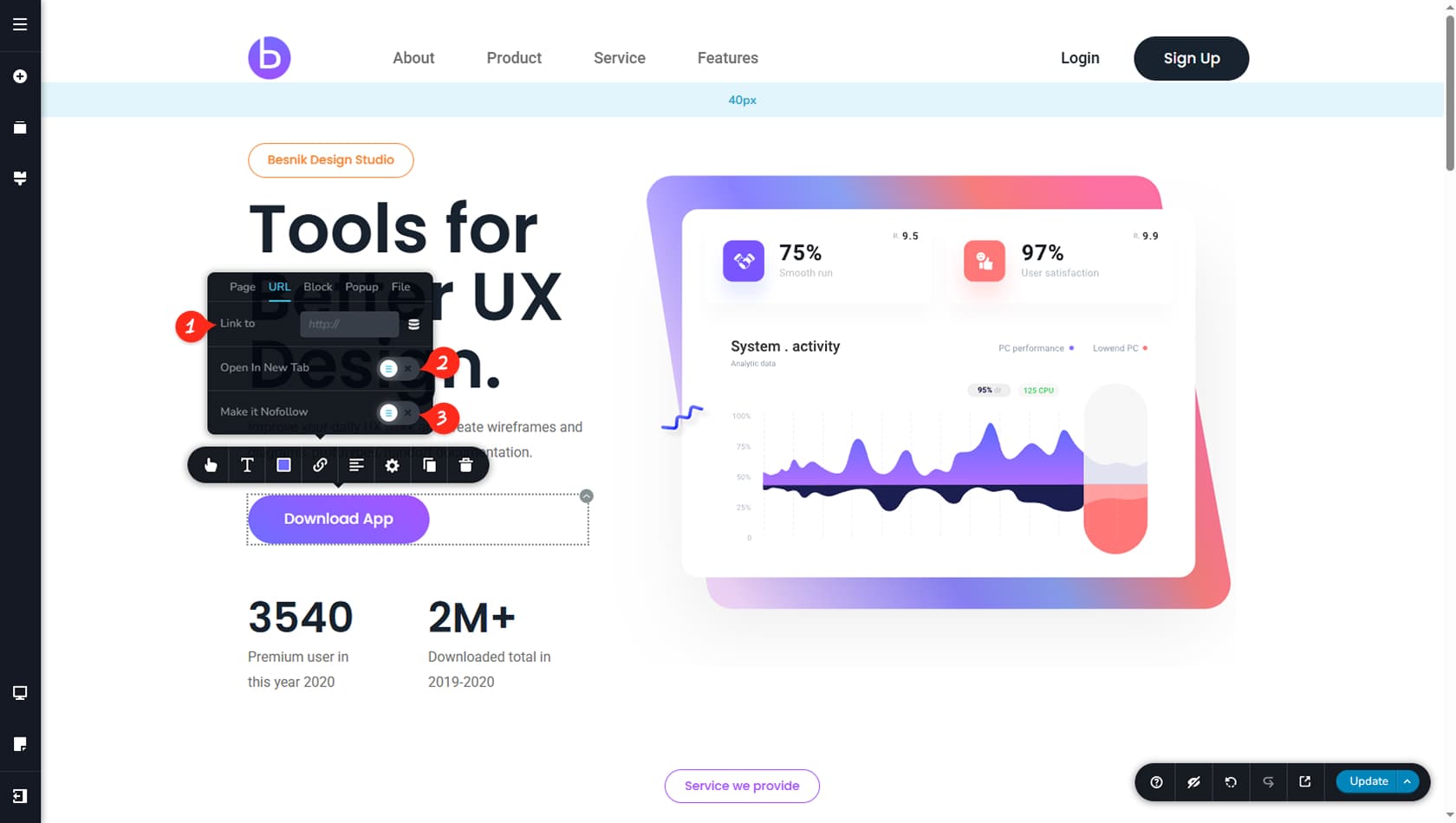
Input URL
Here, you can enter any external URL.
New Tab
You can also choose whether the link should open in a new tab.
NoFollow
You can mark the link as nofollow.
Link To A Block
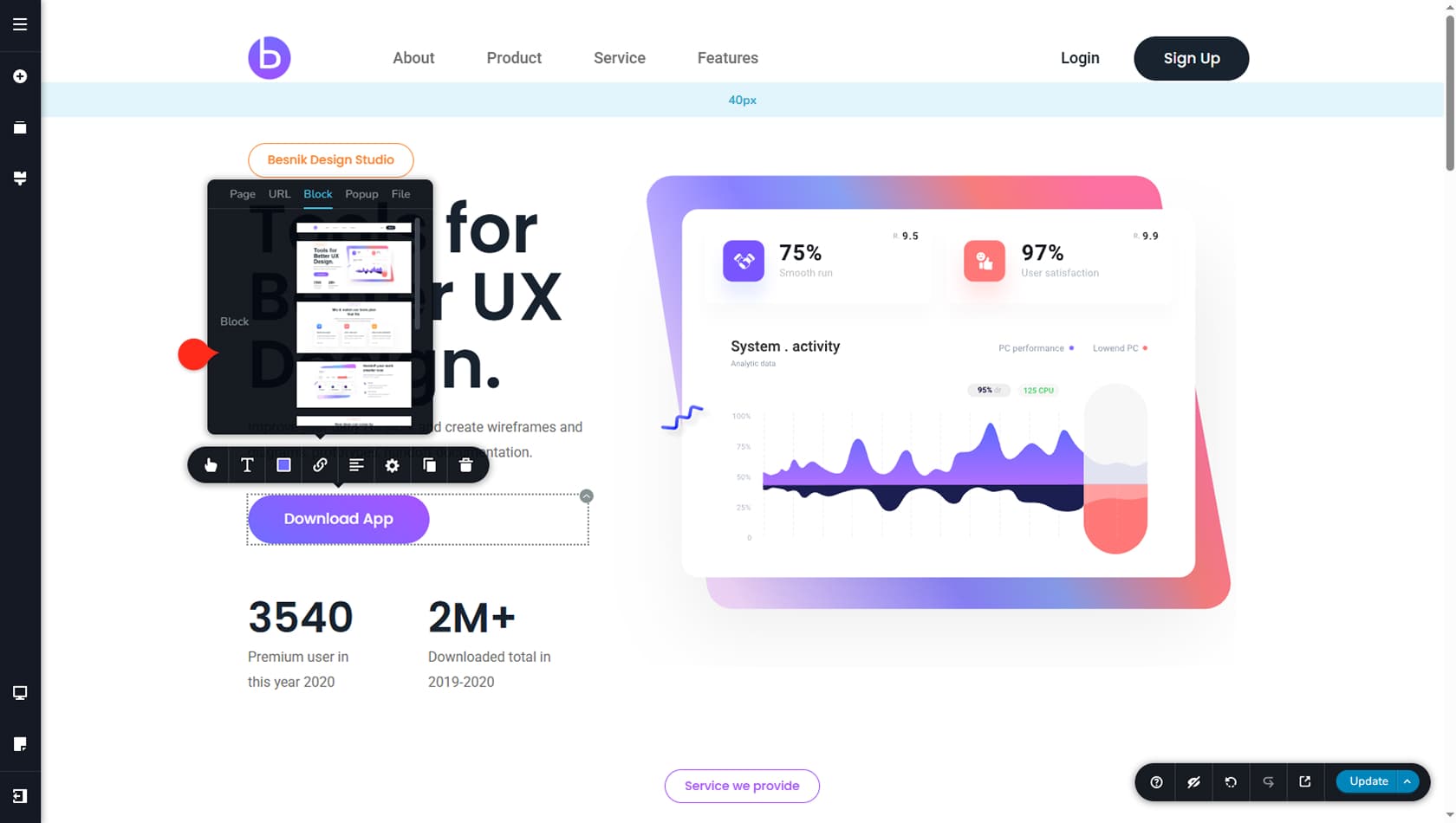
From the Block option, you can set an anchor link to another block on the same page. When clicked, the page will smoothly scroll to the selected block.
Link To A Popup
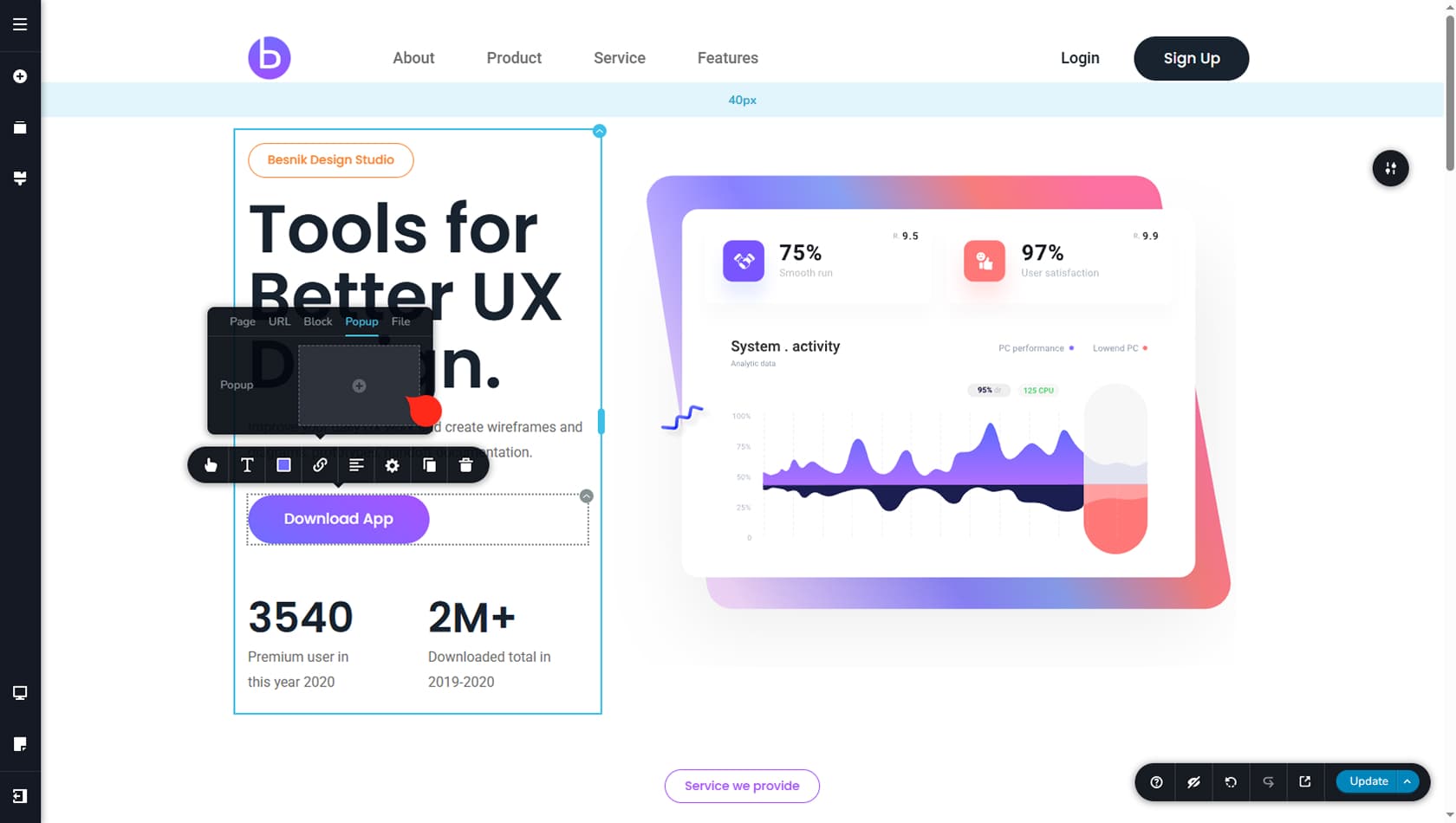
This option lets you link to an existing popup. For more information on creating and managing popups, see the Popup Builder article.
Link To A file
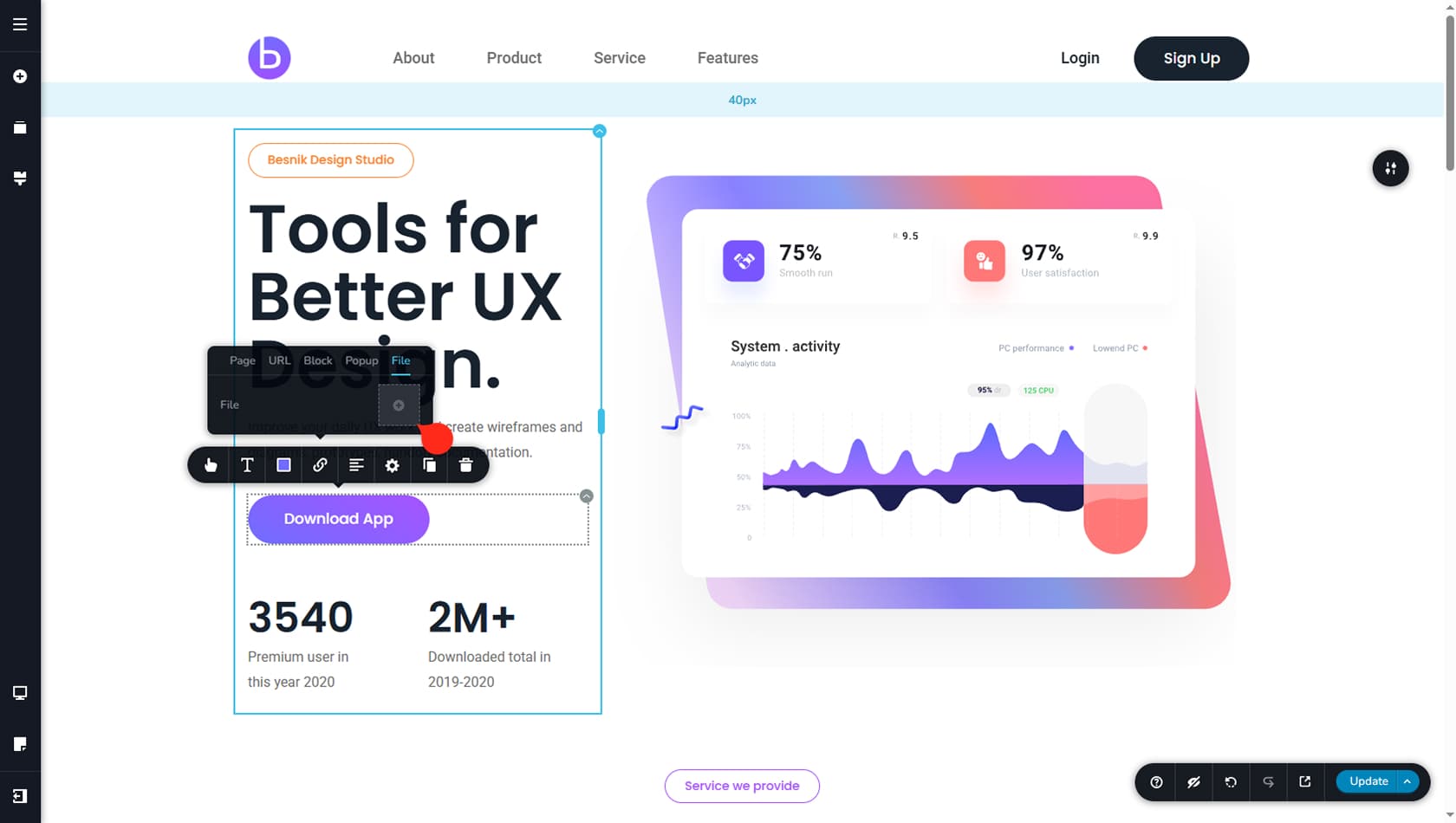
This option lets you link the element to a file from the media library. When someone clicks it, the file will open in a new tab whenever the browser supports it.