Playlist
The Playlist widget is a practical way to organize multiple videos into a single, structured viewing experience, making it ideal for tutorials, courses, product showcases, or curated content collections. By allowing videos from different sources to be grouped together with customizable thumbnails, order, and styling, it helps keep content easy to navigate while maintaining visual consistency. With flexible design controls for colors, typography, and layout, the widget enhances engagement and encourages users to explore videos without leaving the page.
Playlist Options
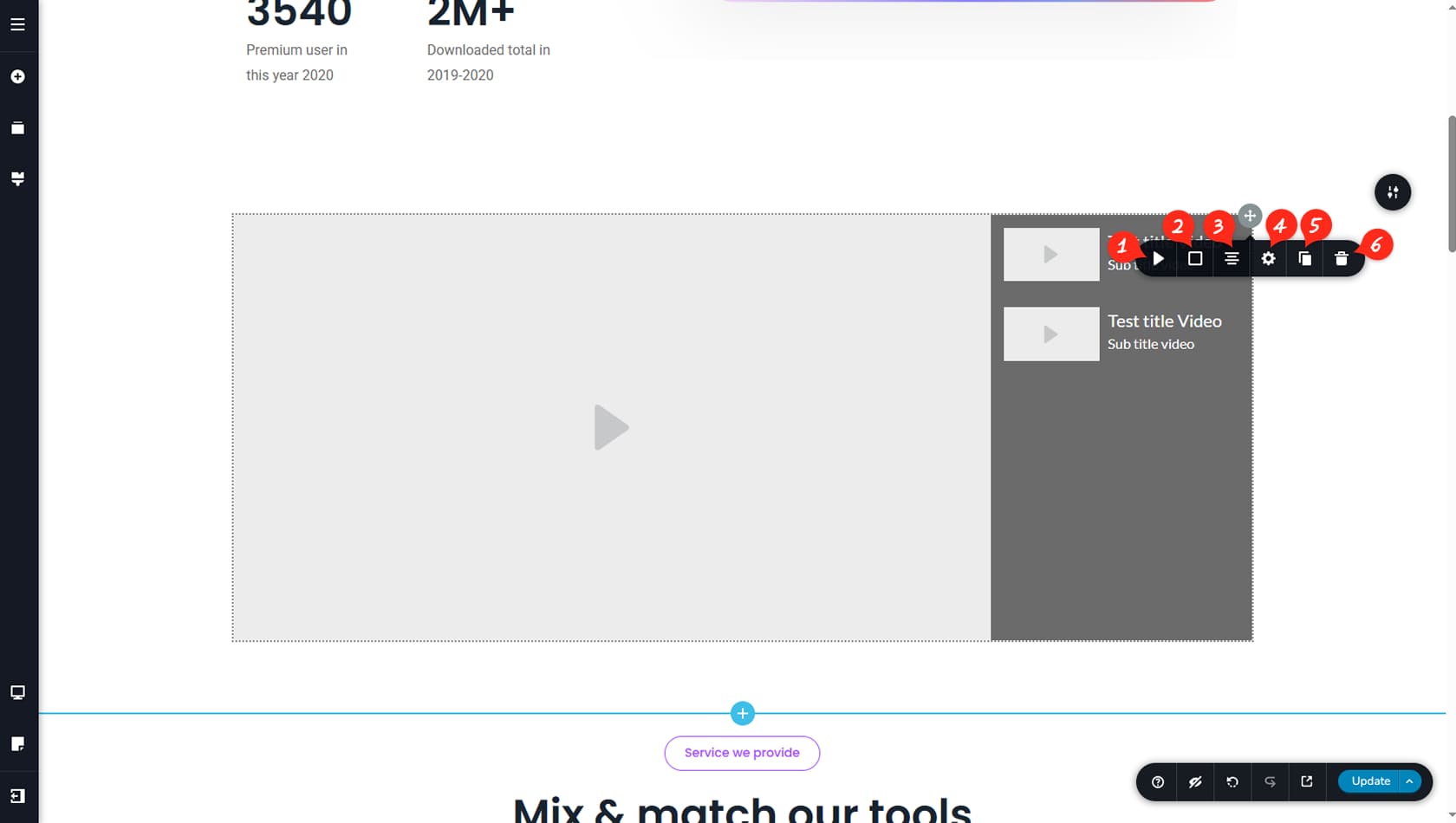
Horizontal / Vertical Playlist
After dragging and dropping the Playlist widget, click the grey icon in the top-right corner to open the toolbar. The first setting controls the layout of the playlist, allowing you to switch between horizontal and vertical orientations. When using the vertical layout, you can also define the position of the thumbnail relative to the title and subtitle.
Playlist Colors
Here you can customize the border and shadow colors of the widget, including hover states.
Playlist Alignment
This option controls the alignment of the Playlist widget.
Playlist Settings
Here you can adjust the playlist width using percentages or define the size of the sidebar that contains the list of video items. You can also open the Styling and Effects panels for more settings like padding, margins, corners or setting up an animation.
When referring to the Styling Panel of the widget, please see the Widgets Styling article for more details and an in-depth guide. Note that most widgets share similar styling options, with slight variations depending on the specific widget.
Duplicate Widget
This control duplicates the Playlist widget.
Delete Widget
This control deletes the Playlist widget.
Playlist Item Options
Playlist Item Options
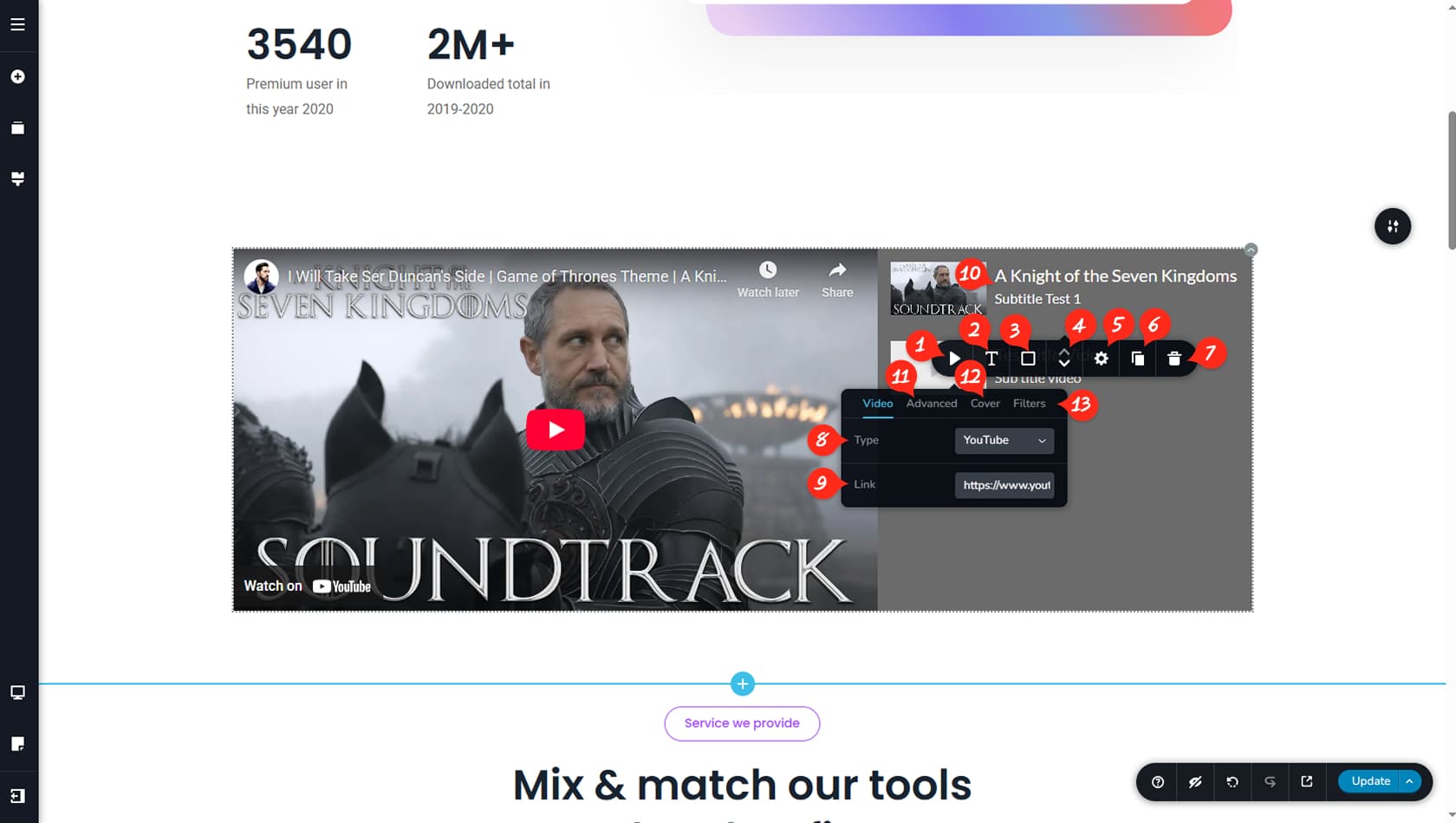
Playlist items include their own toolbar with additional settings for organization and customization. The first icon on the left opens the main options panel.
Playlist Item Typography
Here you can adjust the typography of the playlist items, including titles, subtitles, and video controls.
Playlist Item Colors
This section allows you to customize colors for multiple elements such as the play button, icons, video progress bar, slider, title, subtitle, list background, and borders, along with hover color options.
Reorder Playlist Items
The arrow icons let you reorder playlist items.
Playlist Items Settings
The settings option provides control over thumbnail size and the vertical alignment of the title and subtitle area, and also gives access to the Styling panel for options like padding and margins.
Duplicate Playlist Item
This control duplicates the selected playlist item.
This option is the only way to add more items to your playlist.
Delete Playlist Item
This control deletes the selected playlist item.
Video Source
Here you can choose the video source, including YouTube, Vimeo, or a custom URL.
Video URL
Enter the video link in this field.
Playlist Item Title & Subtitle
This section allows you to edit the video title and subtitle. The text must be modified manually, just like any other text in the builder.
Playlist Items Advanced Options
The Advanced tab includes options to toggle video controls, branding, and loop, as well as define custom start and end times.
Playlist Item Video Cover
The Cover tab lets you select a custom cover image from the Media Library instead of using the default video thumbnail.
Playlist Item Video Filters
Here you can apply filters and adjust the video’s contrast, brightness, or saturation.