Headers & Footers
Headers and footers play a key role in usability because they frame the entire site experience. The header is where visitors look for navigation, branding, and the fastest path to important pages, while the footer reinforces trust with helpful details like contact information, legal links, social links, and secondary navigation. Building them through global settings makes maintenance much easier because you design them once and reuse them across the site, keeping every page consistent. When you need to update a menu item, logo, phone number, or disclaimer, a single change updates every page that uses that global header or footer, which saves time, reduces mistakes, and keeps the site experience cohesive as it grows.
In short, headers and footers are built the same as blocks and use the same settings and editing workflow. For a deeper look at editing and managing blocks, see the Working with Blocks article. What makes them different is that they come with a few dedicated options and they stay fixed in their positions at the top and bottom of the site.
How to Add Headers & Footers
Blocks
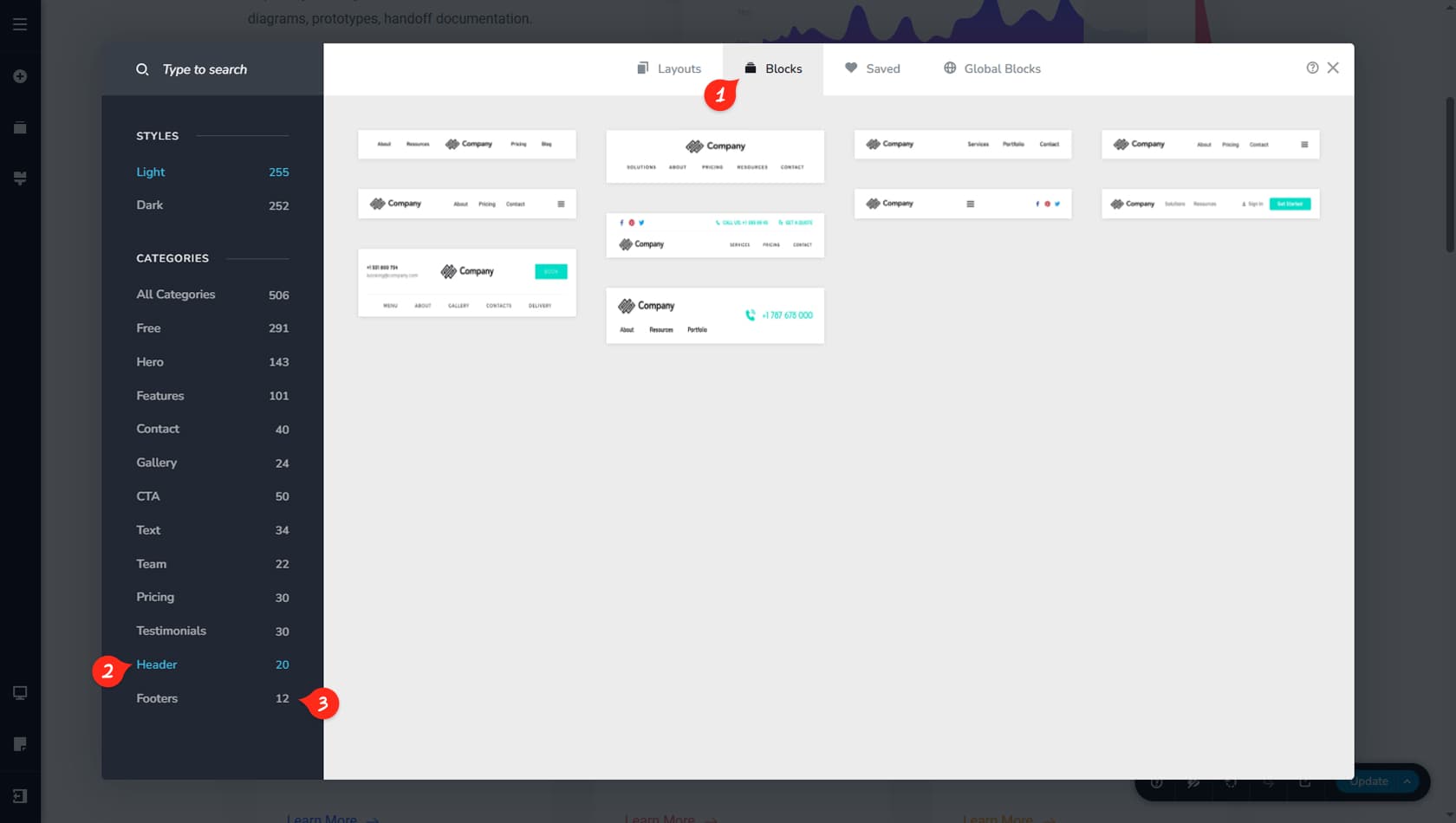
To add a header or footer, follow the same process you use for any other block. Start by opening the Blocks tab.
Headers
Open the Headers category and choose a header from the available options to insert it into your page.
Footers
Open the Footers category and select a footer from the list to add it to your page.
Headers
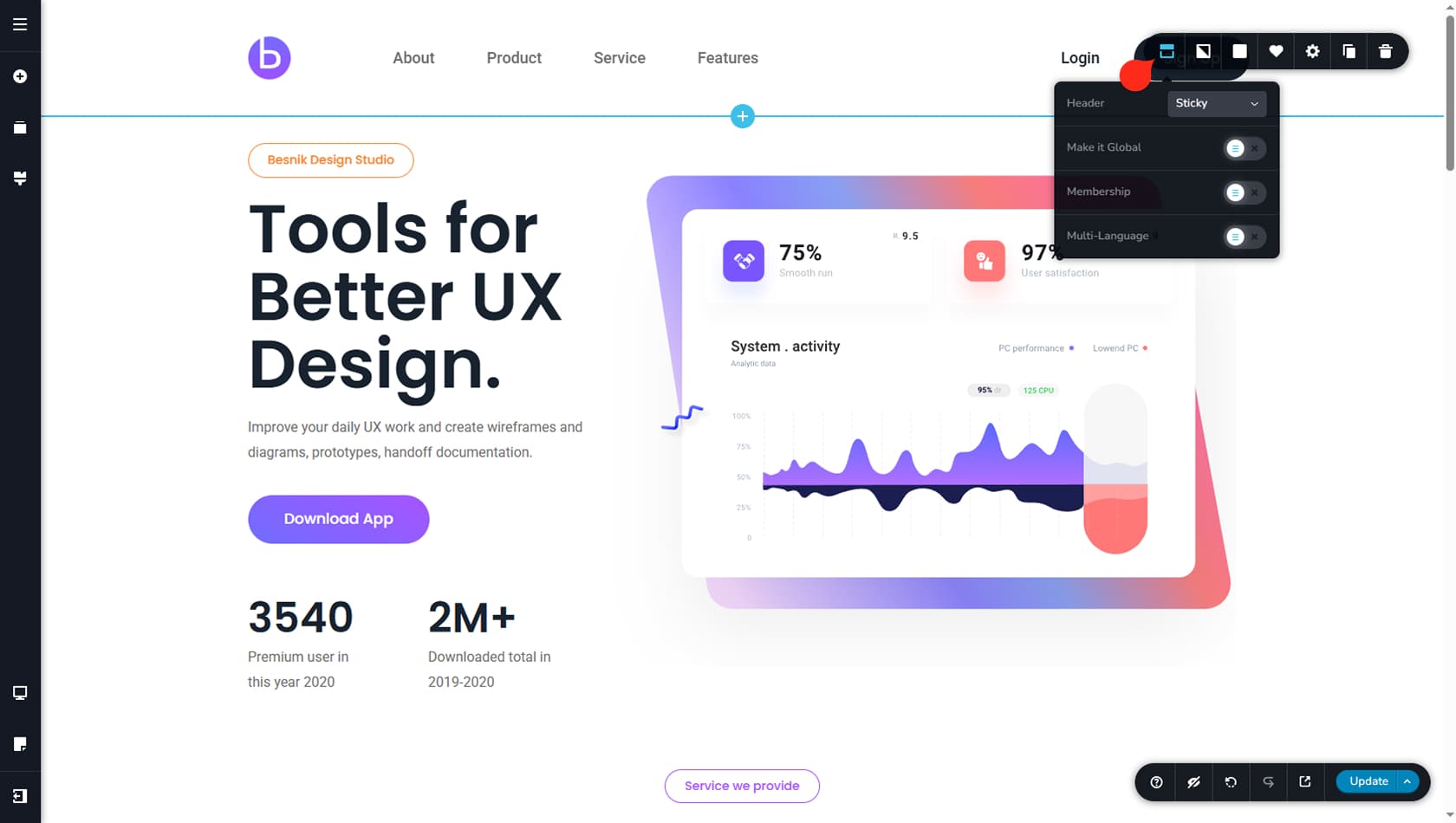
You will notice that unlike regular blocks, headers have a different icon on the left in its toolbar, representing its status as header. After you finish designing your header, make sure to convert it into a global block and set the display conditions for the pages where it should appear, just like you would with any other block. For a full walkthrough, see the Global Blocks article.
Header Styles
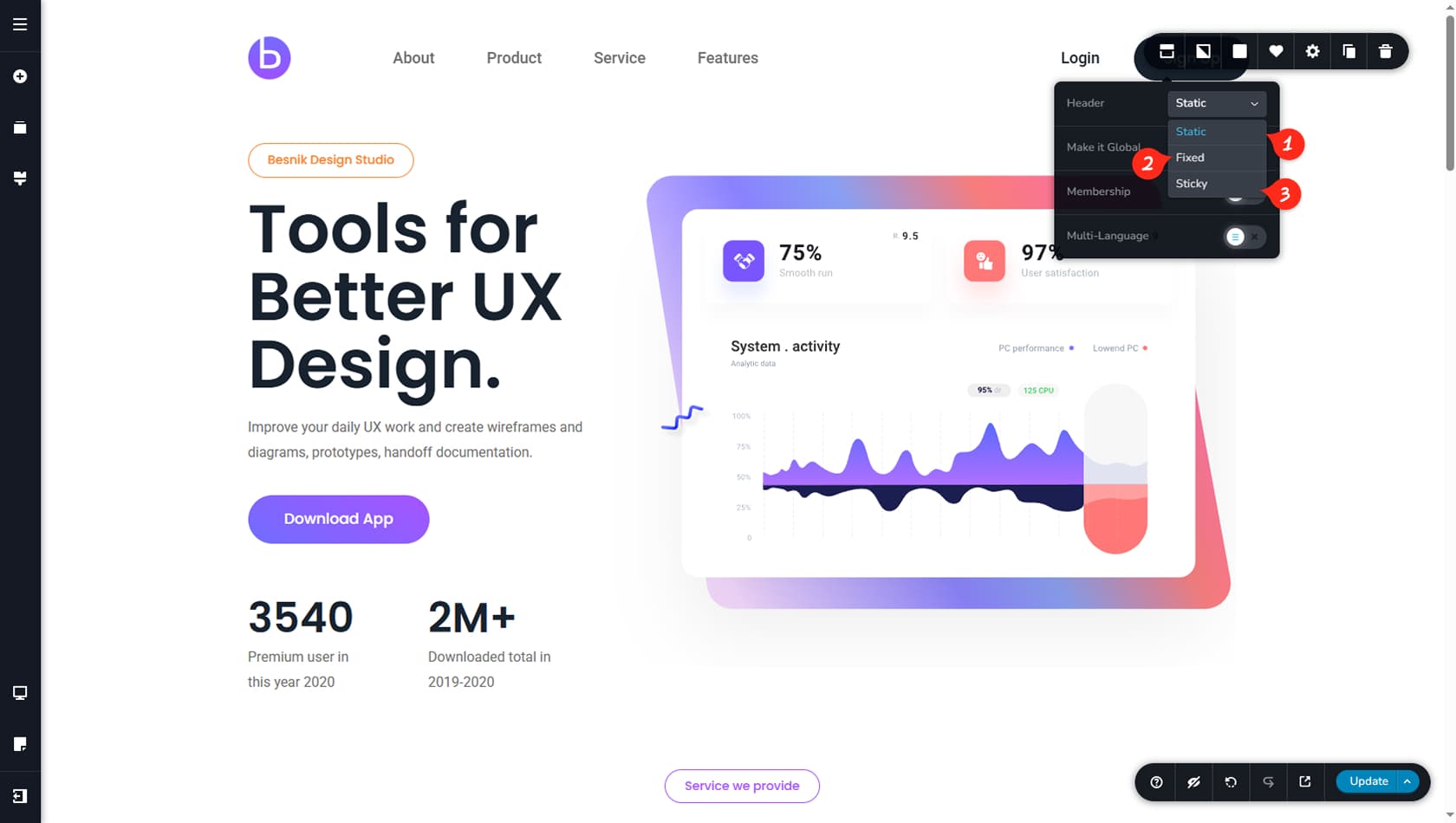
Static
The header stays at the top of the page. Once visitors scroll past it, it is no longer visible.
Fixed
The header remains pinned to the top of the screen while visitors scroll, so navigation is always within reach.
Sticky
The header switches to an alternate version once visitors scroll past the original. This alternate header stays pinned at the top and can be styled independently from the initial header.
Footer
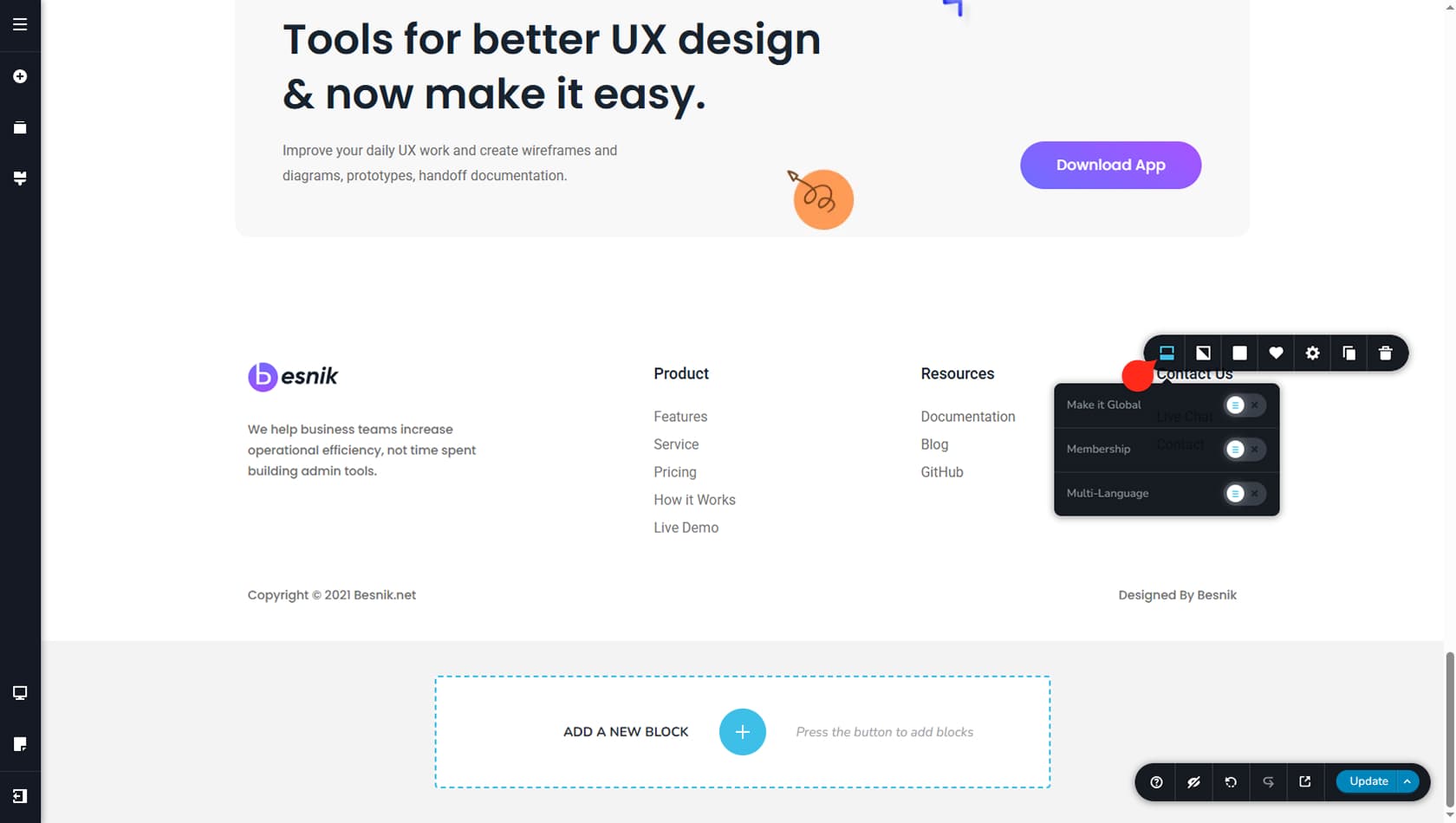
After a footer is added, you can edit and style it the same way you would any other block. The main visual difference is the icon on the left side of its toolbar, which indicates it is a footer and should be positioned at the bottom of your pages. As with headers, make sure the footer is set to global and configure its display conditions to control where it appears.