Audio
The audio widget adds an extra layer of engagement by allowing you to integrate music, voiceovers, podcasts, or sound effects directly into your website. It helps deliver information in a more dynamic and accessible format, enhancing storytelling and improving user interaction beyond visual content alone. With customizable player styling and flexible audio sources, you can seamlessly match the audio experience to your design while keeping playback intuitive and consistent across devices.
Audio Widget Options
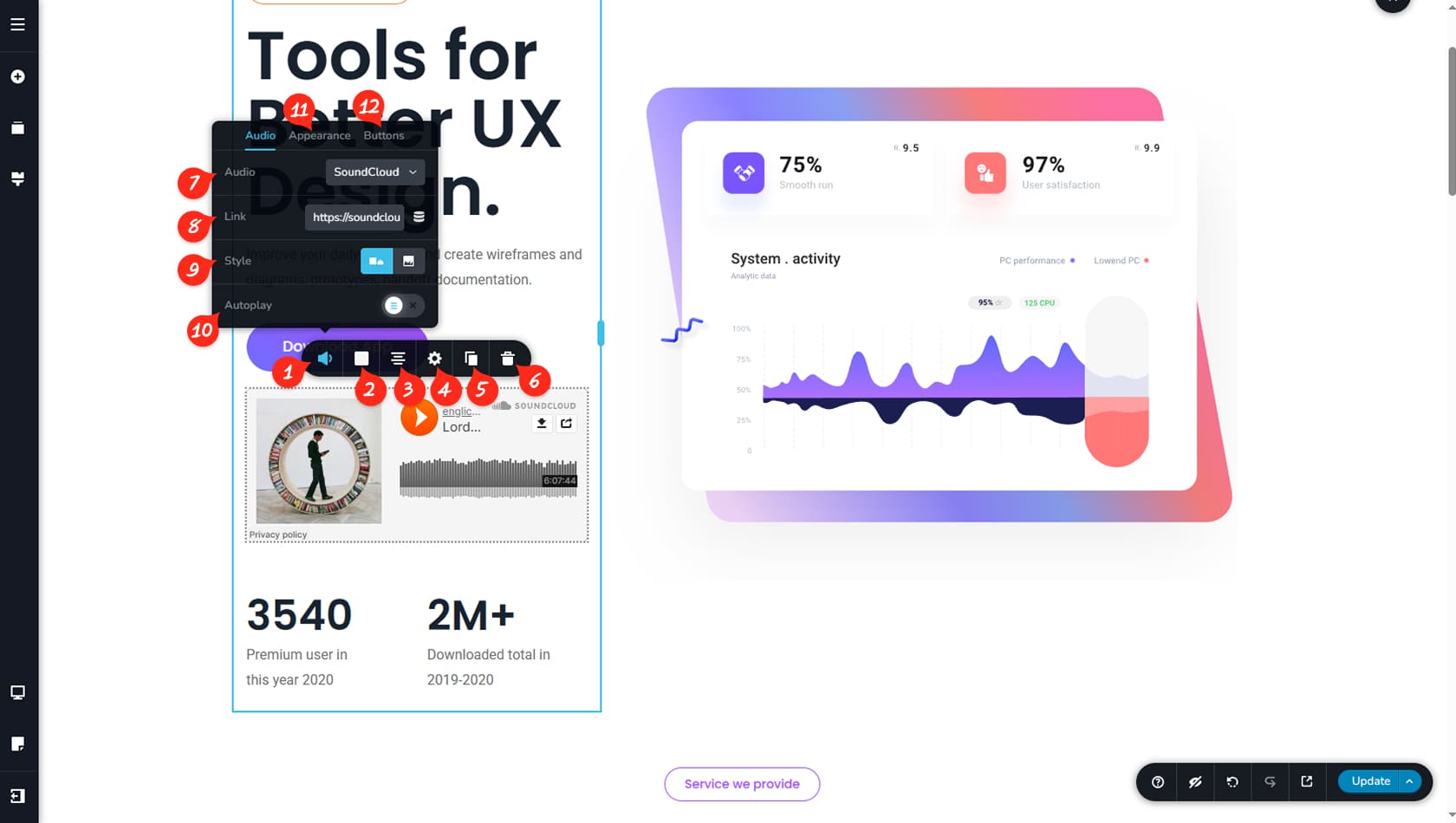
Audio Options
When you click the Audio widget, the toolbar will appear. Select the first option on the left to access the audio customization settings for this widget.
Audio Colors
Here you can customize the colors for the background, border, shadow, and audio control elements, including separate hover colors.
Audio Alignment
This setting allows you to align the widget to the left or right.
Audio Settings
This opens the Settings Panel, where you can adjust width and height, access the Styling Panel, and configure animations in the Effects Panel.
When referring to the Styling Panel of the widget, please see the Widgets Styling article for more details and an in-depth guide. Note that most widgets share similar styling options, with slight variations depending on the specific widget.
Duplicate Audio
You can duplicate the widget using this control.
Delete Audio
This control deletes the widget.
Soundcloud/Custom
Here you can choose between a SoundCloud audio source or a custom file-based audio player.
Soundcloud Link/Audio File
Depending on your selection, you can paste a SoundCloud link or choose an audio file from the Media Library.
Audio Style
The Style options allow you to switch between a layout with a thumbnail on the left and title on the right, or a layout with a background image and overlayed title and audio controls.
Autoplay
This toggle enables or disables Autoplay.
Appearance
The Appearance tab lets you show or hide the song artwork, comments, play counts, and username.
Buttons
The Buttons tab allows you to enable or disable the Like, Buy, Download, or Share buttons.