Get a Gemini API Key
To generate AI images from inside the Media Library, you need a Gemini API key.
An API key is a long password that lets the builder talk to Google’s AI service and proves the requests are coming from you. You get it once, paste it in, and never think about it again.
This is done on Google’s website, not in the builder, so the screens below will not look familiar. That is expected.
Getting the key
Open Google AI Studio
Go to aistudio.google.com/app/api-keys .
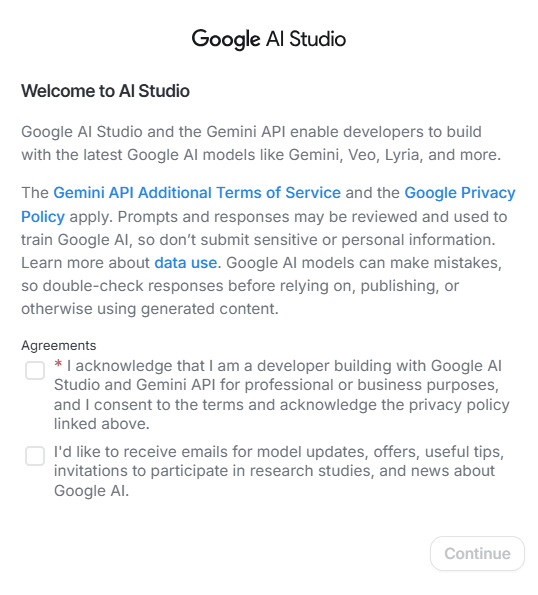
Accept the terms
If this is your first visit to Google AI Studio, agree to Gemini’s Terms of Service and Privacy Policy, then click Continue.
Start a new key
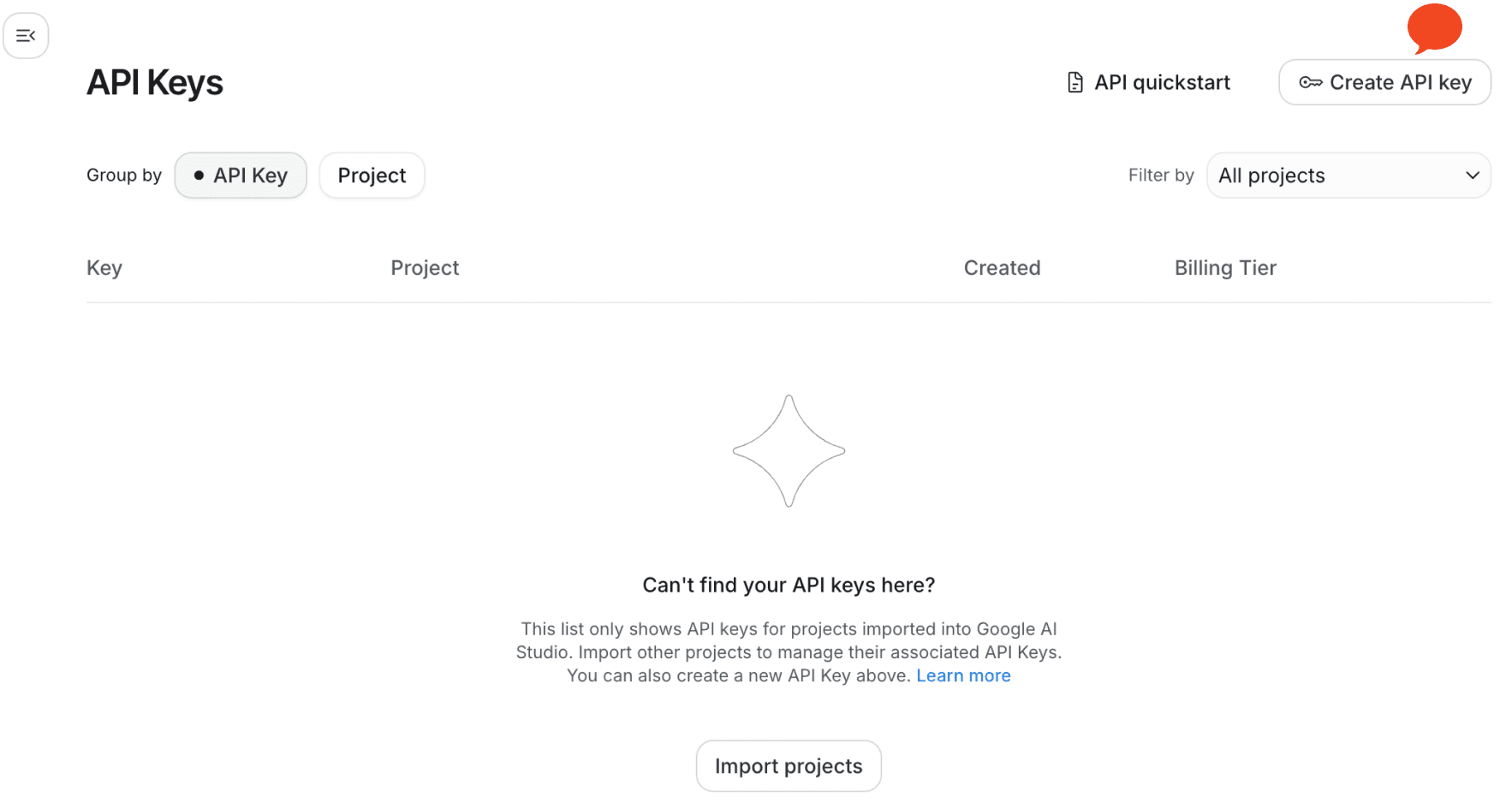
Click Create API Key at the top right corner.
Name it and pick a project
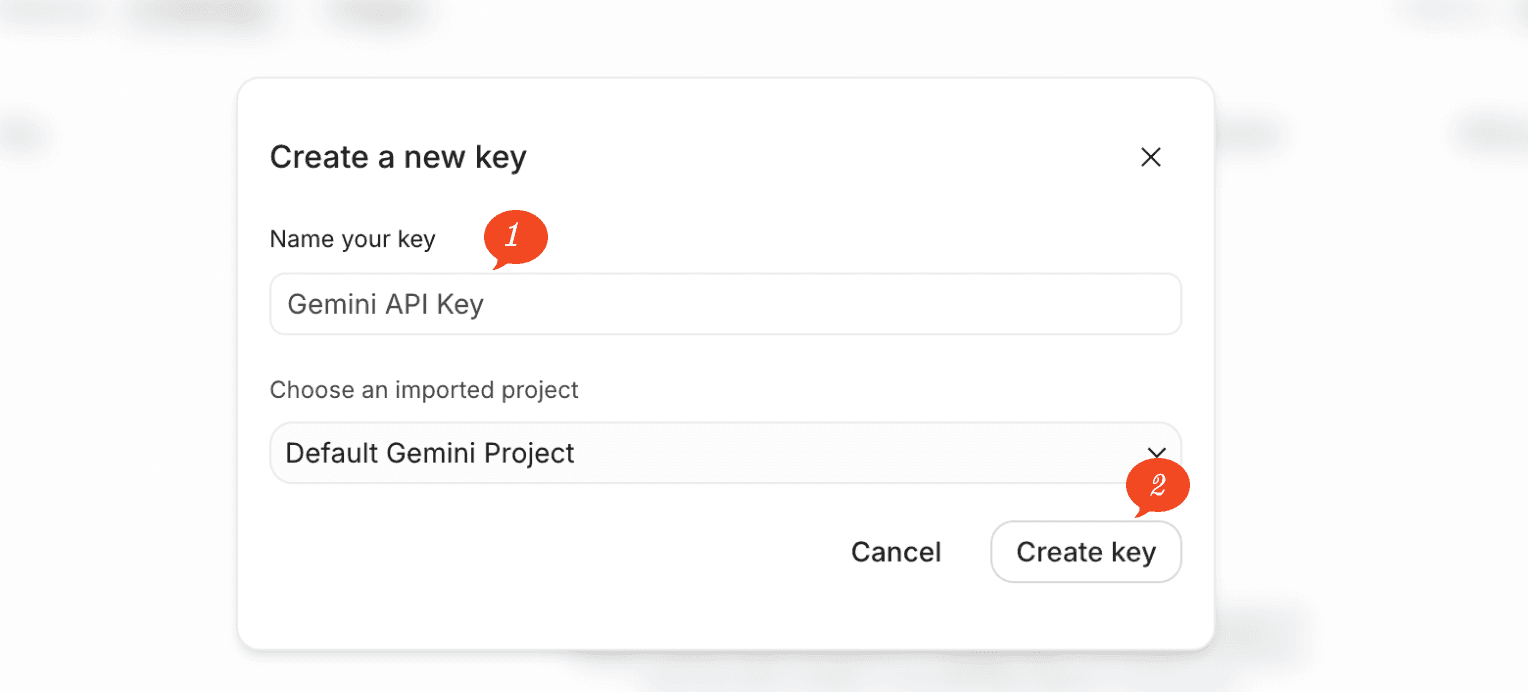
Give your API key a name and choose the project it belongs to.
If you do not have a project yet, choose Create Project, add a new one, then click Create key.
Copy the key
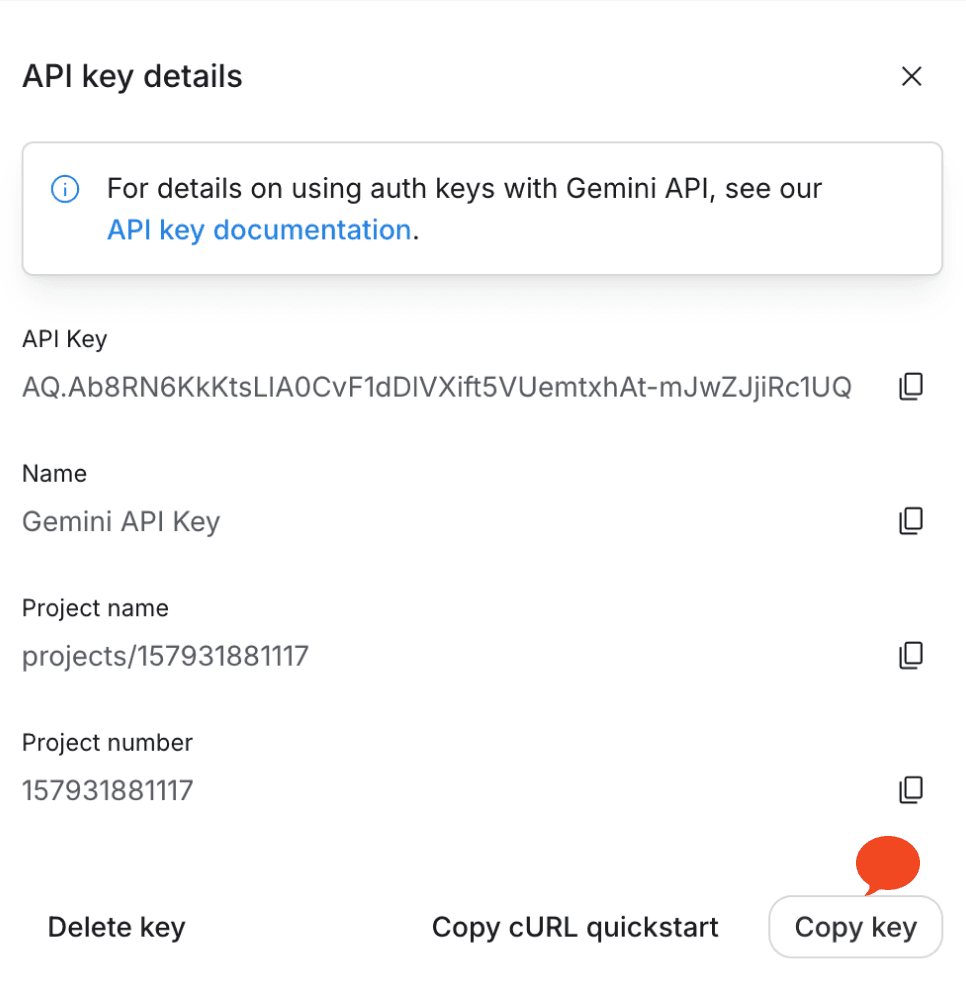
Your Gemini API key is generated. Click the copy icon to copy it.
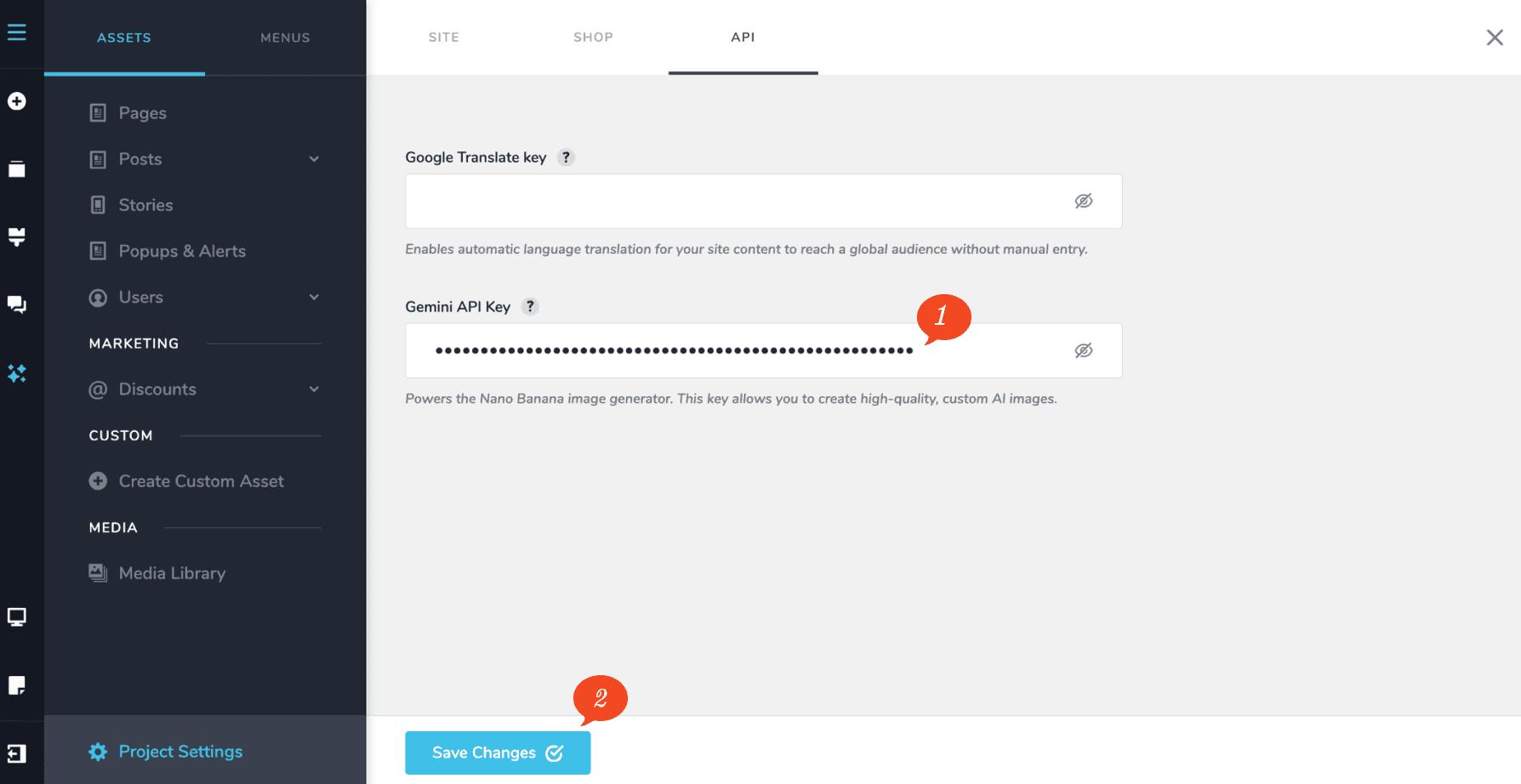
Paste it into your project
Switch back to your project and paste the key in. You can then click Generate Image to create AI images from a written prompt.
Look after the key
Treat it like a password. Anyone who copies it can use Google’s AI service billed to your account. Do not paste it into an email, a chat message, or a support ticket.