Dynamic Templates
Dynamic Templates allow you to create a predefined layout for specific asset types, automatically pulling in elements such as featured images, titles, and custom fields from the CMS whenever a new asset is created. Instead of designing each post or asset from scratch, the template ensures consistent structure and styling while dynamically populating the required content. This approach saves time, maintains design uniformity, and simplifies content management, as users only need to update the asset’s fields in the CMS for the layout to be fully generated on the front end.
Setting up a Dynamic Template
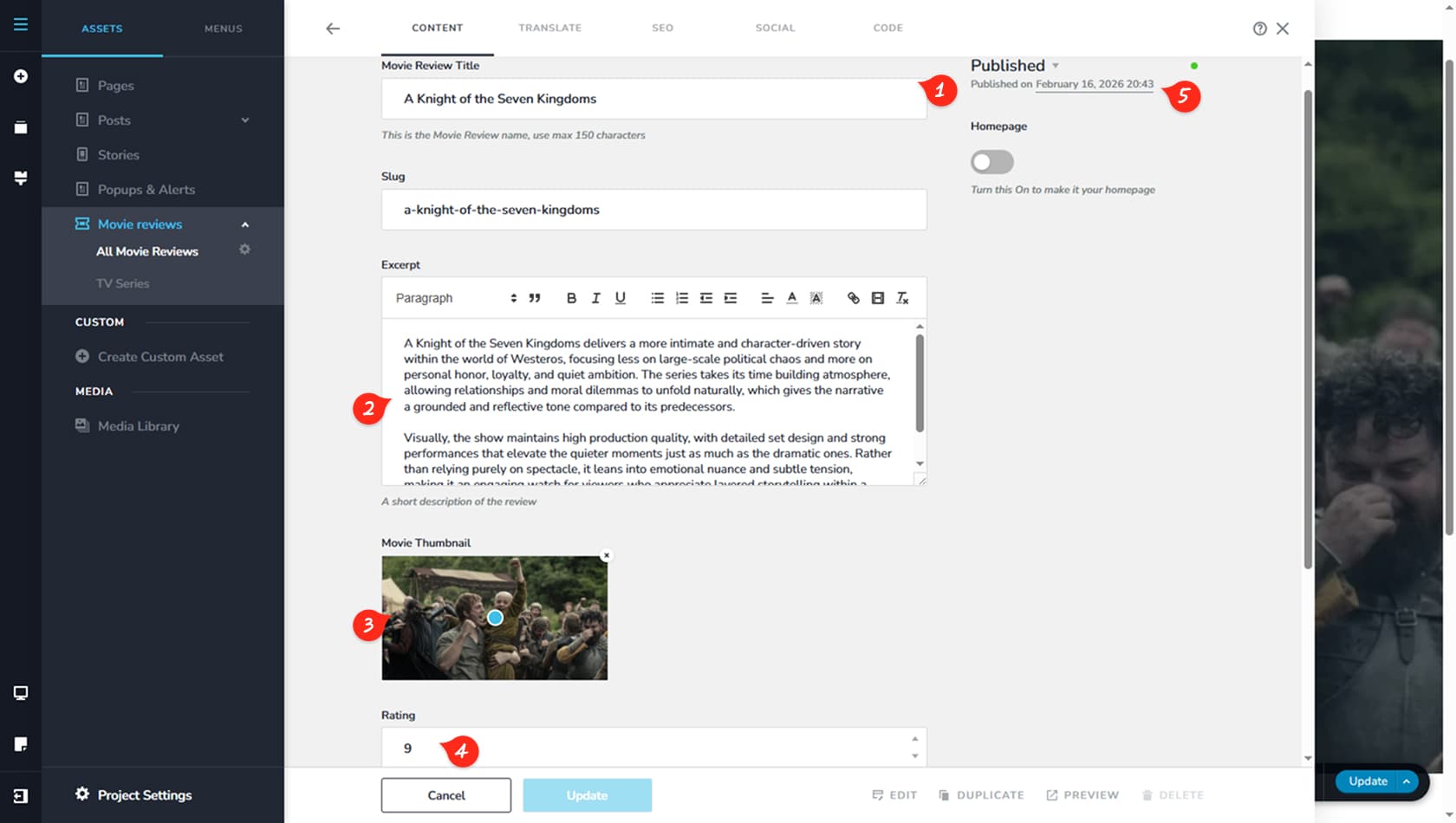
To set up a Dynamic Template page, we’ll use our Custom Asset type, Movie Reviews, as an example. First, we created an asset titled “A Knight of the Seven Kingdoms.” For this demonstration, we will focus on five dynamic fields.
Asset Title
The first dynamic field is the Title.
Asset Excerpt
The second dynamic field will be Excerpt which will contain 2 simple paragraphs - the review itself.
Asset Image
The third dynamic field is the Movie Thumbnail, which is a custom image field.
Asset Rating
The fourth dynamic field is the Rating.
Asset Date
Finally, we will use the published date as dynamic data within the template. The date is automatically created in the CMS when the post is published.
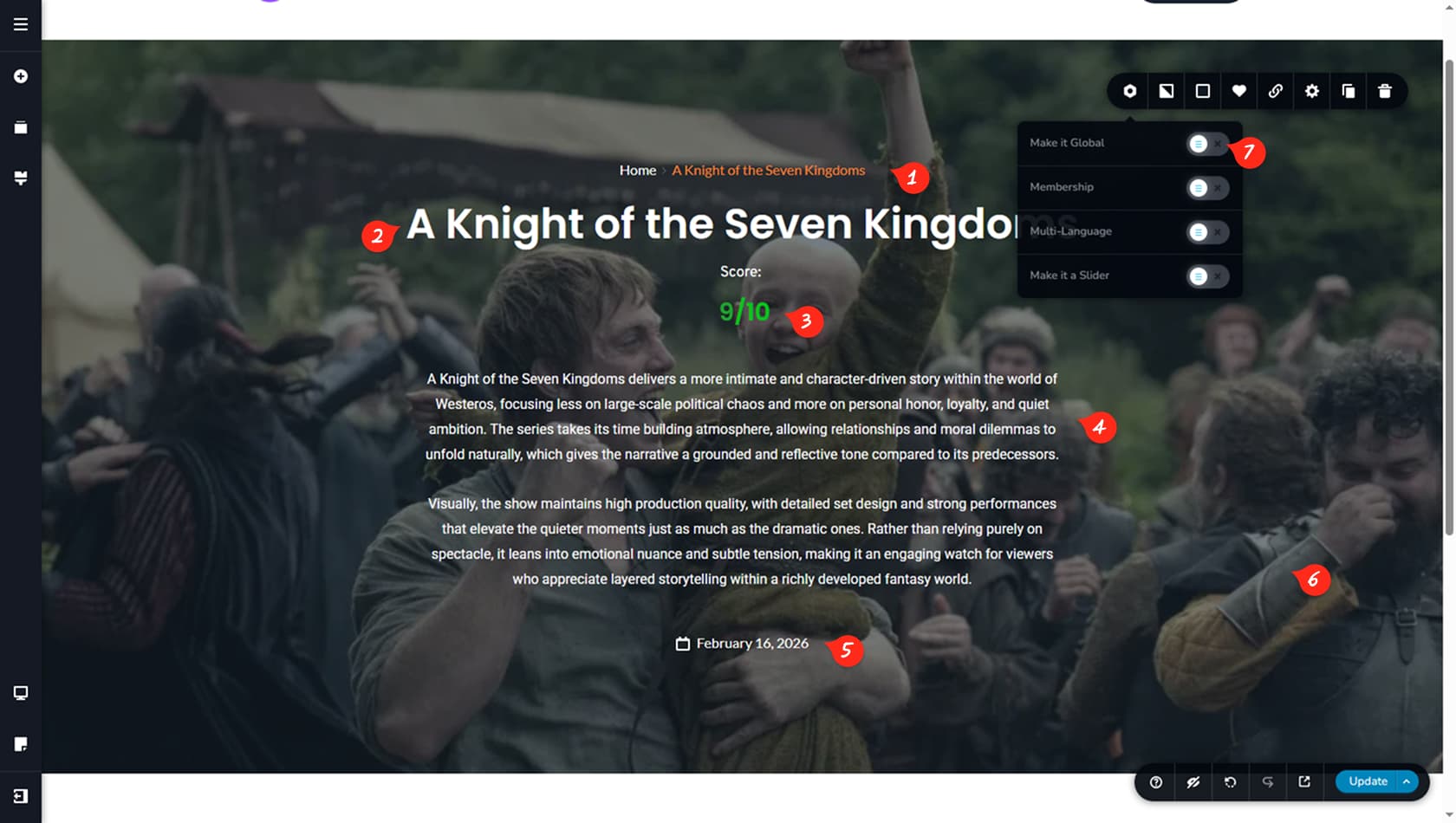
Once the CMS configuration is complete, you can edit the post and design the first entry according to your preferred layout.
Breadcrumbs
First, we added a Breadcrumbs widget to improve navigation within the post.
Title
Next, we inserted the Title widget, which dynamically pulls the post title from the CMS.
Rating
Then, we displayed the score by using dynamic elements to retrieve the Rating value from the asset. The “/10” portion remains static, as does the “Score” label. To structure this properly, we used two side-by-side columns to separate the dynamic rating from the static “/10” text.
Excerpt
We then added a Text widget, set it to paragraph typography, and connected it dynamically to the “Excerpt” field. This automatically populates the text area with the excerpt stored in the asset.
Info
After that, we included the Info widget and configured it to display the publication date, customizing its typography and colors. The date is dynamically pulled from the CMS.
Background Image
We then set the background image of the block to dynamically use the Movie Thumbnail image on its original size.
Set to Global
Finally, once the Dynamic Template was fully configured, we set it as global.
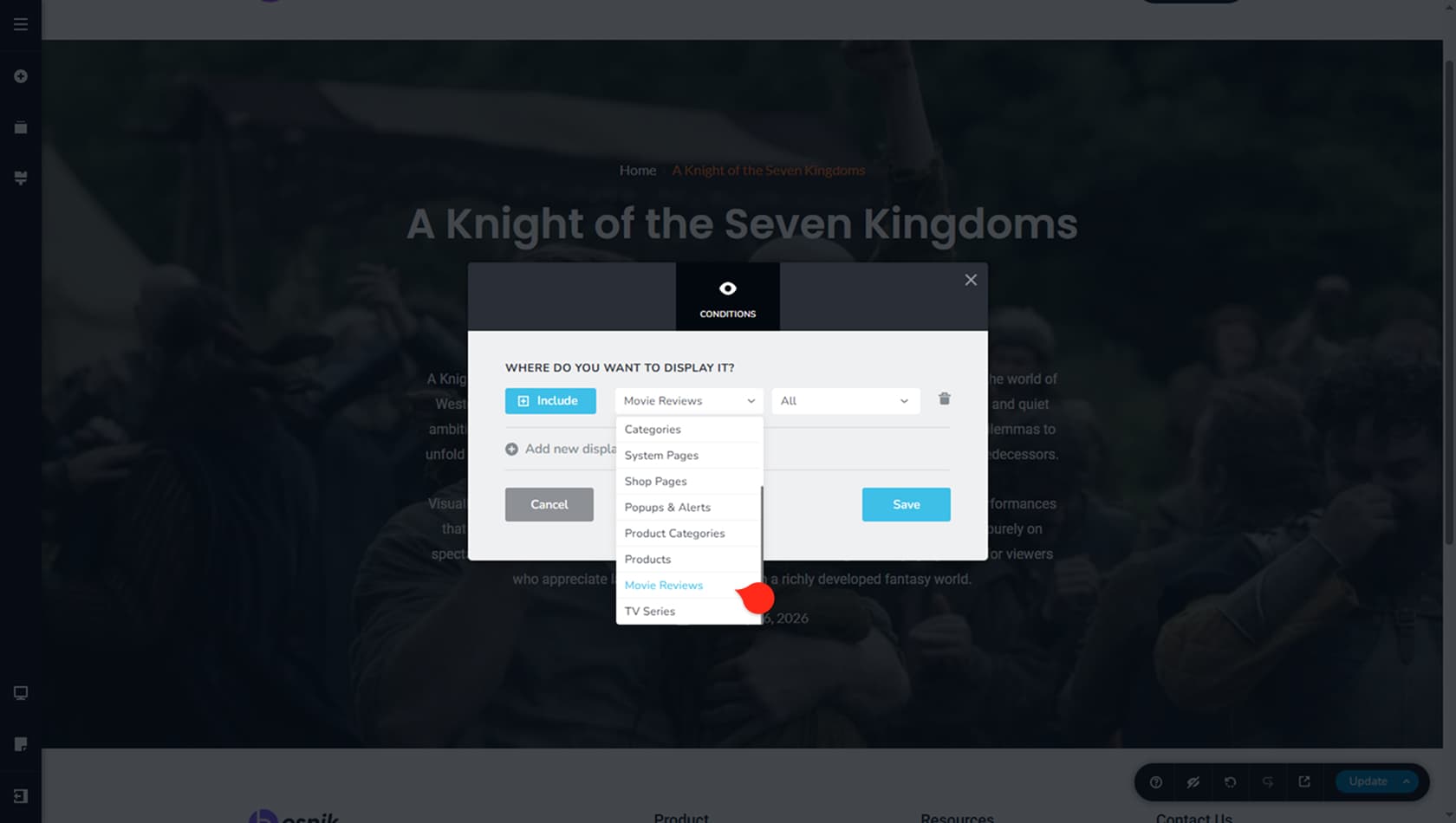
In the Condition settings, select the desired asset type— in our case, Movie Reviews — and choose All so the template applies to every existing and future item within that asset type.
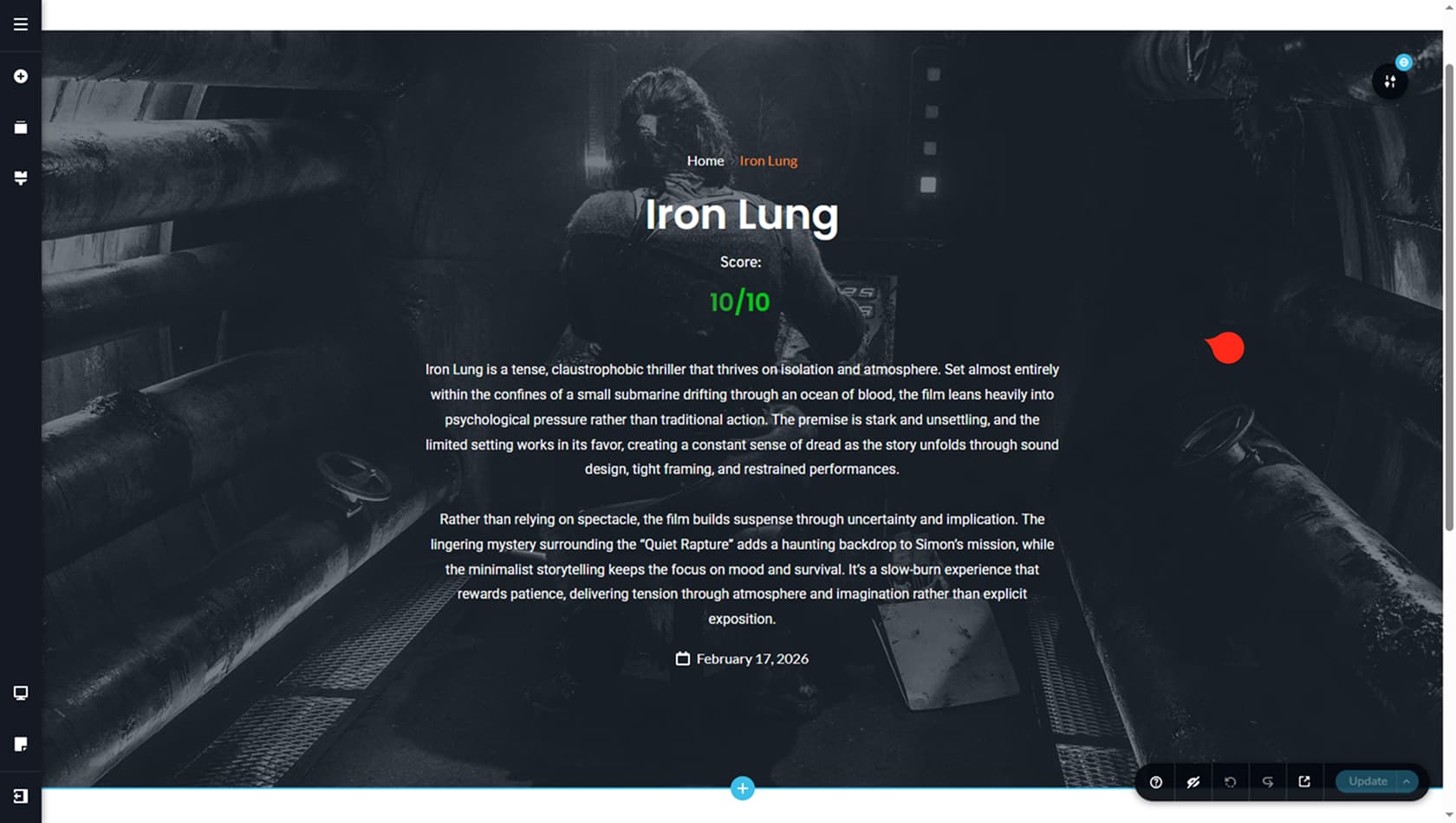
The Dynamic Template is now configured. Any future posts will automatically follow this structure as long as the required fields are completed in the CMS. Below is an example of another post created using only CMS data, without any additional edits in the builder.
Dynamic Templates are Intrinsically connected to the Dynamic Elements and the Advanced Custom Fields Assets articles. The Global Blocks article is also referenced.