Translation
The Translation widget makes it easy for visitors to switch between the languages configured in your project, helping create a more accessible and inclusive browsing experience. Commonly placed in the header, it provides quick language selection without disrupting navigation, ensuring users can view content in their preferred language at any time. By connecting directly to the languages set up in the CMS, it keeps translations consistent across the website while improving usability for international audiences. See more details in the Multilanguage article for a guide into how to set up language translations in the CMS.
Translation Options
Multilanguage
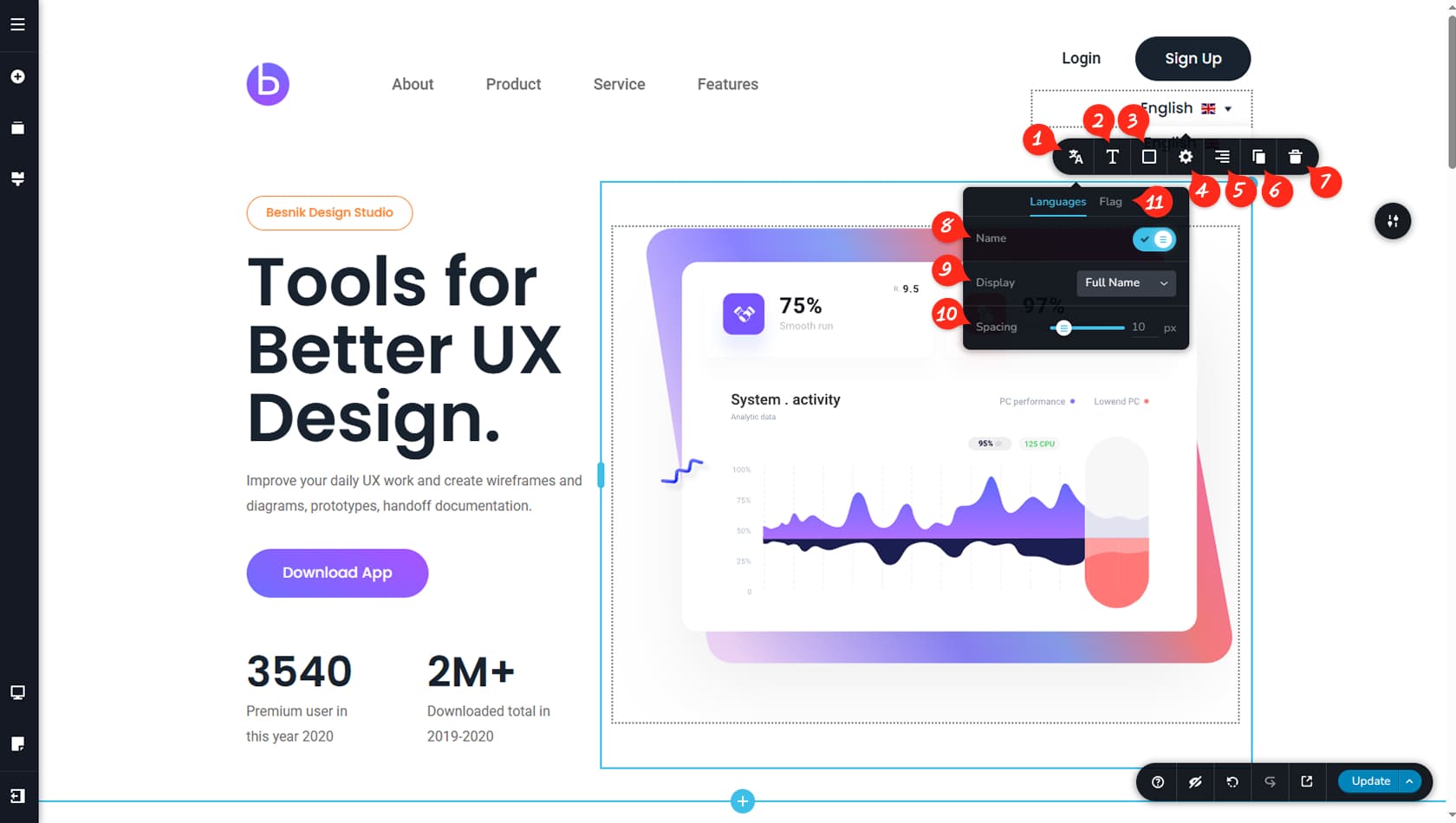
After setting up multiple languages in the CMS, drag and drop the Translate widget into the editor area. Clicking the widget will display a dropdown with the available languages. Additional customization options are available through the left-most icon in the toolbar.
Language Typography
Here you can adjust the typography of the language text displayed in the widget.
Translate Colors
This section allows you to customize the colors of the text, background, border, shadow, and hover states.
Translate Width / Height
Here you can modify the widget’s width and height, as well as access the Styling and Effects panels to adjust paddings, margins, animations, and more.
When referring to the Styling Panel of the widget, please see the Widgets Styling article for more details and an in-depth guide. Note that most widgets share similar styling options, with slight variations depending on the specific widget.
Translate Alignment
This option controls the alignment of the widget.
Duplicate Widget
This control duplicates the widget.
Delete Widget
This control deletes the widget.
Display Language Name
Here you can toggle the language name on or off. The remaining settings in this panel are available only when the name display is enabled.
Language Name / Country Code
This option lets you choose between displaying the full language name or the country code.
Language Name Space
Here you can define the spacing between the text and the flag.
Flag Options
This setting allows you to toggle the flag display on or off, as well as adjust its size and spacing within the dropdown.