Get a Google Translation API key
If you want your website translated automatically rather than typing every translation yourself, you need an API key from Google.
An API key is a long password that lets your website talk to Google’s translation service and proves the requests are coming from you. You obtain it once, paste it into your settings, and never think about it again.
Most of this is done on Google’s website, not in the builder, so those screens will not look familiar. That is expected. Only the last step happens in your project.
Google asks for a payment card before it will let you use this service, even though light usage falls inside their free allowance. This is Google’s requirement, not the builder’s.
Getting the key
Create a project
Go to the Google Cloud Console . If you are already signed in to Google in this browser, it opens straight away — otherwise sign in first. If you have no Google account yet, create one .
On the welcome screen, click Create or select a project.
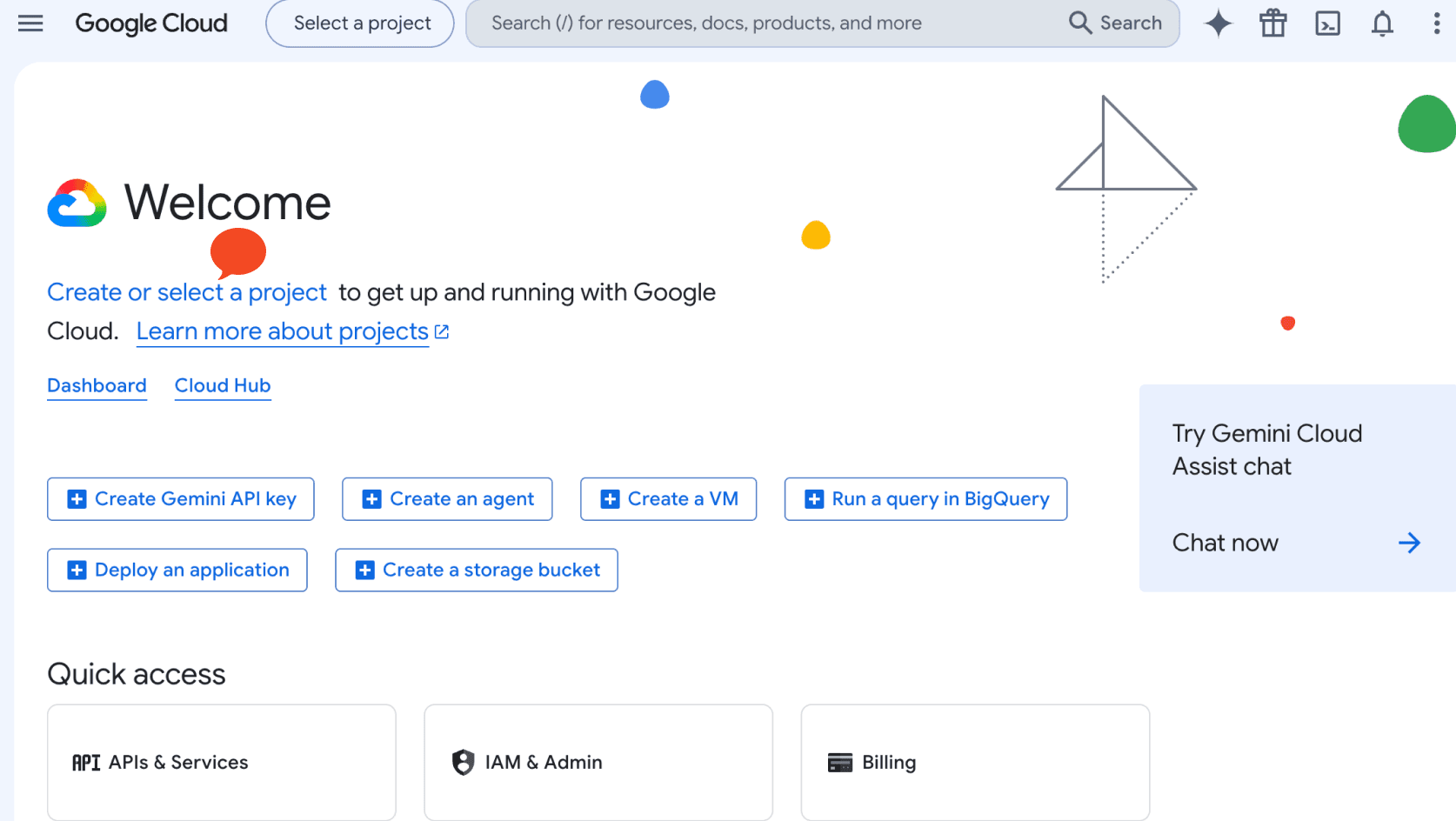
A project is just a container that keeps this work separate from anything else you do with Google.
Name it and create it
Give the project a name — here My Website — and click Create.
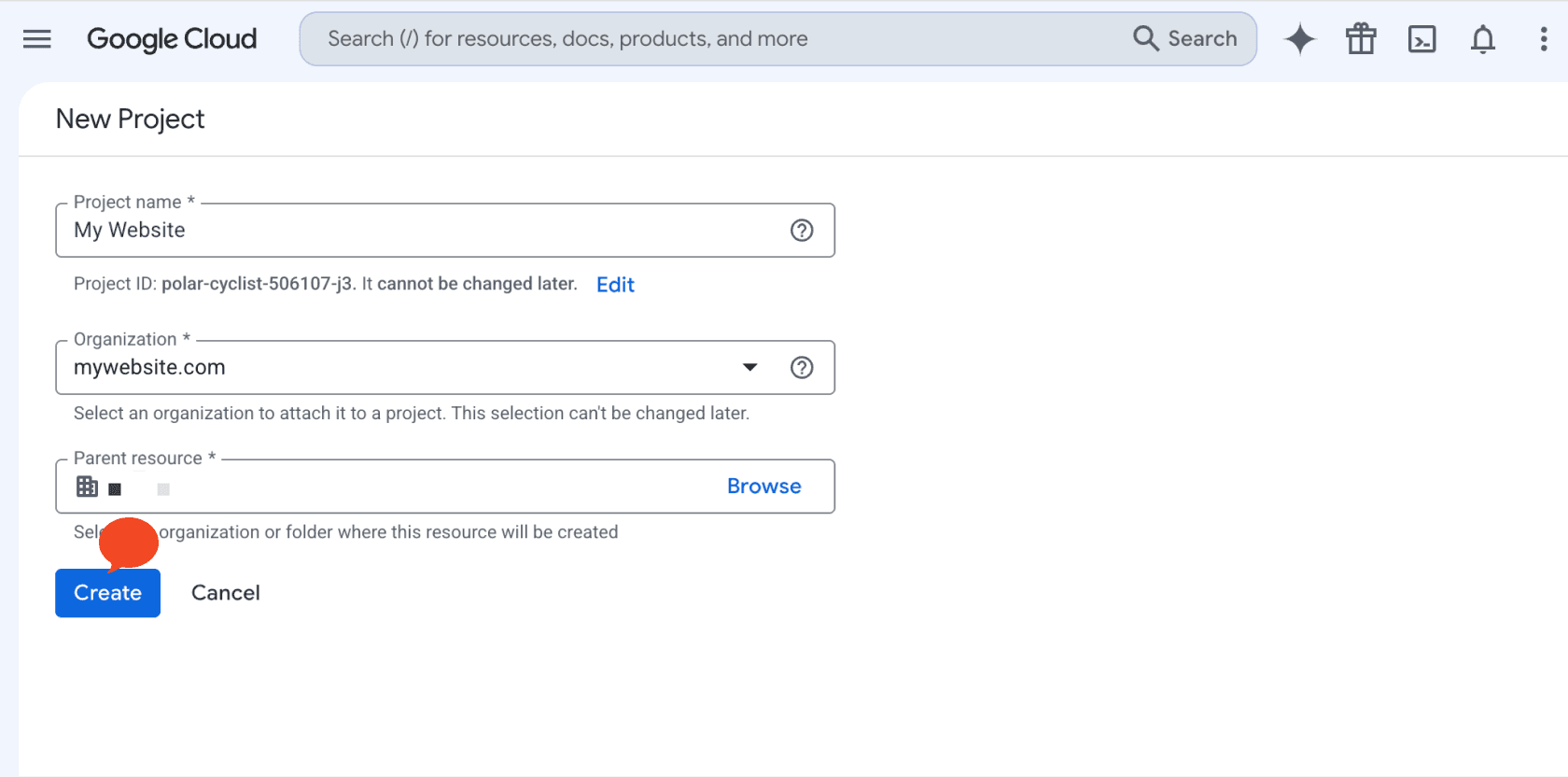
Google generates a Project ID underneath the name. It cannot be changed later, but you will never need to type it.
Search for the Translation API
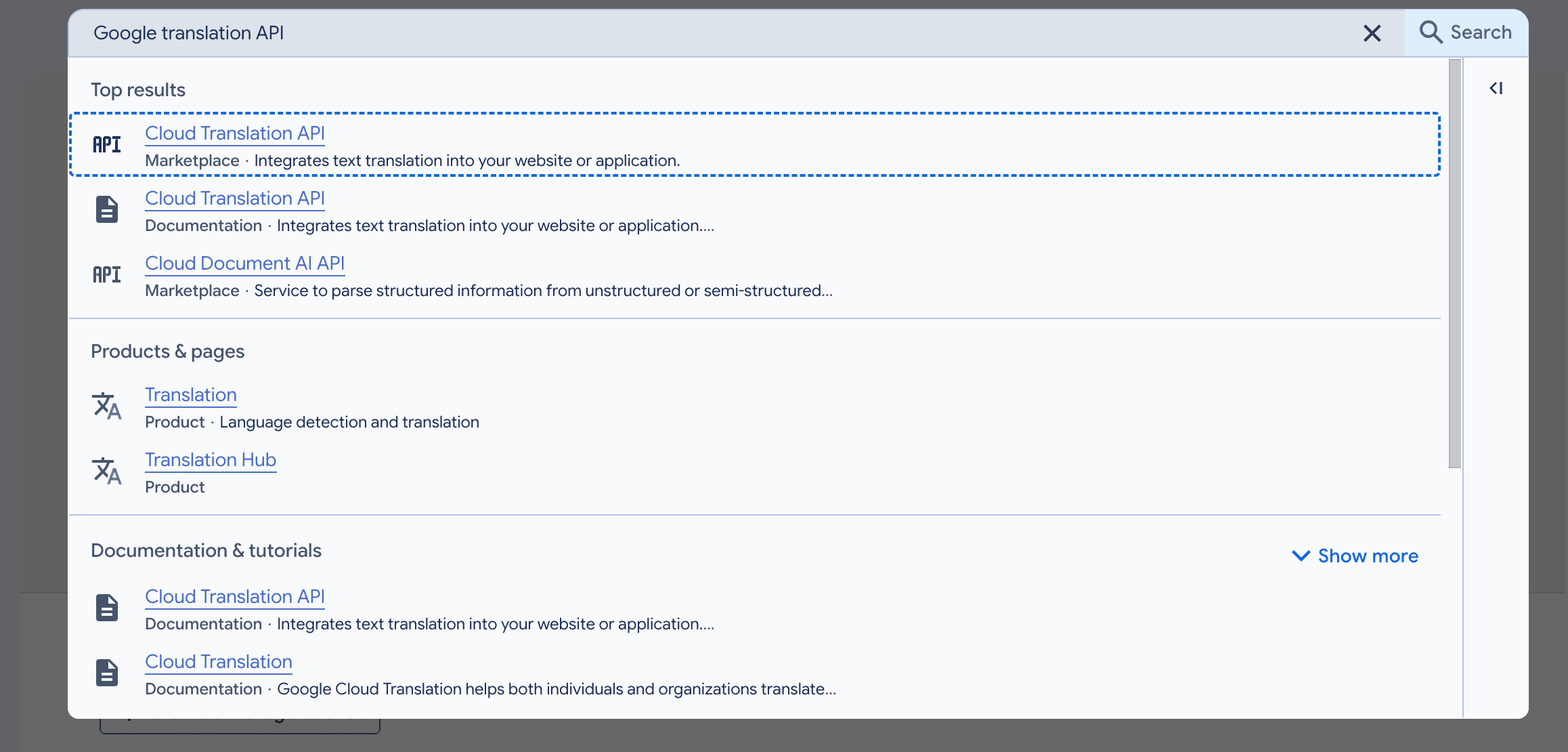
With your project selected, type Google translation API into the search bar at the top.
Choose Cloud Translation API from the top results.
Enable it
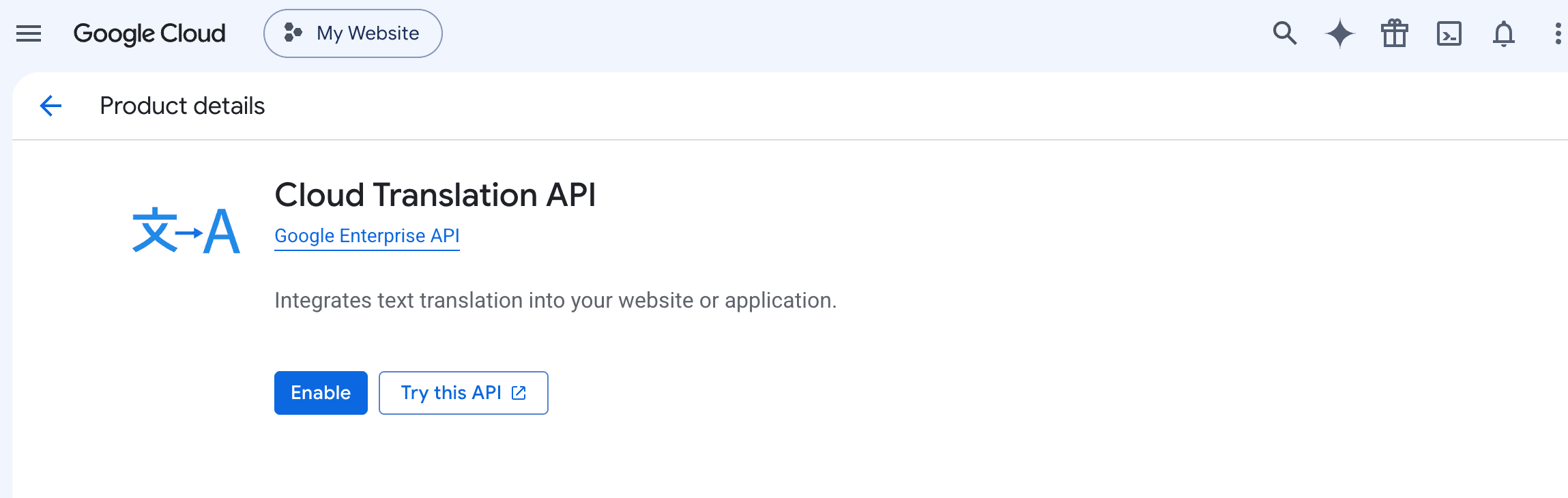
The product page opens. Click Enable.
Enable billing
A Billing required message appears, saying the Cloud Translation API needs a project with a billing account. Click Enable billing and add your card.
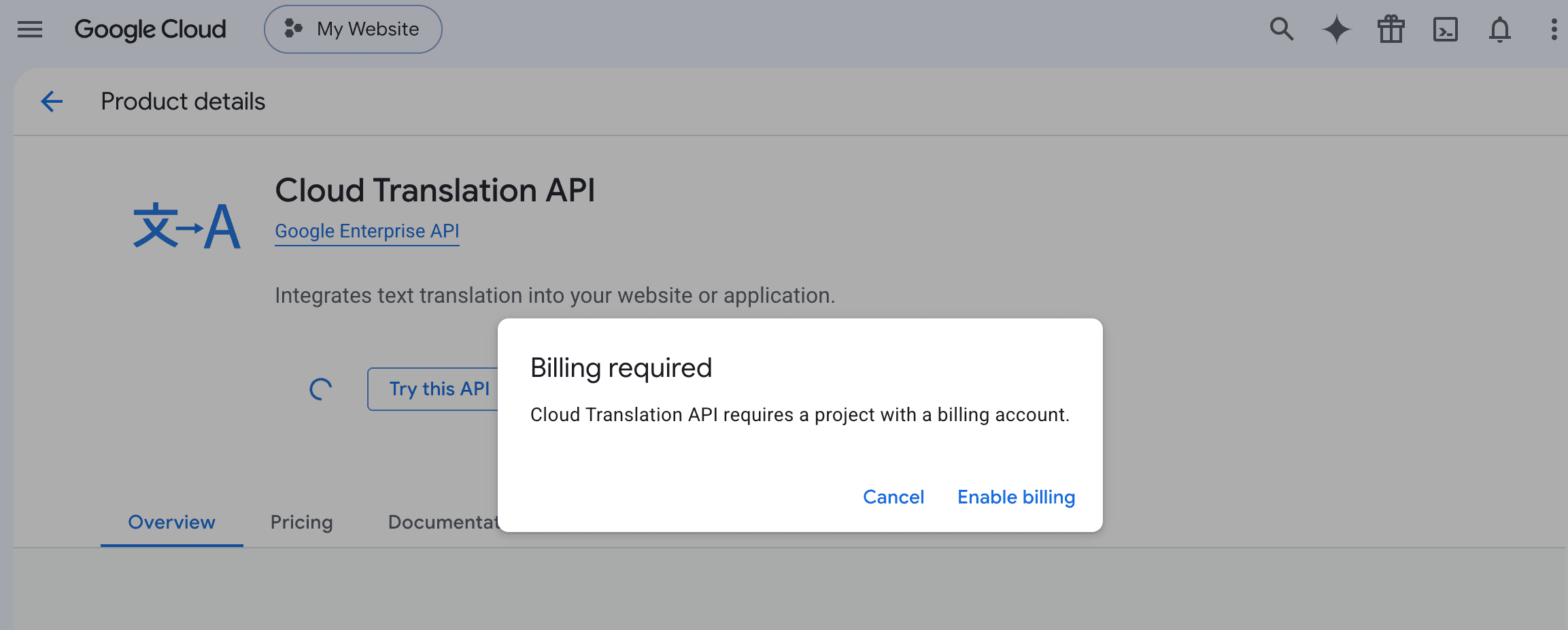
This is the step people abandon. Google requires a card on file even for free-allowance usage.
Check it is on
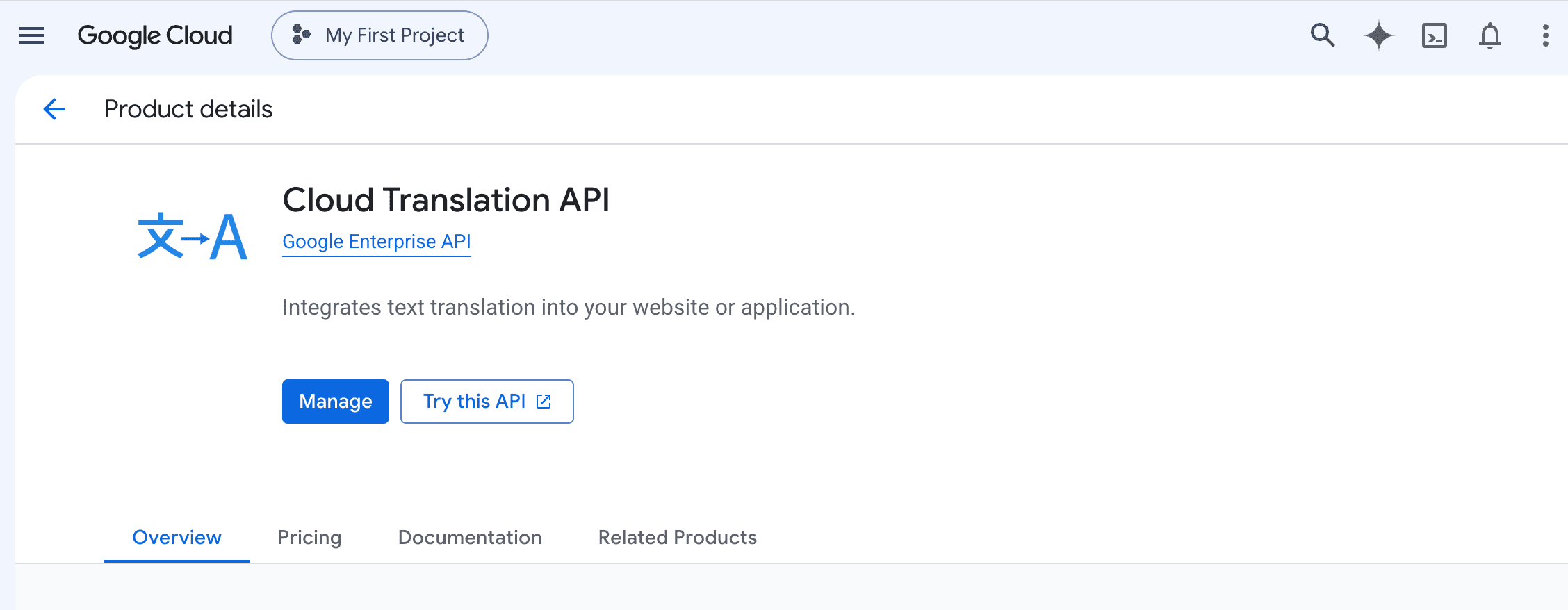
Back on the product page, the Enable button has been replaced by Manage. That is how you know the API is switched on for your project.
Create the key
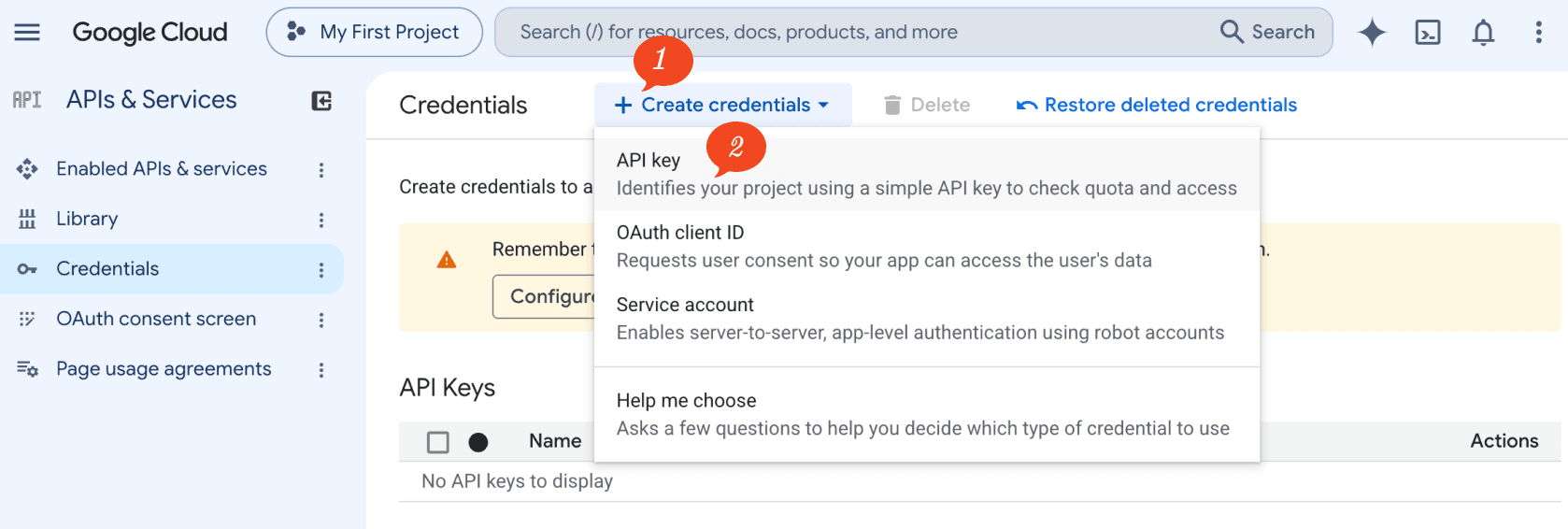
Go to APIs & Services › Credentials, click Create credentials, and choose API key.
Restrict it to translation only
Under Select API restrictions, use the filter to find Cloud Translation API, tick it, and click OK.
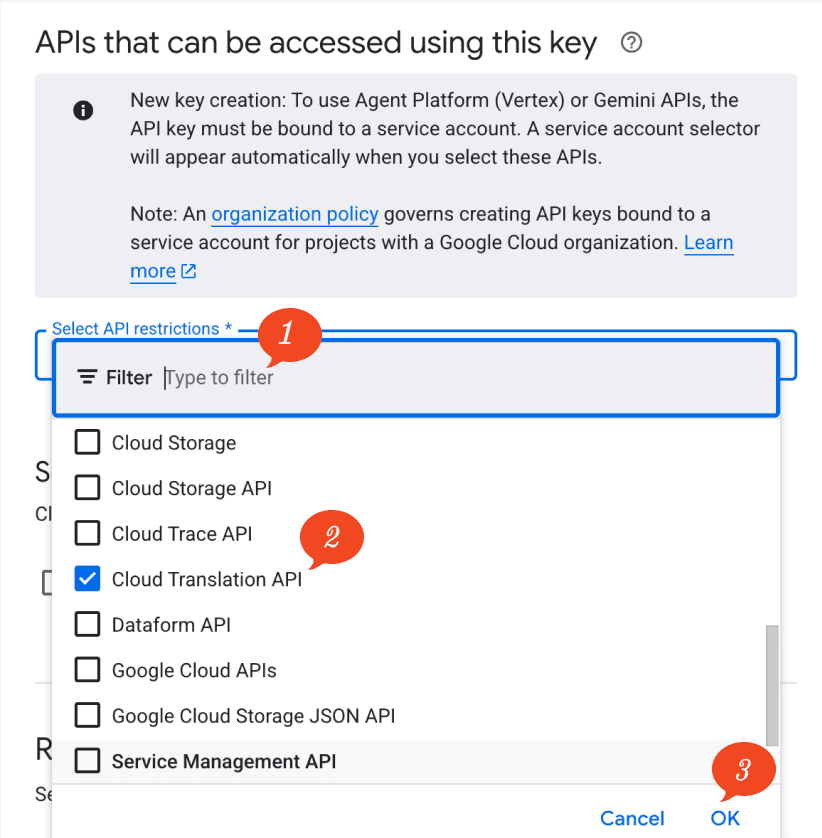
This limits the key to translation and nothing else. If it ever leaks, it cannot be used for anything more expensive.
Copy the key
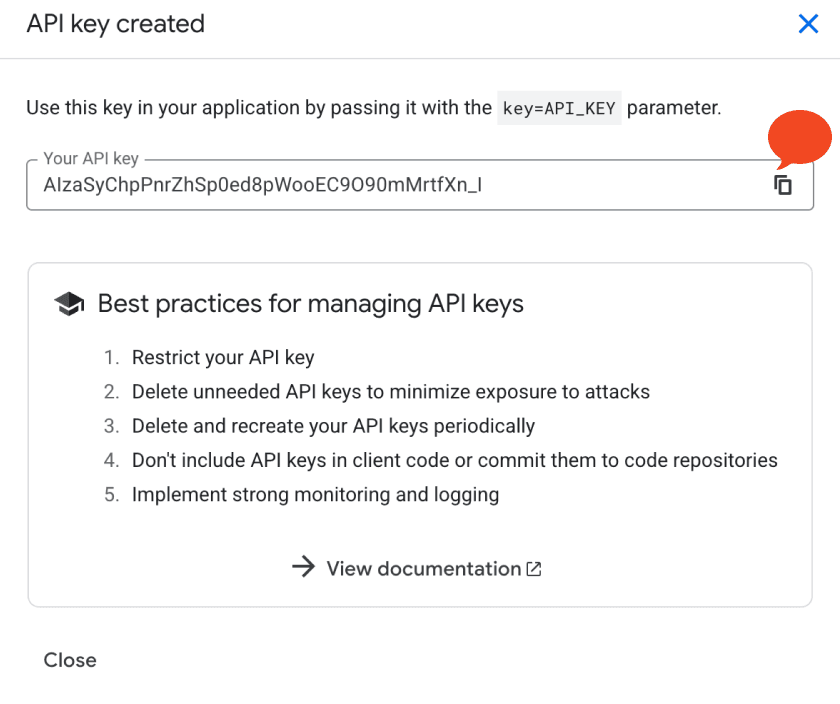
The API key created box shows your key. Click the copy icon.
Paste it into your project
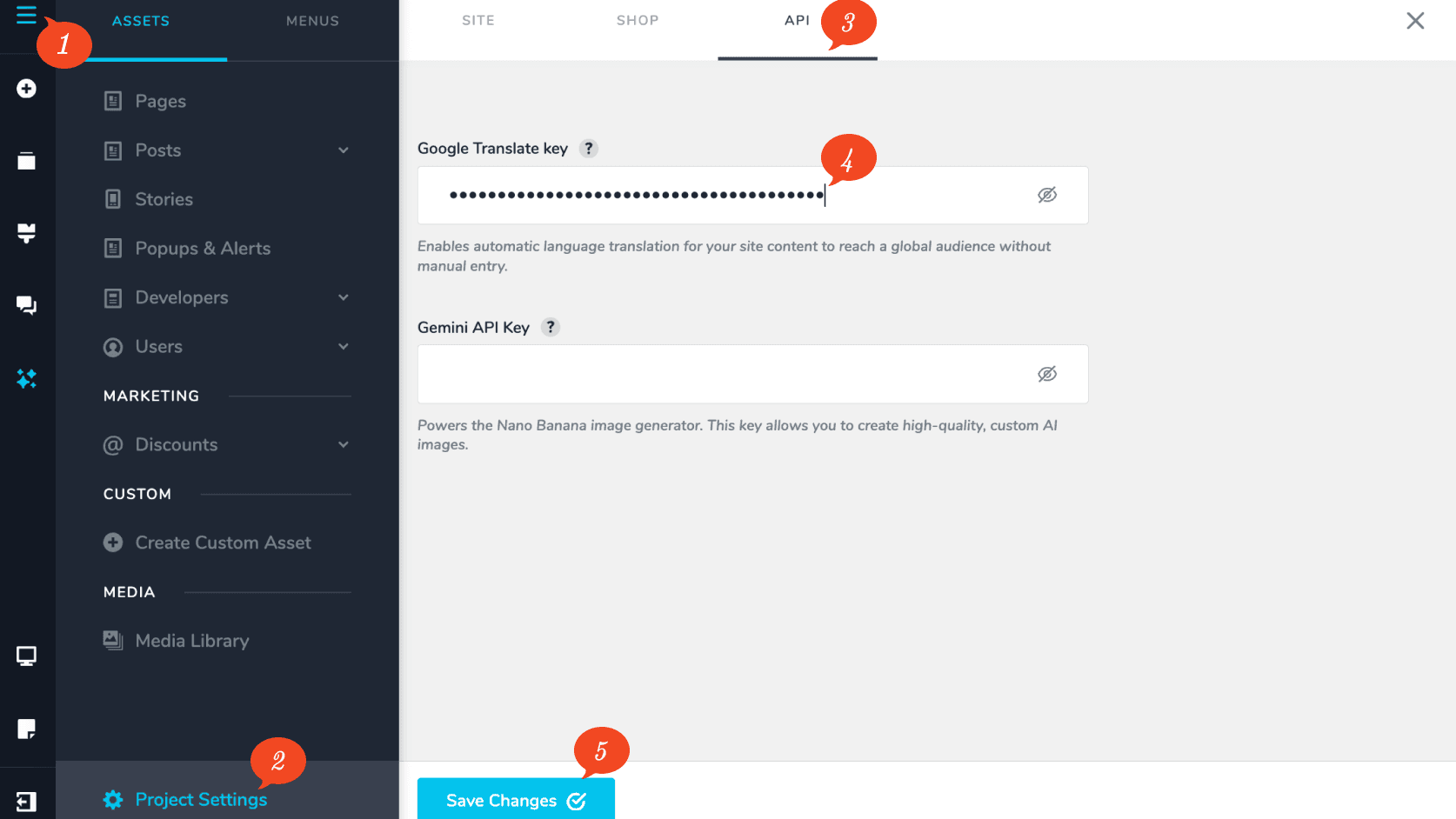
Back in the builder, open Project Settings, go to the API tab, and paste the key into the Google Translate key field. Click Save Changes.
Once it is saved you can set up your languages and switch on automatic translation. See Multiple languages.
The same screen holds the Gemini API Key field, used for generating AI images. That is a different key from a different Google service — see Get a Gemini API Key.
Look after the key
Treat it like a password. Anyone who copies it can spend translation credit billed to your card. Do not paste it into an email, a chat message, or a support ticket.
Restricting the key, as in the step above, is your safety net. If it does leak, it can only be used for translation rather than anything Google charges more for.