Web Stories
Web Stories let you present content in a visually engaging, swipeable format that feels similar to a digital pamphlet or mini slideshow. They are ideal for showcasing travel guides, restaurant menus, promotions, or step-by-step highlights in a compact space. By combining structured slides with carousel navigation, Web Stories help you capture attention quickly, improve content readability, and guide visitors through information in a more interactive and memorable way.
How to Create a Web Story
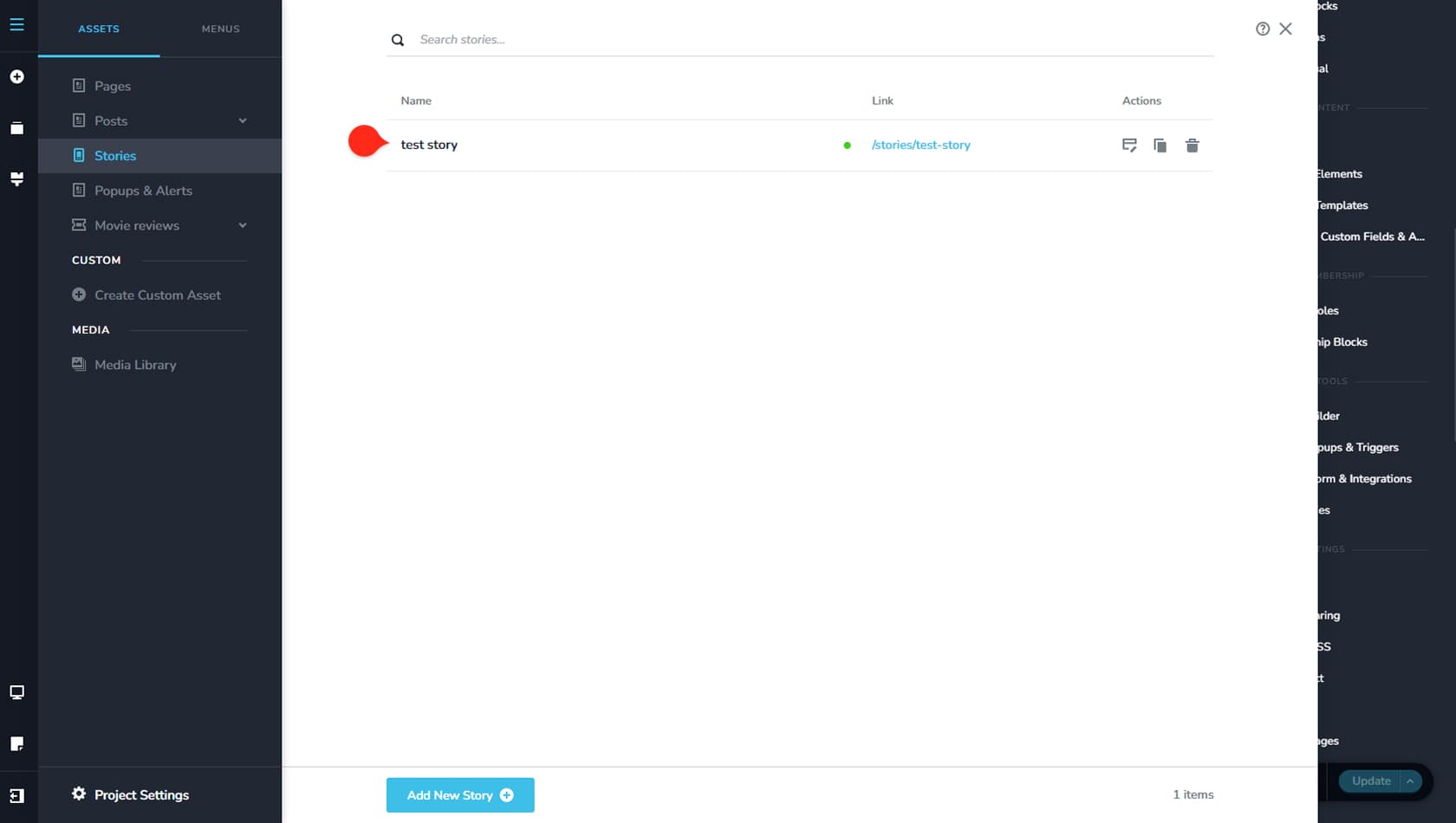
Go to the top-left icon in your UI and open the Assets panel. From here, you’ll find Stories listed below. The Stories CMS works the same way as Pages. On the right, you’ll see the list of stories with options to edit, duplicate, delete, add a new one, or set an existing story to draft.
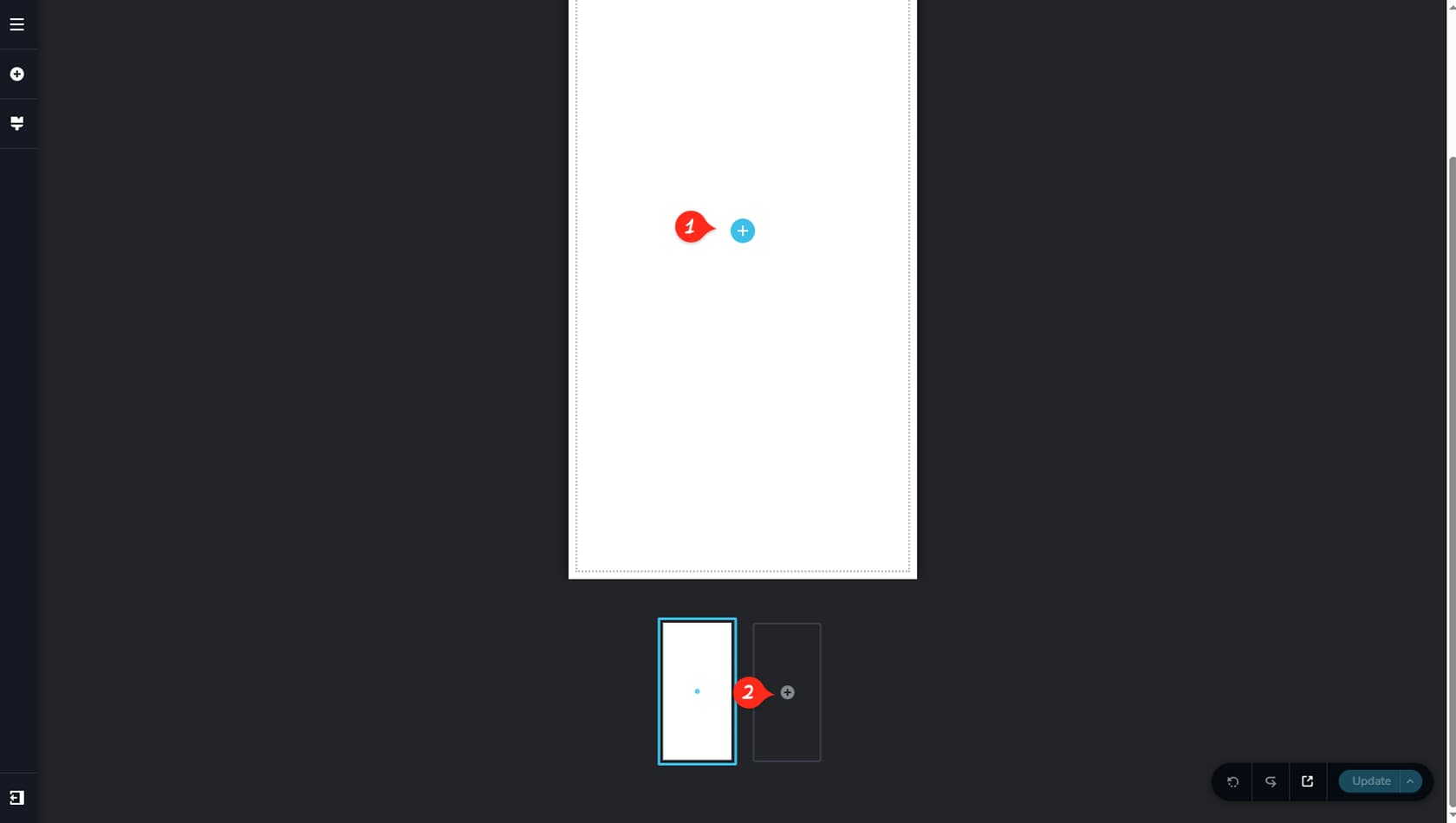
Once you create and open a new Story, you’ll see this screen where you can begin building it.
Add Widgets
Click the plus icon to add widgets to the Story, just like in any builder area.
Add Story Page
Use the plus icon inside the carousel to add a new blank page or import existing story pages.
How to Import a Web Story
Create Your Own
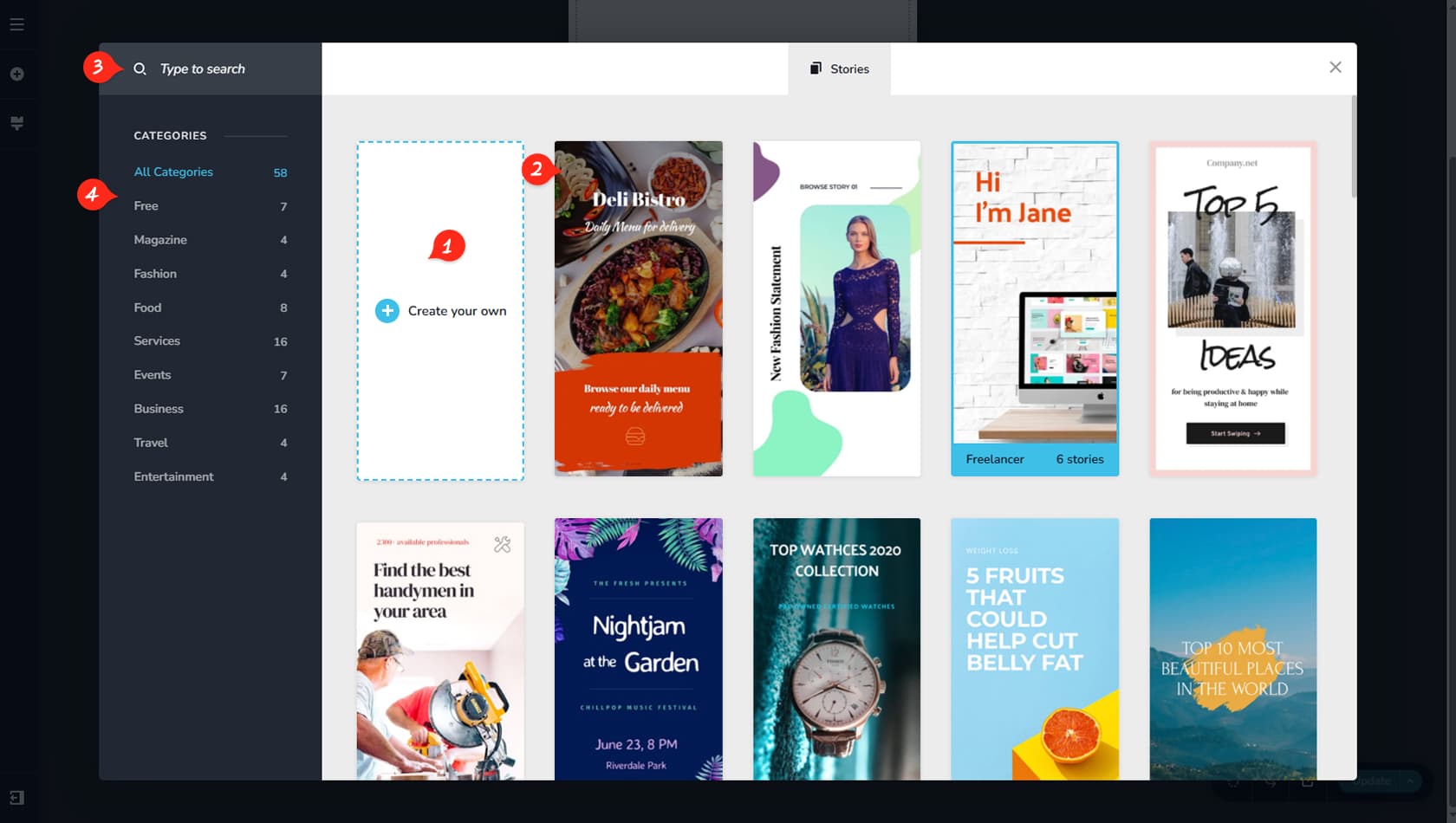
After adding a new story page, the Story Listing panel will appear, showing all premade stories along with the option to Create your own. Selecting Create your own will add a blank Story page to your current Story.
Import Story
Clicking a premade Story lets you browse its pages and import any you need.
Search Story
From here, you can search for specific stories.
Story Categories
You can also filter stories by selecting a category of your choice.
Premade Story
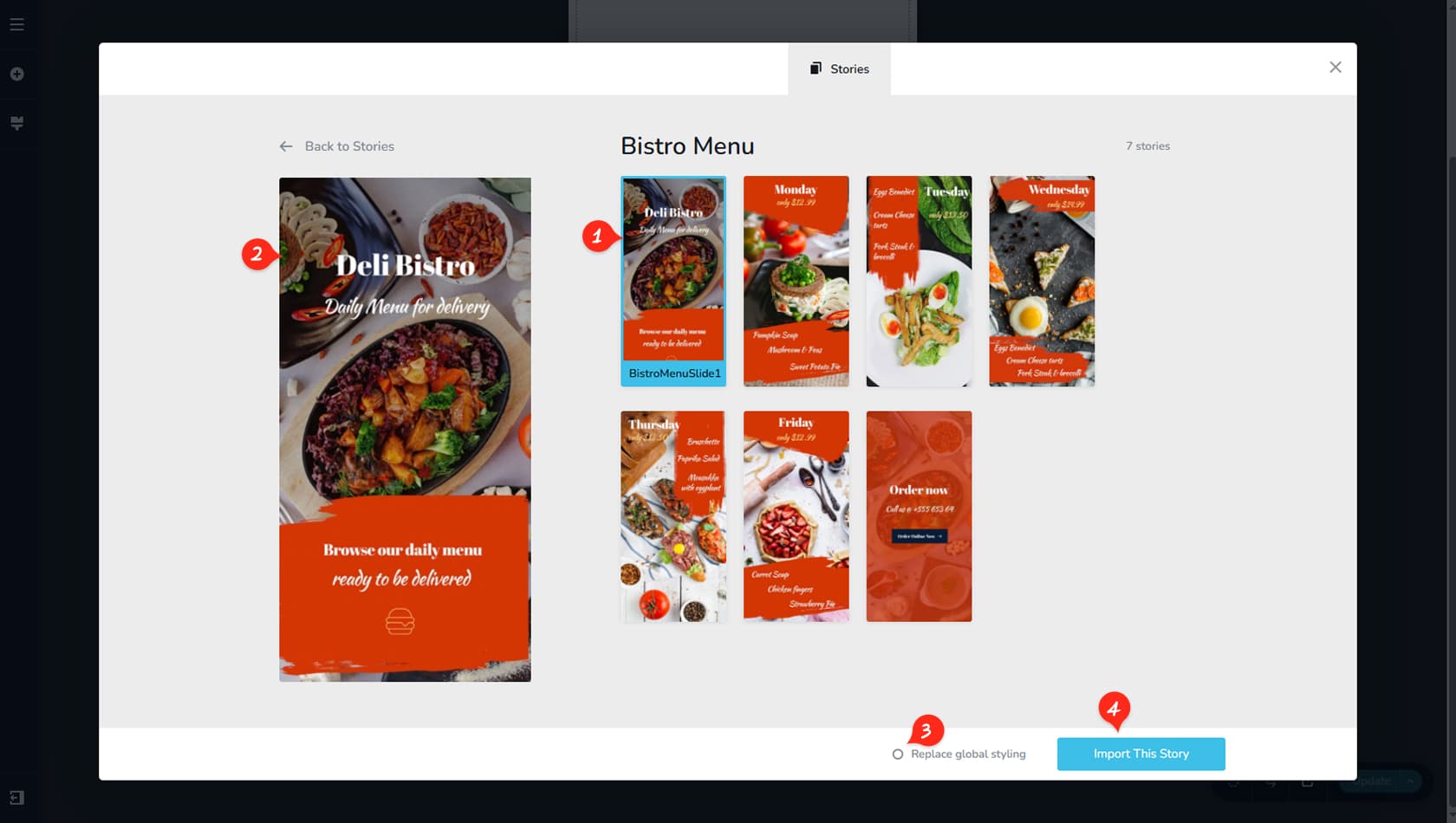
After clicking a premade story, you can view all its pages here. Click a page to select it.
Premade Story Preview
Selecting a premade story page will display a larger preview here and confirm your selection.
Replace Global Styling
If you enable the Replace global styling option before importing, your current global styling will be replaced with the premade story’s global styling.
Import Story
Once you’ve chosen a story page, click the Import This Story button to add it to your story.
The Web Story Builder Changes
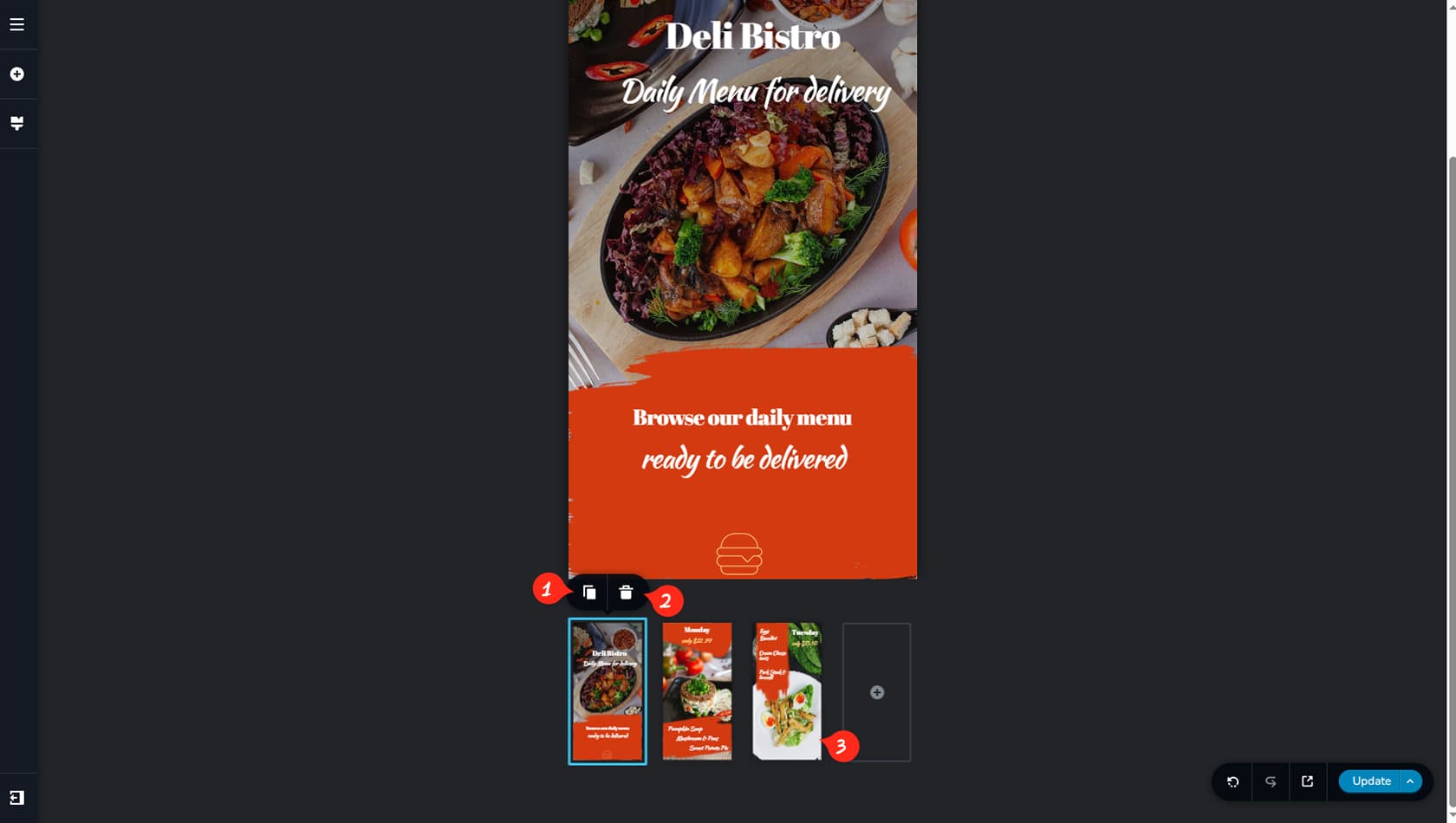
Duplicate Story Page
You can duplicate Story Pages using this icon.
Delete Story Page
If your story contains more than one page, you can delete pages (except for the last remaining one).
Navigate to Page
You can switch between story pages by clicking them in the carousel below.
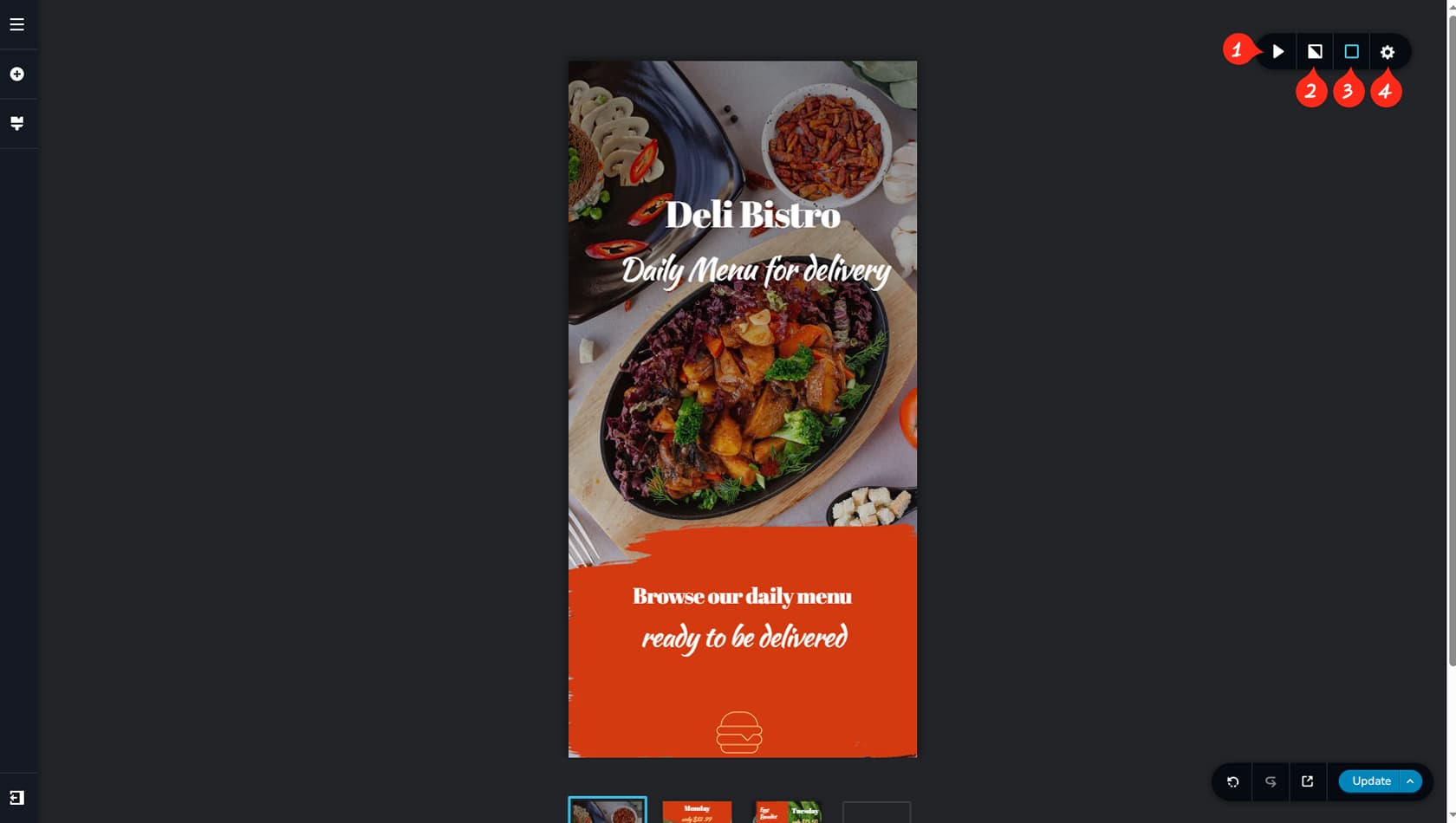
Stories have their own set of limited toolbar options.
Toggle Autoplay
From here, you can toggle autoplay for your stories, which automatically switches pages on the front end using your selected speed and loop settings.
Story Page Background Image
From here, you can set the background image for the Story Page you are currently editing, as well as apply filters and masks to that image.
Story Page Colors
From here, you can configure borders and overlay colors for the current story page.
Story Page CSS
From here, you can open the Styling panel to add a custom class and custom CSS to your story.
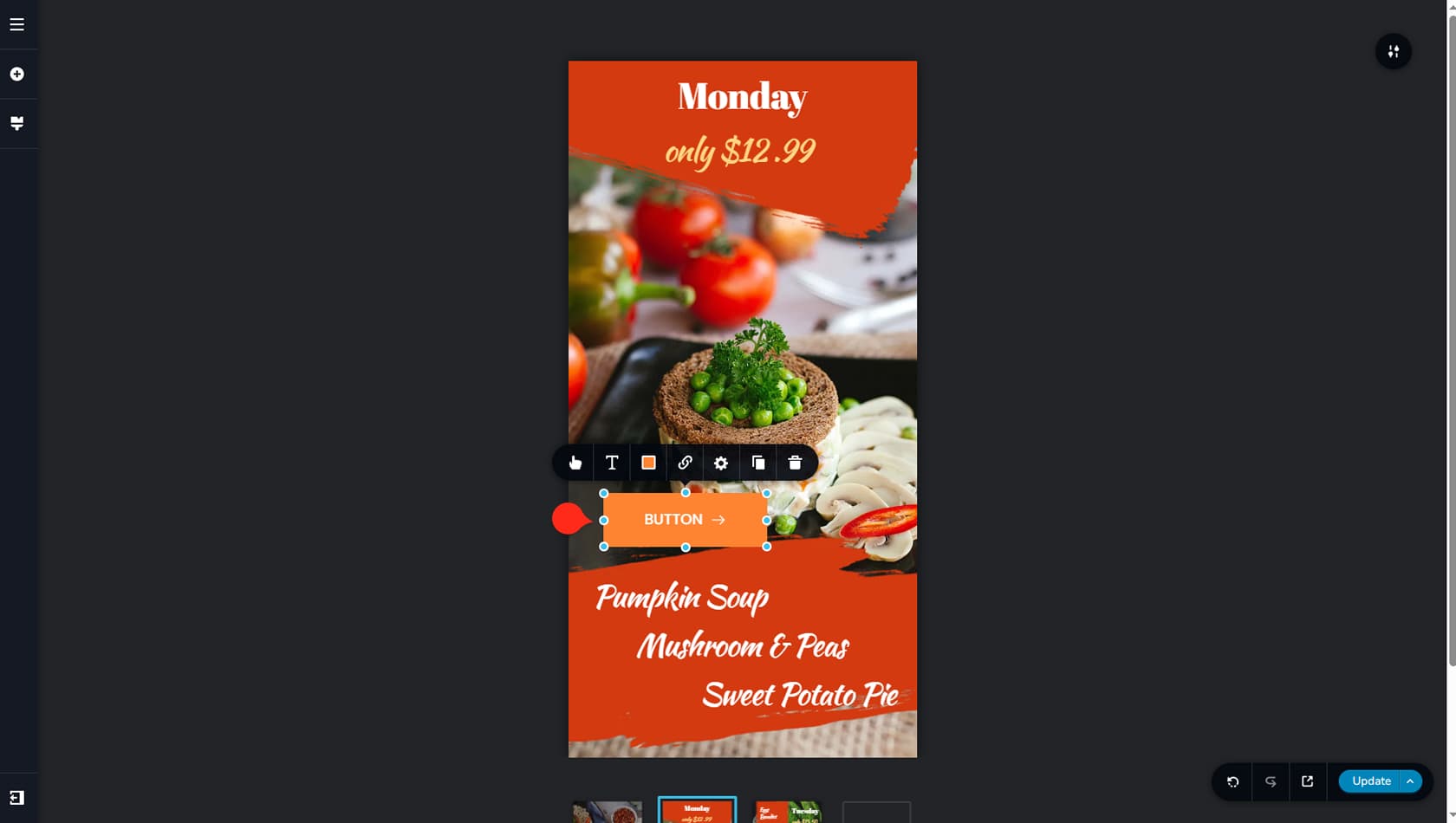
The Story content area works a bit differently from other assets. After you add a widget to the content area, you can resize it directly in the builder for more fluid control over your story page layout. Additionally, instead of dragging and dropping widgets, you can simply click them to add them instantly.
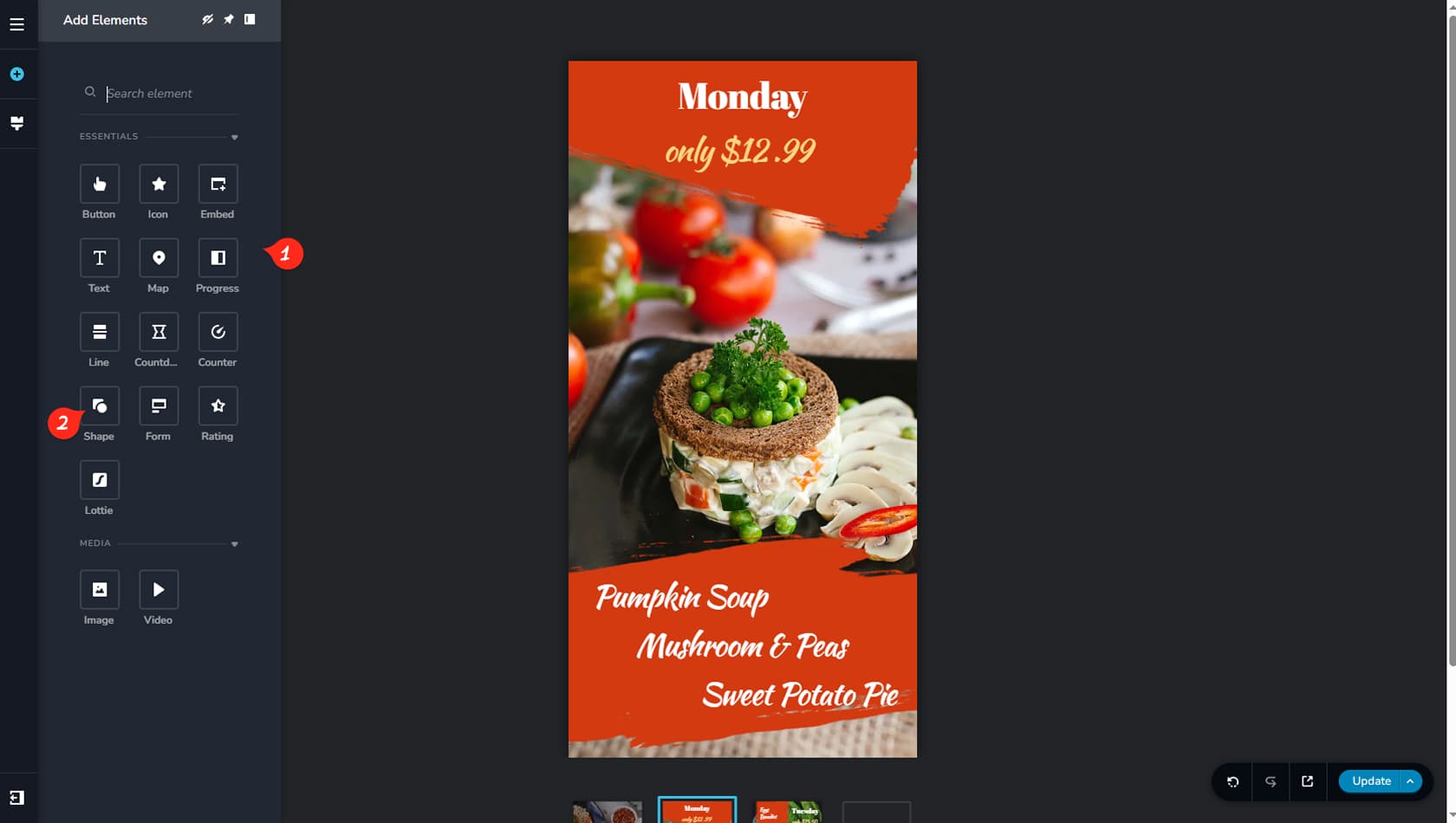
Widget List
After adding a widget, you’ll notice that its options are more limited compared to widgets in other assets. Click any widget to add it to your story page.
Shape Widget
The Shape widget is a story-specific element. It includes basic options such as background color, border color, and shadow. You can also adjust the corner radius for any corner you choose.
The Shape widget is designed to create background shapes for your story page.
How it Looks on Front-end
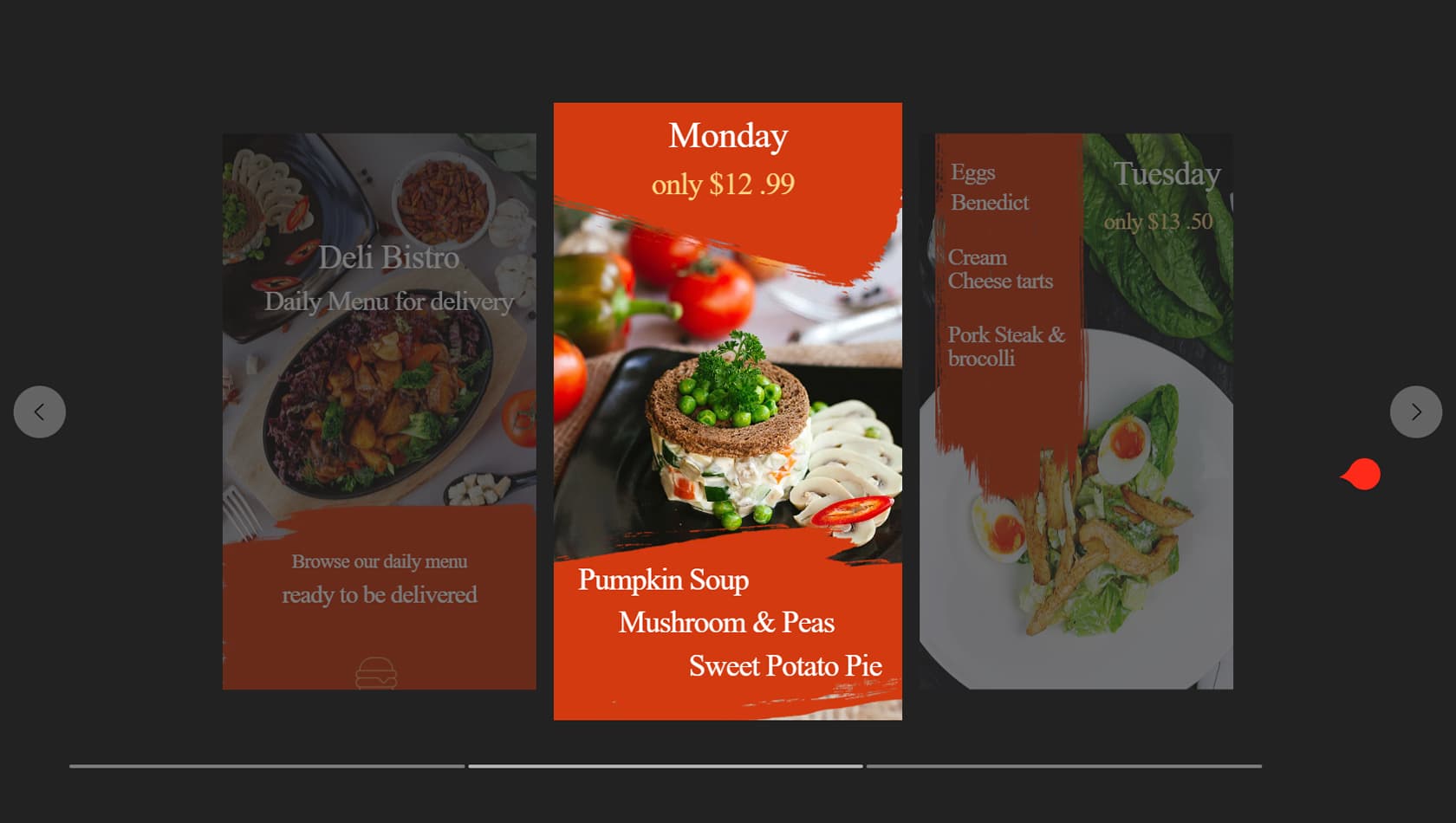
On the front end, your story appears as a carousel made up of the story pages you created, complete with navigation arrows and navigation bars below.