Posts
The Posts widget allows you to display dynamic content such as blog articles, events, or other assets in structured listings that update automatically as new items are added. By populating columns with content pulled directly from your project’s data, it helps keep pages fresh without requiring manual updates, making it ideal for blogs, news sections, portfolios, or event calendars. This dynamic approach saves time, improves organization, and ensures that visitors always see the most relevant and up-to-date content presented in a consistent layout.
While this article focuses on the front-end Posts widget, it is closely connected to topics covered in the Blogging and Dynamic Elements articles. For the full picture, we recommend checking them as well.
Posts Layout
Posts Options
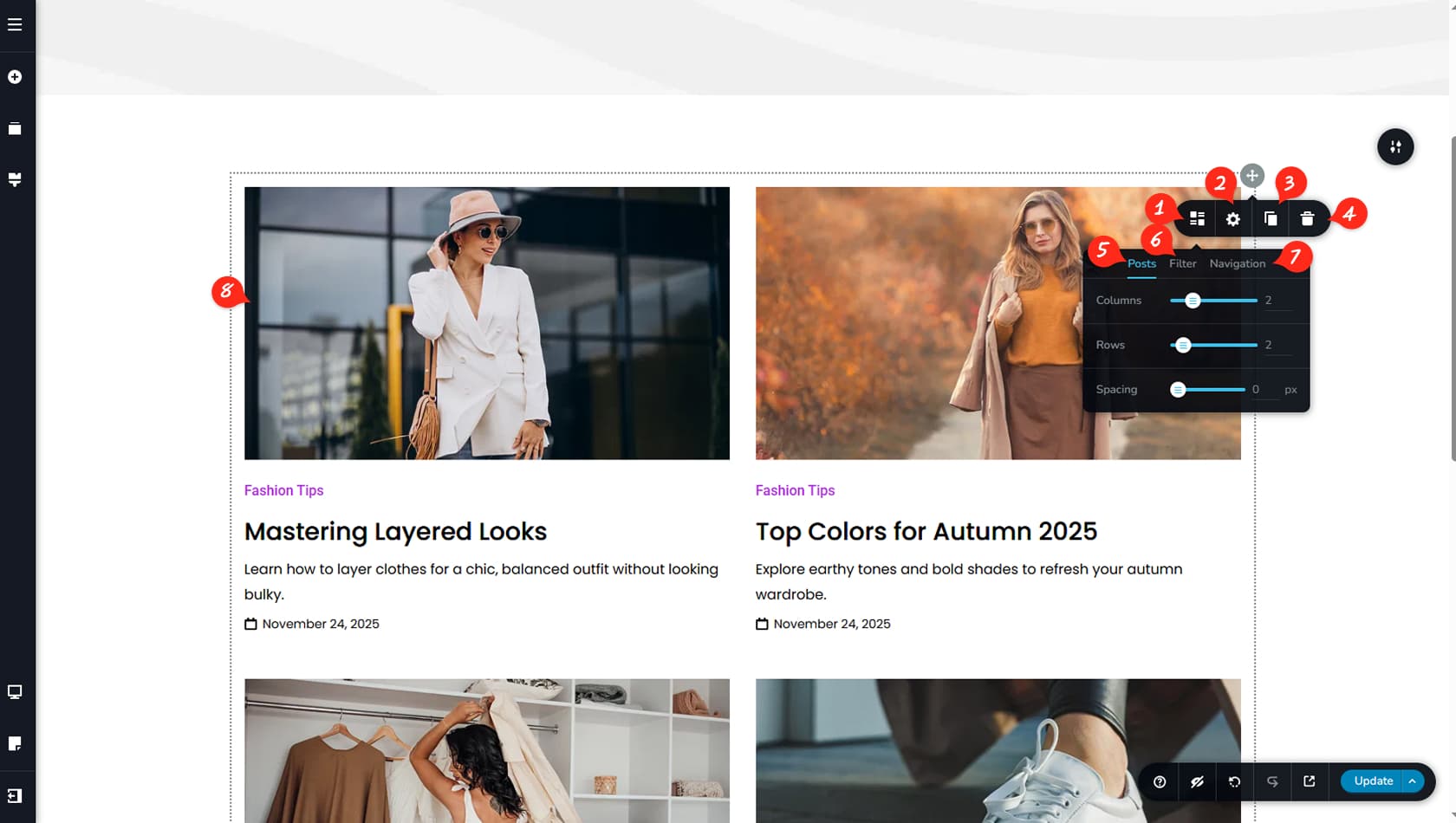
After dragging and dropping the Posts widget, click the grey icon in the top-right corner to open the toolbar. Select the left-most icon to access the main settings panel.
Posts Styling
This option opens the Styling panel, where you can adjust paddings, margins, and other visual settings.
When referring to the Styling Panel of the widget, please see the Widgets Styling article for more details and an in-depth guide. Note that most widgets share similar styling options, with slight variations depending on the specific widget.
Duplicate Widget
This control duplicates the widget.
Delete Widget
This control deletes the widget.
Posts Layout
In the first tab of the Posts panel, labeled “Posts,” you can define the number of columns, rows, and the spacing between posts. These settings determine how many items appear per row before moving to the next line.
Posts Filters
Here you can apply filters to control which posts are displayed, with additional filtering options explained later in this article.
Pagination
This toggle enables or disables pagination.
Posts Layout
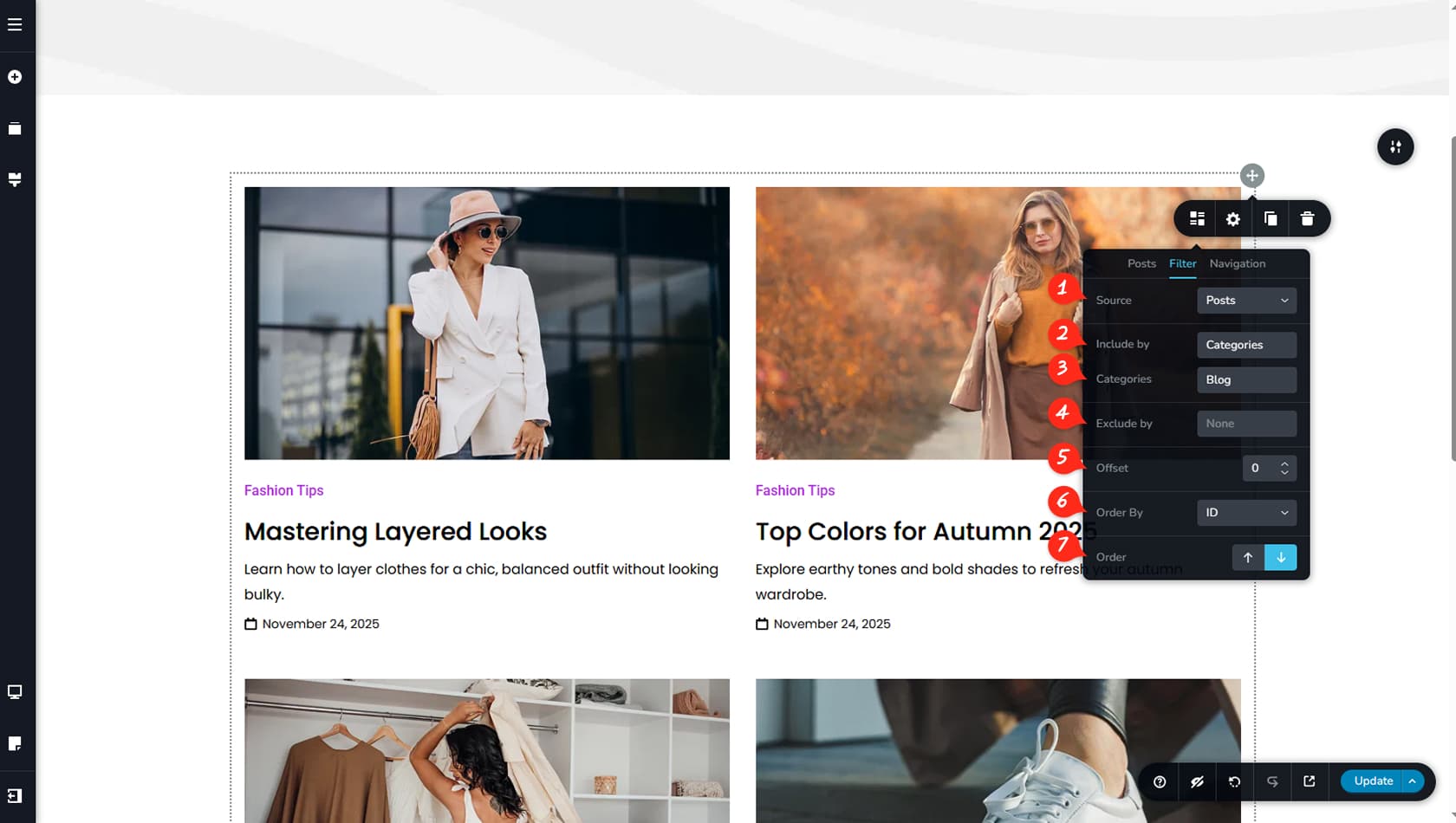
The Filter tab allows you to manage the dynamic behavior and display rules of your Posts listing.
Posts Source
This option allows the user to choose the asset that the widget dynamically populates posts with. He can choose between Pages, Posts, Stories, Categories and any other asset type they wish including advanced custom assets. More about these in the “Advanced Custom Fields Assets”.
The Source option is the most important setting in the Posts widget, as it defines which dynamic content is displayed to visitors.
Posts Include
Here you can choose to include specific categories, manual assets, or both.
Include Categories/Manual Pages
This setting lets you select which categories or assets should be included in the listing.
Exclude Categories/Manual Pages
Here you can exclude certain categories, manual assets, or both from being displayed.
Posts Offset
This option allows you to define an offset for your post listing, meaning the selected number will skip that many posts from the beginning of the dynamic content order.
As an example, choosing offset 2 means that the first 2 posts in the display order are not taken into account and the listing starts with the 3rd one.
Order By
Here you can choose how the posts are ordered, such as by ID, Title, Field, or Random.
To display posts by date, select ID here, as IDs are generated in chronological order.
Ascending / Descending
Here you can set the order to ascending or descending, depending on the selected sorting method.
Posts Pagination
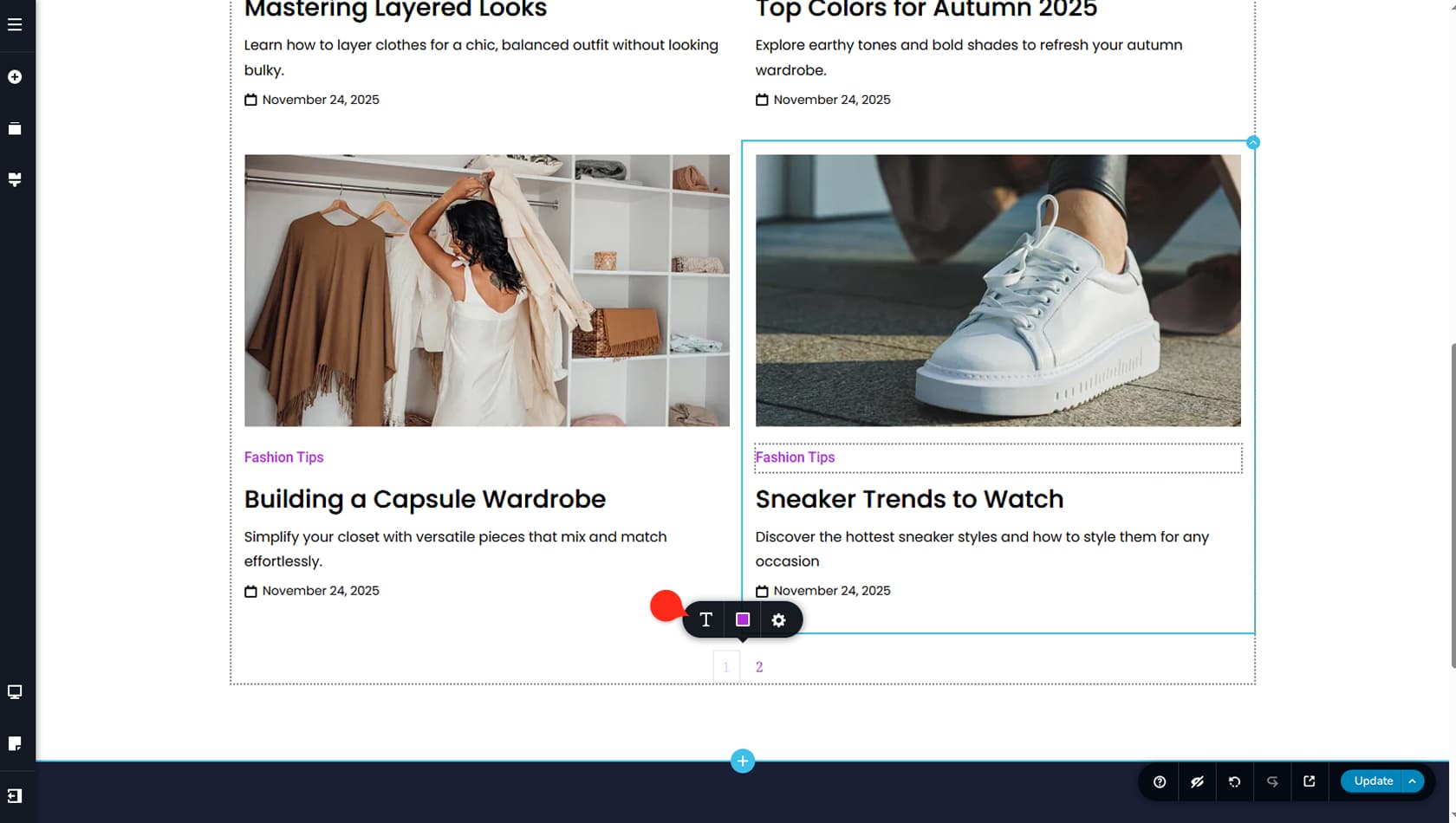
After enabling Posts Pagination, you will see pagination controls appear at the bottom of the Posts widget. These include basic customization options such as typography, background, text, and border colors, along with hover and active color states, as well as corner radius adjustments for the pagination elements.
Pagination will only appear in the builder when the number of displayed posts is lower than the total available posts, giving the widget a reason to show pagination controls.